

How to import a project template
If you don’t want to build a project from scratch, start from a template. Worklenz provides ready-made templates, and you can also save your own. You can also create your own project templates or browse the types of project templates available.
Step 1: Open the Project Creation Modal
Navigate to the Projects page from the top navigation bar and click the Create Project button in the upper-right corner.
Step 2: Set Project Details
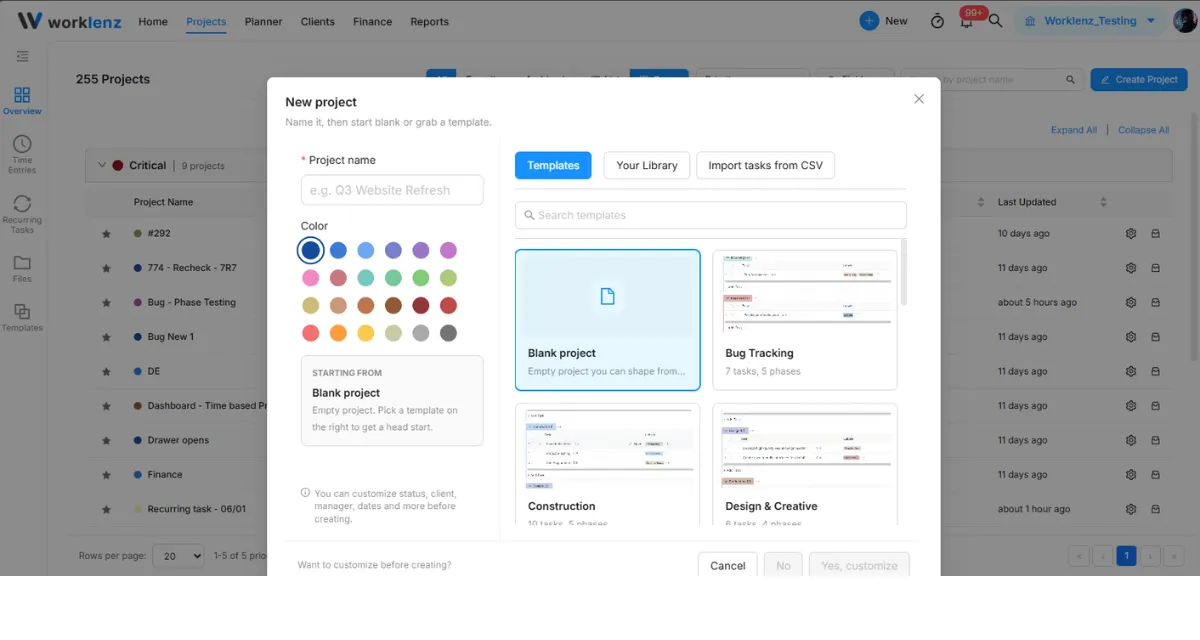
In the New project modal, configure your project’s basic information on the left panel:
- Project name: Enter a title for your project (e.g., Q3 Website Refresh).
- Color: Select a color dot to visually identify your project across Worklenz.
Step 3: Choose a Template
- In the right panel of the modal, stay on the Templates tab (or select Your Library to access custom saved templates).
- Browse through the available options (such as Bug Tracking, Construction, or Design & Creative), or find a specific one using the Search templates bar.
- Click on the template card you want to use. The Starting From section on the left will update to reflect your choice.
Step 4: Create or Customize
At the bottom of the modal, select how you want to proceed:
- Click No to create the project immediately using the default template configuration.
- Click Yes, customize if you want to configure project statuses, clients, project managers, and timelines before finalizing.
Importing a template you saved yourself
You can also import from Settings > Project Templates. Open a template’s Preview to see its description, phases, statuses, labels, and tasks, then click Import. A Configure Project window opens:
- Enter a Project Name (required).
- Choose a Project start date (required). Task dates from the template are offset from this date.
- Review the prefilled fields, such as category, project manager, estimated working days, hours per day, and budget. Change them if needed.
- Click Create Project.
Worklenz shows “Template imported successfully”. If some items cannot be carried over (for example assignees, project manager, dependencies, recurrence, rate card roles, or category), it tells you “Some template items were skipped”.
Best practices
- Pick the project start date carefully, because every task date in the template is shifted relative to it.
- Check the skipped-items message after import, because assignees and dependencies may need to be set again by hand.
- Preview a template before importing, because it lists the phases, statuses, and tasks you will get.