

Story points and estimation
Story points are a relative measure of how big an issue is. Teams use them to compare work and to decide how much fits in a sprint. In Worklenz each software project has its own point scale, and you set points on every issue. Totals then show up on sprint cards, epics and reports.
At a glance
| What it is | A per-project scale of point values and an estimate on each issue |
| Where to find it | Backlog tab > Point scale, or project settings > Estimation |
| Who can use it | Owners, Admins and Project Managers change the scale; Members set points on issues |
| Plan | Any plan |
What is the default scale?
A new software project starts with 0, 1, 2, 3, 5, 8, 13 and 21. These are the values you can pick from when estimating. Change them if your team sizes work differently.
How do I change the point scale?
- Open the Backlog tab and click Point scale, or open project settings and choose Estimation.
- Optionally pick a preset under Start from a preset: Fibonacci, Modified Fibonacci, Powers of two or Linear (1-10).
- Edit Point values, a comma-separated list. Values must be non-negative numbers between 0 and 1,000, with up to 30 values in total.
- Click Save (in the Backlog window) or Save scale (in settings). You see “Point scale saved”.
Reset to default puts back 0, 1, 2, 3, 5, 8, 13, 21. If you enter something invalid, Worklenz says “Use comma-separated, non-negative numbers only.”
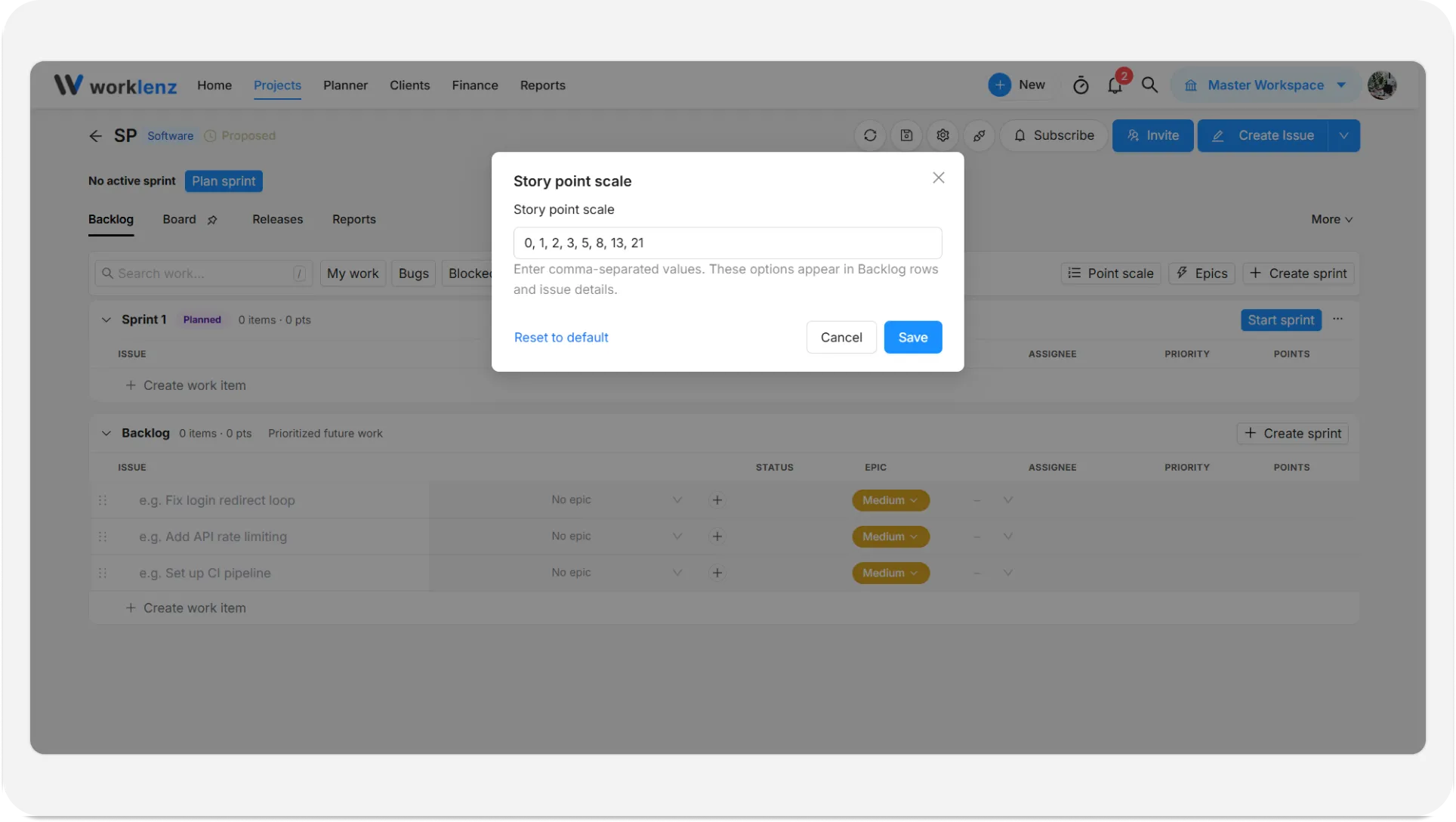
The scale only changes which options appear in dropdowns. Points already set on issues are not rewritten.
How do I set points on an issue?
- In the Create Issue window, choose a value under Estimate.
- In the Backlog table, use the Points cell on the issue’s row.
- In the issue drawer, set Story points. You can enter any value from 0 to 1,000, and clearing the field removes the estimate.
An issue with no estimate shows “No estimate” on its board card. Hovering a card’s points badge shows “3 story points”.
Where do the points show up?
| Place | What you see |
|---|---|
| Sprint card header | Planned: items and points. Active: points completed out of total |
| Sprint health bar | Points done out of total when the sprint has points, issue counts otherwise |
| Epics drawer | Points progress for each epic |
| Software board | A points badge on every card |
| Reports | Burndown, velocity and committed versus completed points. See software reports |
Tips for estimating
- Pick a scale and keep it. Switching mid-project makes velocity trends harder to read.
- Estimate before you plan. Points on backlog issues let you drag work into a sprint until the total matches your usual capacity.
- Use 0 for work that takes no real effort, and leave the estimate empty for work you have not sized yet. Empty and 0 are different.
- Split anything that sits at the top of your scale.
Example
A team’s last three sprints finished 18, 21 and 19 points. For the next sprint Dev drags issues in from the top of the Backlog until the planned sprint header reads about 20 pts, then starts the sprint.
Best practices
- Choose the point scale before the team starts estimating, because changing it does not rewrite points already set on issues.
- Stay with one scale for the life of the project, because switching mid-project makes velocity trends harder to read.
- Estimate backlog issues before sprint planning, because the planned sprint header shows the running points total as you drag work in.
- Leave unsized issues empty and use 0 only for no-effort work, because empty and 0 are different and the board shows “No estimate” for empty ones.