

Client Portal settings - defaults and branding
Portal Settings controls the defaults for your whole client portal: what is shared, what Client Admins may do, which notification emails are sent, and how the portal looks. Make your changes, then select Save Changes in the bar that appears at the bottom.
At a glance
| What it is | Workspace-wide settings for the portal |
| Where to find it | Client Portal > Portal Settings |
| Who can use it | Workspace Owners and Admins |
| Plan | Pro and Business. Branding needs Business |
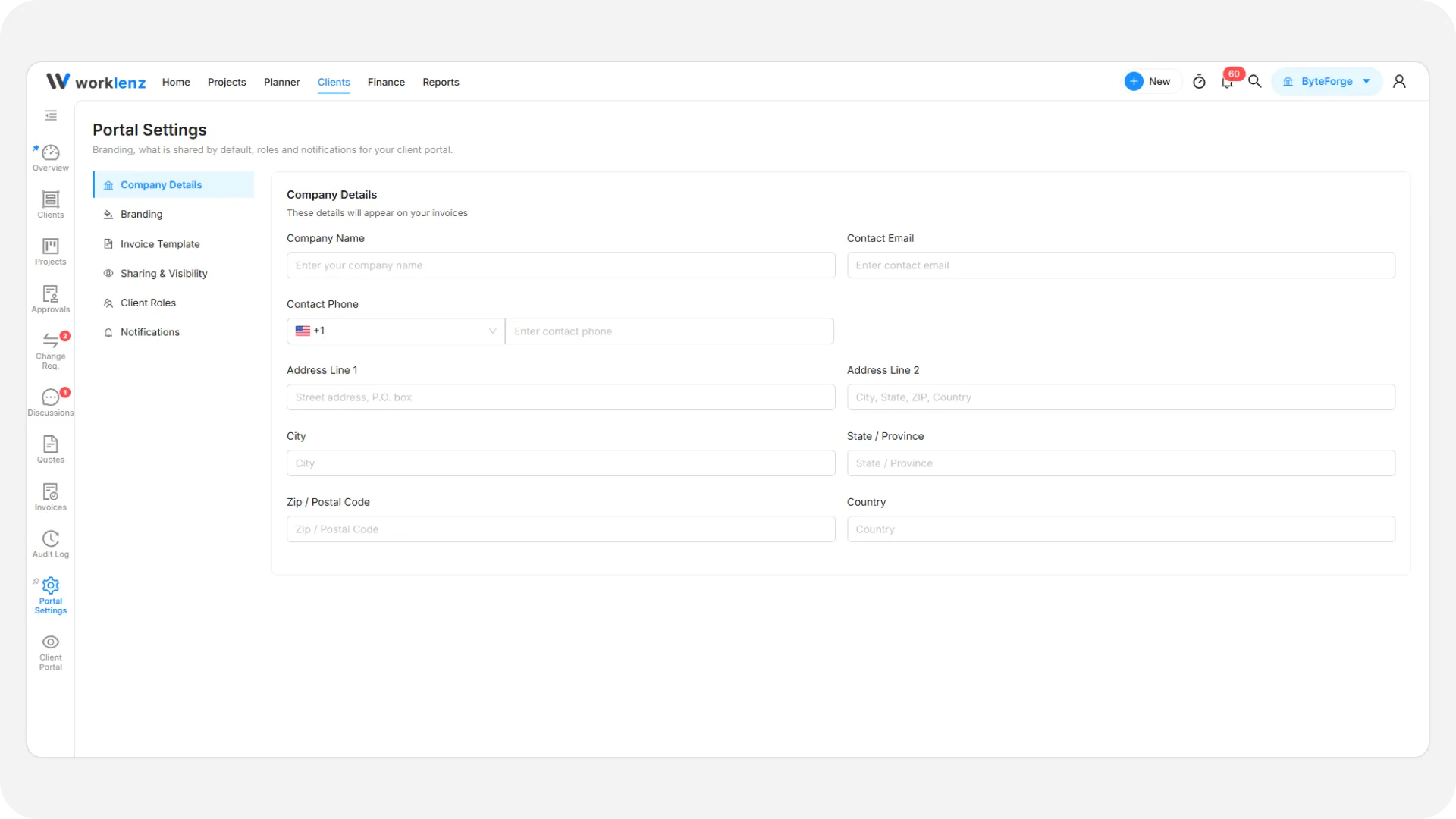
The left menu has six sections: Company Details, Branding, Invoice Template, Sharing & Visibility, Client Roles, Notifications. Success shows “Settings saved successfully”. Cancel discards unsaved edits.
Sharing and visibility
The page explains fixed rules: tasks, files, milestones and comments are Internal Only by default, and turning an item back to Internal Only removes it immediately. A panel shows how much is currently shared across portal projects. Two switches:
| Setting | Default |
|---|---|
| Show Invoices in the client portal adds an Invoices page for clients | Off |
| Allow client uploads on new portal projects lets Client Admins and Members add files; Viewers never can | On |
You can override uploads per project on its Overview tab. See share projects with clients.
Client roles
A table shows what each role can do. Two switches control Client Admin self-management, both off by default:
- Let Client Admins invite users lets them invite colleagues from their own organization.
- Let Client Admins remove users lets them remove colleagues from their own organization.
A “How clients sign in” panel is information only: nothing to set. See plans and permissions.
Notifications
In-app alerts are always on. Email is optional per event, and every email switch is off by default. Notifications to clients never contain internal-only content.
| Audience | Events you can turn on for email |
|---|---|
| Clients | New approval request; comment or reply; file shared; milestone change; project update; change request update; access changes |
| Your team | Client approval decision; new change request or follow-up; new client comment; client file upload |
A client is emailed only when your team switch is on and that person has turned email on for the event in their own notification settings. Both conditions are required.
Branding (Business plan)
On other plans the section is shown greyed out with a note that logo, colors and removing the Worklenz footer need Business.
- Open Branding.
- Under Portal Logo, select Upload Logo, pick an image, then crop it. You can choose a 1:1 square or a 250x100 shape, zoom, and select Apply Crop.
- Add a Portal Title (it appears in the portal switcher), choose a Brand Color, and pick Light portal or Dark portal.
- Switch Show “Powered by Worklenz” off if you want to hide the footer note.
- Select Save Changes.
The maximum logo size is 2 MB, and 250x100 pixels is recommended. Over the limit, you see “Logo must be smaller than 2MB.” Without a custom logo, your organization logo is used. Remove also needs a save.
Company details and invoice template
Company Details holds your company name, address, contact email and phone. They appear on invoices. Phone numbers must use international format such as +1-234-567-8900. Invoice Template lets you show your logo on invoices and add a footer message. Its accent color comes from your Brand Color. You cannot use a custom domain for the portal.
Best practices
- Select Save Changes before leaving the page, because Cancel discards unsaved edits.
- Turn on email notifications deliberately, because every email switch is off by default, and a client is only emailed if they also turn the event on.
- Switch on Show Invoices in the client portal only when you want clients to see invoices, because it is off by default and the Invoices page does not exist for clients without it.
- Fill in Company Details before your first invoice, because they appear on invoices.
- Upload a logo under 2 MB, because larger images are refused.