

Mark time off and leave
Time off is a record of the days (or hours) a team member is away. Marking it tells Worklenz that person is not available, so project managers see realistic capacity in the Schedule and Workload views instead of planning work for someone on leave.
At a glance
| What it is | A dated entry for a team member: all day or a set number of hours, with a type and an optional reason |
| Where to find it | Home > Calendar, the quick action button, Planner > Schedule, or a project’s Members tab |
| Who can use it | Members can mark their own time off from Home. From a project’s Members tab you need permission to manage members |
| Plan | Business (self-hosted behaves like Business) |
How to mark your own time off
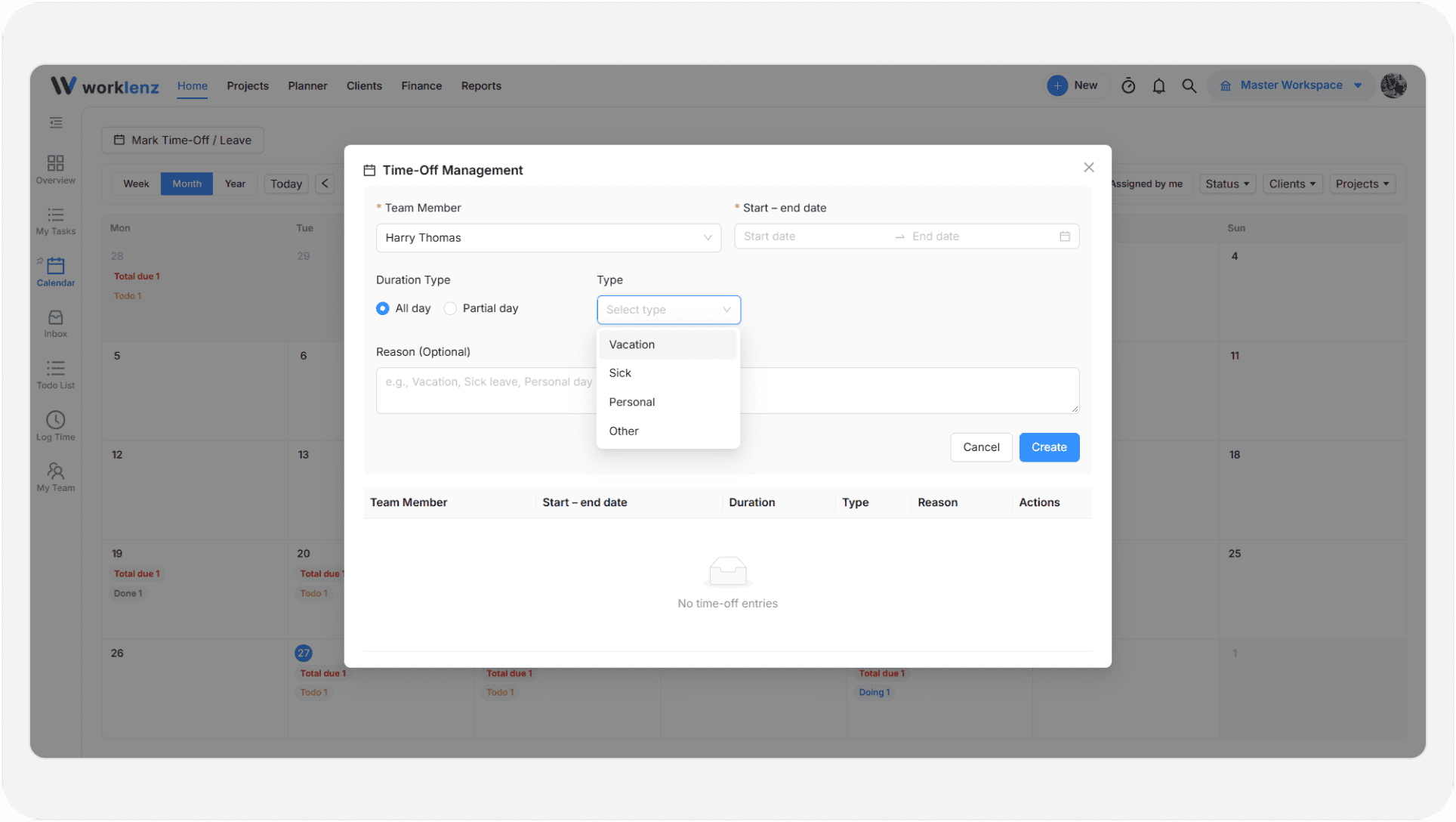
- Open Home and go to the Calendar view.
- Click Mark Time-Off / Leave.
- The Time-Off Management window opens with you already selected as the Team Member.
- Pick the Date Range. For a single day, choose the same date twice.
- Choose a Duration Type: All day or Partial day. For a partial day, enter Hours Off (for example 3.5).
- Choose a Type: Vacation, Sick, Personal or Other.
- Optionally add a Reason.
- Click Create.
The same window lists existing entries with columns for team member, date range, duration, type and reason. Use the edit and delete icons in the Actions column to change an entry. Deleting asks you to confirm with “Delete this time-off entry?”.
Time off also appears on the Home calendar as a small pill on each affected day, such as “Vacation” or “3.5h off”. Click a pill to open and edit that entry.
Other places to add time off
| Where | How |
|---|---|
| Quick action | Open the quick action button in the top bar and choose Mark Time Off. |
| Planner > Schedule | Click the Manage Time-Off button in the toolbar, then Add Time-Off. Here you can pick any member. |
| Project > Members | Open the row menu for a member and choose Manage Time Off. This is available if you can manage the project’s members. |
What happens after you save
Saving, editing or deleting an entry refreshes the Schedule, capacity and Workload data. The member’s available hours drop for those days, so workload is judged against the reduced availability.
Best practices
- Enter leave as early as you know it, because Schedule and Workload only reflect an entry once it exists.
- Use Partial day with Hours Off for half days, since an All day entry removes the whole day of availability.
- Pick a Type each time. It shows in the Home calendar pill and the history table, so teammates can tell sick days from planned vacation.
- Managers entering leave for others should use Schedule or the project Members tab, because the Home window only offers your own name.