

Project docs - write pages, notes and specs
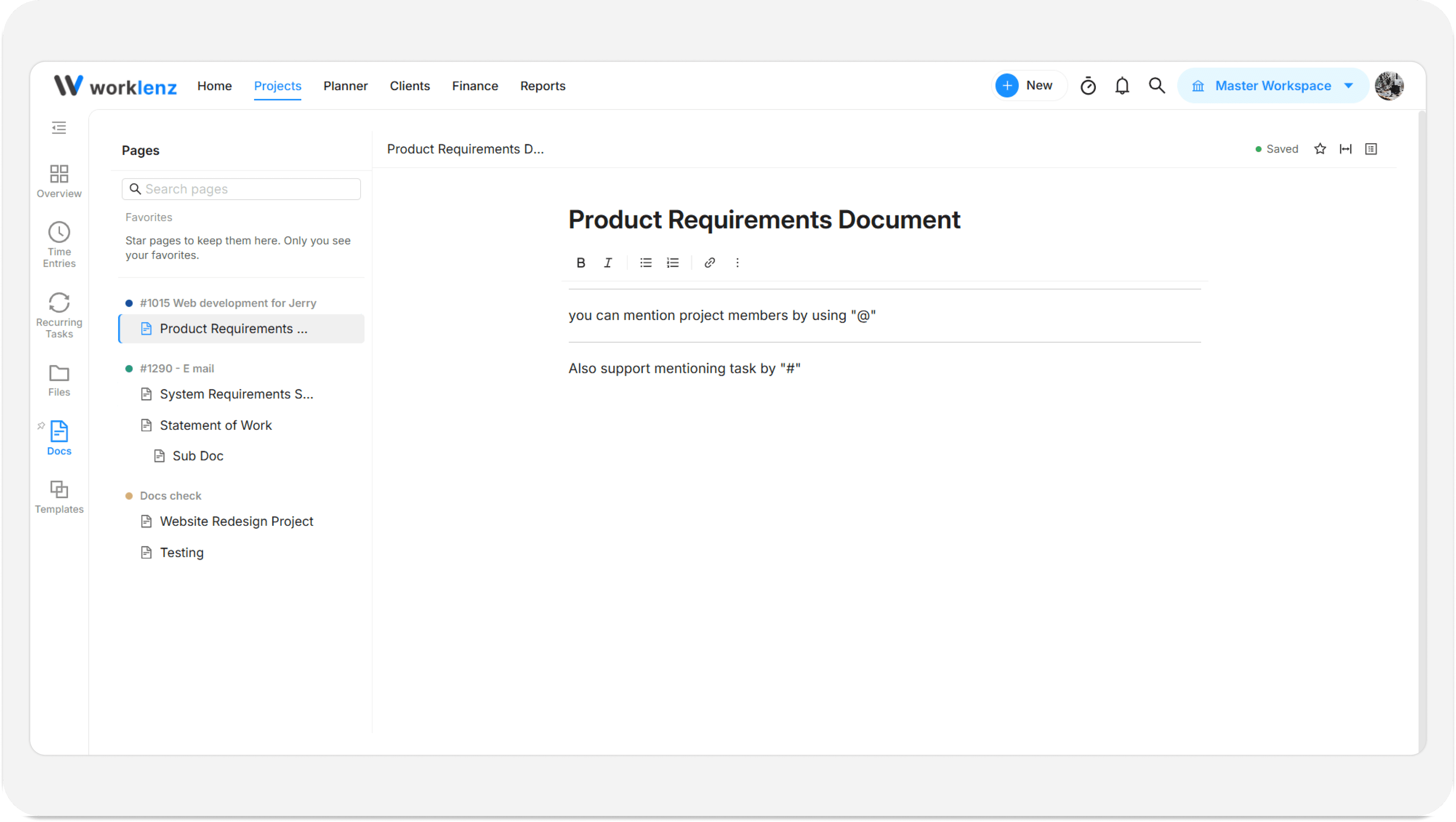
Docs are written pages that live inside a project. You use them for specs, meeting notes and decisions, so the context sits next to the tasks it explains. Pages can have subpages, and you can mention teammates and tasks directly in the text.
At a glance
| What it is | Pages and subpages written inside a project |
| Where to find it | Open a project and click the Docs tab. For all projects at once, go to Projects > Docs |
| Who can use it | Workspace members. Guests do not see the Docs tab or the team Docs page |
How to open Docs
- Open the project you want.
- Click the Docs tab in the project tabs.
If the project has no pages yet, you see “No pages yet” and a prompt to create one.
For a workspace-wide list, open Projects in the left rail and click Docs. This team page collects documents from your projects (“Documents from your projects will show up here”). You can search it and delete pages from there.
How to create pages and subpages
- In the Pages sidebar, click New page.
- Type a title in Page title. New pages start as “Untitled”.
- To nest a page, open the Page actions menu on a page and choose Add subpage.
The Page actions menu also has Rename, Duplicate, Delete, Move up and Move down. You can also drag a page to reorder it, and drag it to the right to nest it under the page above.
Use Search pages to filter the list. If nothing matches, you see “No matching pages”.
How to write with blocks
Click in the page body and start typing. The placeholder reminds you: “Write, ’/’ for blocks, ’@’ for members, ’#’ for tasks”.
Type / to open the Insert block menu. The blocks are:
| Group | Blocks |
|---|---|
| Text | Paragraph, Heading 1, Heading 2, Heading 3 |
| Lists | Bullet list, Numbered list, To-do list |
| Blocks | Quote, Divider, Code, Callout |
Hover a block to see its drag handle. Drag to reorder, or click the handle for block actions, including Turn into, which converts a block to another type. Select text to format it as bold, italic, underline, strikethrough, inline code or a link. A link needs a full web address such as https://example.com.
How to mention members and tasks
- Type @ and pick a person from Members.
- Type # and pick a task from Tasks.
If a mentioned member or task is later removed, the mention shows as “Unavailable member” or “Unavailable task”. Mentions also send notifications; see in-app notifications for where those appear.
Favorites, outline and full width
- Favorites: Star a page with Add to favorites. Starred pages appear under Favorites. Only you see your favorites.
- On this page: An outline built from your headings, so you can jump around a long page. It stays empty until you add headings.
- Full width: Turn this on to let the page use the full screen width.
- Copy link: Copies a link to the page so you can share it.
What happens when you save
Docs saves as you type. The status reads Saving…, then Saved. If something goes wrong you see “Couldn’t save” with a Retry button.
If a teammate saves a newer version while you are editing, you see “This page was updated” with their name. Click Reload to see their version. Your unsaved changes stay in your tab until you reload, so copy anything you need first.
Example
Dana is planning a website rebuild. Dana creates a “Launch plan” page, adds subpages for “Content audit” and “Redirects”, then uses # to link the tasks that depend on each decision. Sam is mentioned with @ on the redirects page and is notified.
Best practices
- Copy your own edits before clicking Reload on a conflict, because Reload replaces your view with the newer saved version.
- Use headings, because the On this page outline is built only from them.
- Keep related pages nested as subpages, because deleting a parent deletes its subpages too.
- Use # task mentions instead of pasting task names, because the mention points to the real task.