

GitHub for software projects - link repos and branches
GitHub integration shows branches, pull requests and commits on the issues they belong to, and lets you start a branch from an issue. An owner or admin connects GitHub once for the whole workspace. Then you link repositories to individual software projects.
At a glance
| What it is | Issue-level view of GitHub activity, plus branch creation |
| Where to find it | Project settings, Integrations; the Development section on an issue |
| Who connects GitHub | Workspace Owner or Admin only |
| Who links repositories | People with project settings permission |
| Works on | Software projects only |
For general settings see software project settings.
How to connect GitHub
Only a workspace Owner or Admin can do this. Others see the button disabled with “Only team owners and admins can connect GitHub.”
- Open the project settings gear, then Integrations. You can also go to Settings, then Integrations.
- Click Connect GitHub.
- Install the app on GitHub and choose the account.
- You return to Worklenz with “GitHub connected successfully.”
If an organization needs to approve the install, you see “Installation was requested. An organization owner needs to approve it.”
The connected card shows the account, a Connected tag, how many repositories are available, and the buttons Refresh repositories, Sync status and Disconnect. A workspace can connect one GitHub account, and a GitHub account can belong to only one workspace.
How to link a repository to a project
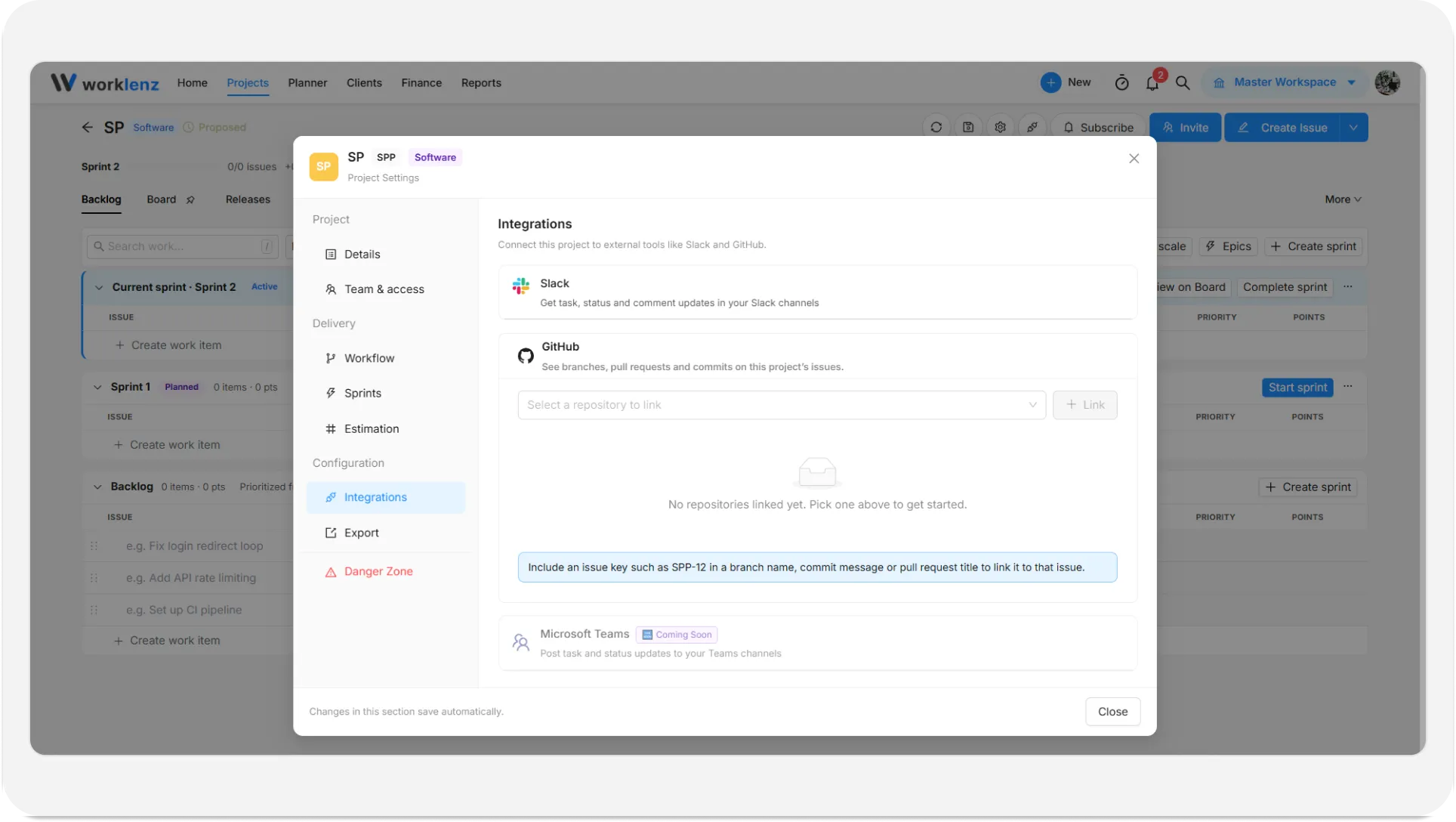
- Open the software project and click the gear, then Integrations.
- In the GitHub block, choose a repository from Select a repository to link.
- Click Link. You see “Repository linked.”
The linked row shows the repository name, a Private tag if relevant, and an editable Base branch.
How do issues connect to GitHub activity?
Include the issue key, such as KEY-104, in a branch name, commit message or pull request title. Keys are not case-sensitive, and only your project’s own key counts. Closing words such as fixes, closes or resolves in a commit message close the issue; “Fixes KEY-1 and KEY-2” closes both.
What does the Development panel show?
Open an issue and find Development. It lists:
- Pull requests with number, title, branch, author and a status such as Open, Draft, Approved, Changes requested, Merged or Closed.
- Branches, tagged Deleted if removed from GitHub.
- Commits, five at first, then Show all and Show fewer.
If nothing is linked it says “No GitHub activity yet” and reminds you to include the issue key. If no repository is linked it points you to Project Settings > Integrations.
How to create a branch from an issue
You need a linked repository and the right to create tasks. Guests cannot.
- Open the issue and go to Development.
- Click Create branch.
- Choose the Repository, a Type prefix (feature/, bugfix/, hotfix/ or chore/), a Branch name and the Base branch. The name starts as the issue key plus the title.
- Create it. You see “Branch created.” with a command to copy and run locally.
Branch names use letters, numbers, dots, dashes, underscores or slashes.
If it fails you may see “A branch with this name already exists”, “The base branch was not found in this repository”, or a message that the GitHub App needs write access to contents. Ask an admin to grant it.
How to remove a link from an issue
Use the trash icon beside a branch, pull request or commit, then Remove. This only hides it on the task. Nothing changes on GitHub.
How to unlink a repository
In Integrations, use the delete icon on the linked row and confirm Unlink. Existing links on issues stay, but new activity is no longer tracked. To disconnect GitHub for the whole workspace, an Owner or Admin clicks Disconnect. Existing links and history are kept and resume if you reconnect.
Status automation and issue import
Each linked repository has Status automation: choose a status for Branch created, Pull request opened and Pull request merged, or leave Don’t change status. Issues never move backwards or out of a done status.
An Issue import block lets you bring GitHub issues in with Import issues: filter by Open, Closed or All, filter by label, choose Backlog or a sprint, then import 1 to 50 at a time. Pull requests are skipped, and already imported issues show “Imported as {key}”.
Best practices
- Put the issue key in every branch name, commit message and pull request title, because that is how Worklenz ties GitHub activity to an issue.
- Use closing words like fixes or closes only when the commit really finishes the issue, because they close every issue key listed in the message.
- Have a workspace Owner or Admin connect GitHub once, because only they can, and a workspace can connect one GitHub account.
- Set Status automation for branch created, pull request opened and pull request merged, because Worklenz never moves an issue backwards or out of a done status.
- Unlink the repository when you stop using it, because removing a link from an issue only hides it on the task and does not change anything on GitHub.