

Releases in software projects - plan and ship versions
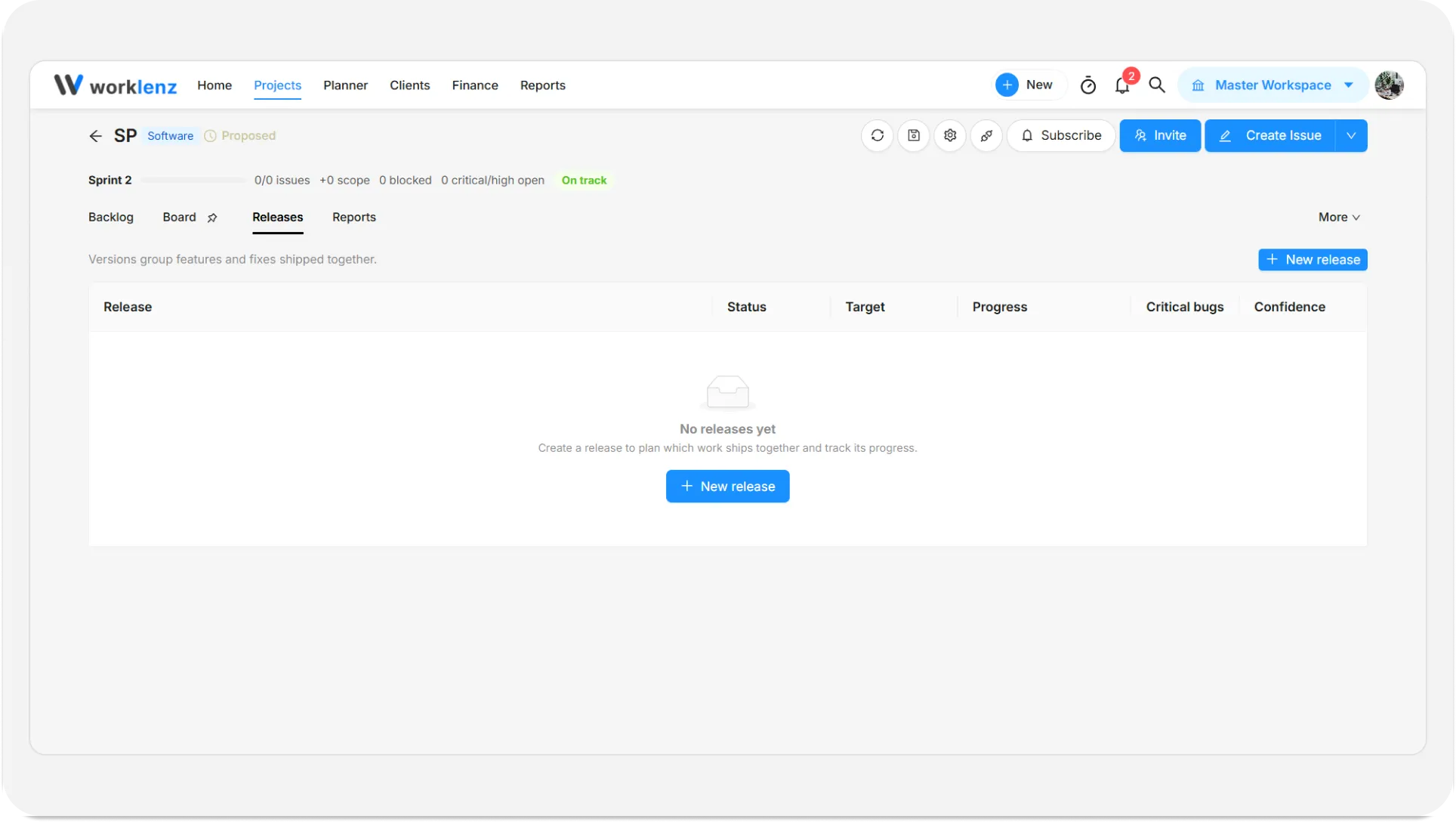
A release is a named version, such as v2.1.0, that groups the issues and epics you plan to ship together. You use the Releases tab to set a target date, watch progress, spot risk early, and lock the version once it has shipped.
At a glance
| What it is | A version that collects the work shipping together |
| Where to find it | Open a software project, then the Releases tab |
| Who can create, edit and mark released | Owner/Admin and Project Manager |
| Who can add or remove work items | Any member who is not a guest |
| Guests | Can see the tab, cannot change anything |
| Plan | Same on every plan |
For roles in more detail, see permissions and plans.
How to create a release
- Open the software project and select the Releases tab.
- Click New release.
- Enter a Version name. It is required, up to 50 characters, and must be unique in the project (upper and lower case count as the same). The field suggests the next minor version, for example v2.2.0 after v2.1.0, or v1.0.0 for the first one.
- Pick a Target date if you have one.
- Add a Description (up to 1000 characters), such as “What ships in this version?”.
- Optionally choose work items now in the Work items section.
- Click Create release.
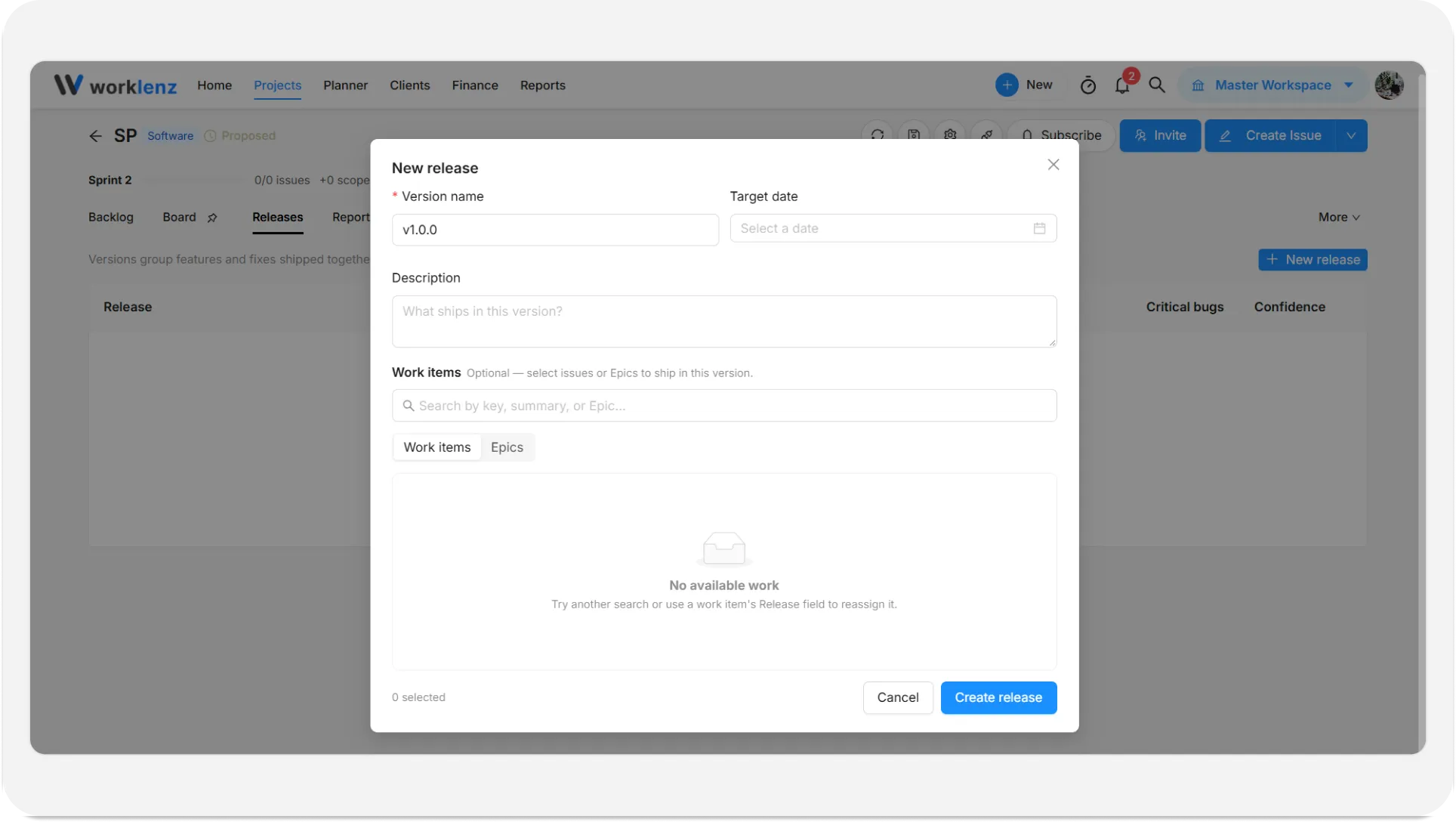
If the release is created but the work items cannot be added, you see a message saying so. Open the release and add them again.
How to add issues or epics to a release
- On the Releases tab, click the release name to open its details.
- Click Add work items.
- Use the Work items tab, or the Epics tab to add a whole epic. Search by key, summary or epic name.
- When you select an epic, Worklenz selects its eligible child work. Expand the epic to review the list or untick items you want to leave out.
- Check the selected count at the bottom and click Add selected.
You can add up to 500 items in one action. To take an item out, use Remove from release on its row. You can also set the Release field in an issue’s details panel, as described in backlog and issues.
Epics that have no eligible work show as unavailable.
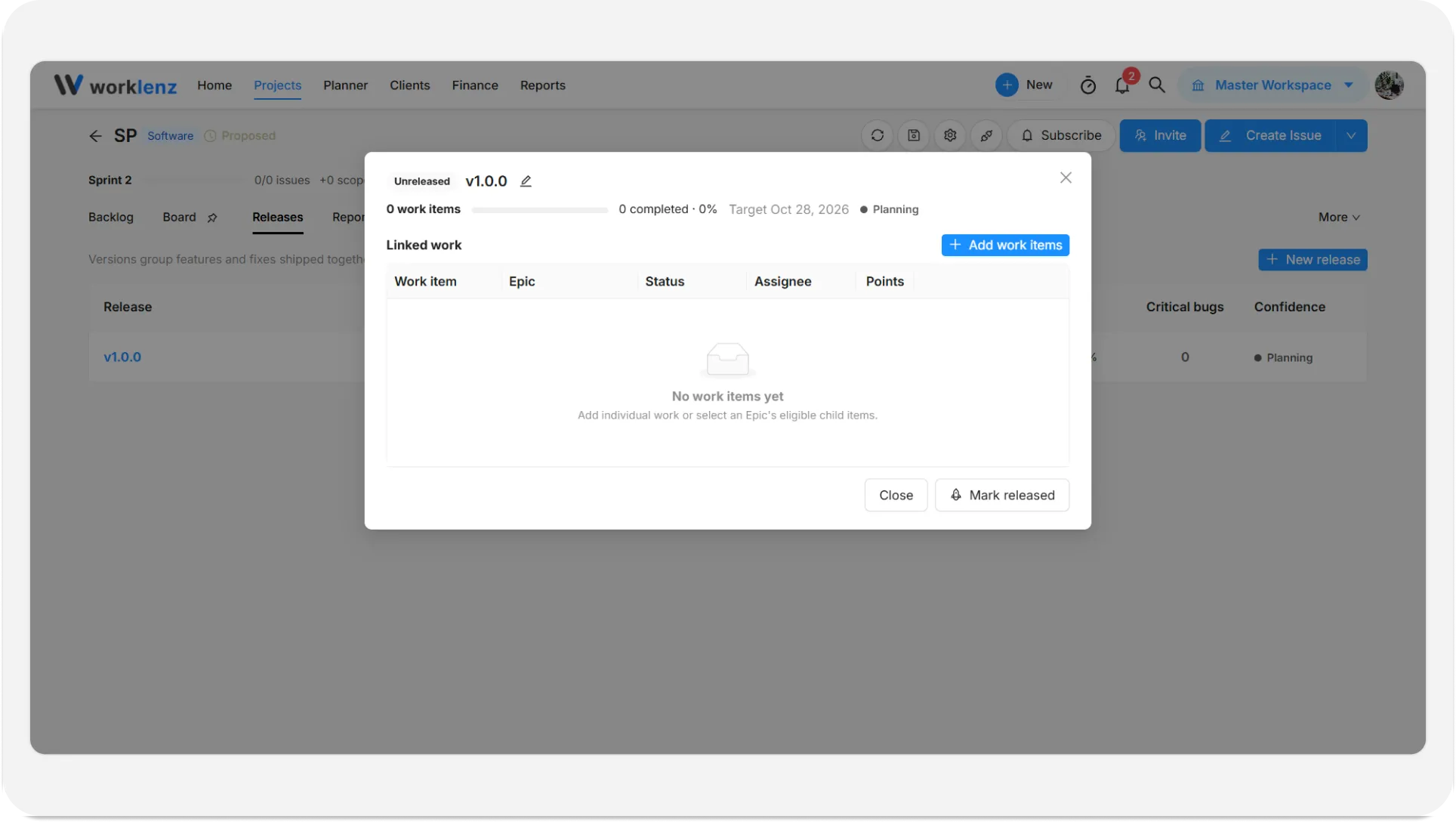
What do the confidence labels mean?
Each release gets a label that shows how likely it is to ship on time. The Releases table also shows target date, progress and a critical bug count.
| Label | What it means |
|---|---|
| Planning | No work items or no target date yet. Add both to start tracking confidence. |
| On track | No critical bugs or blockers, and progress is on pace. A release that is 100% complete always counts as on track. |
| At risk | Open critical bugs, blocked work, or less than 80% complete within a week of the target. |
| Overdue | The target date has passed with work still open. |
| Released | This version has shipped. |
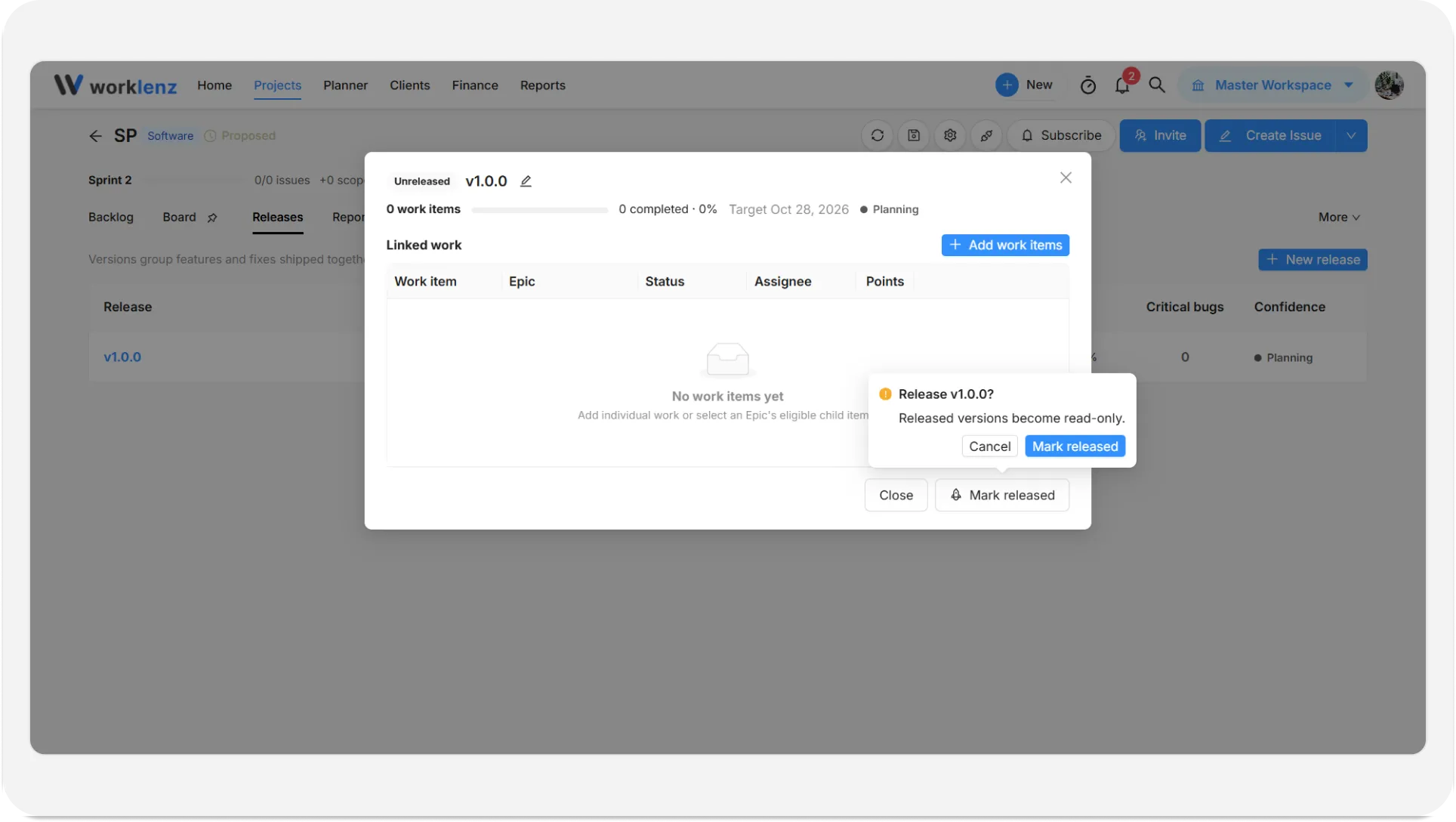
How to mark a release as released
- Open the release details.
- Click Mark released.
- Read the confirmation, Release {name}?. If some work is not done it says how many work items are not done.
- Confirm with Mark released.
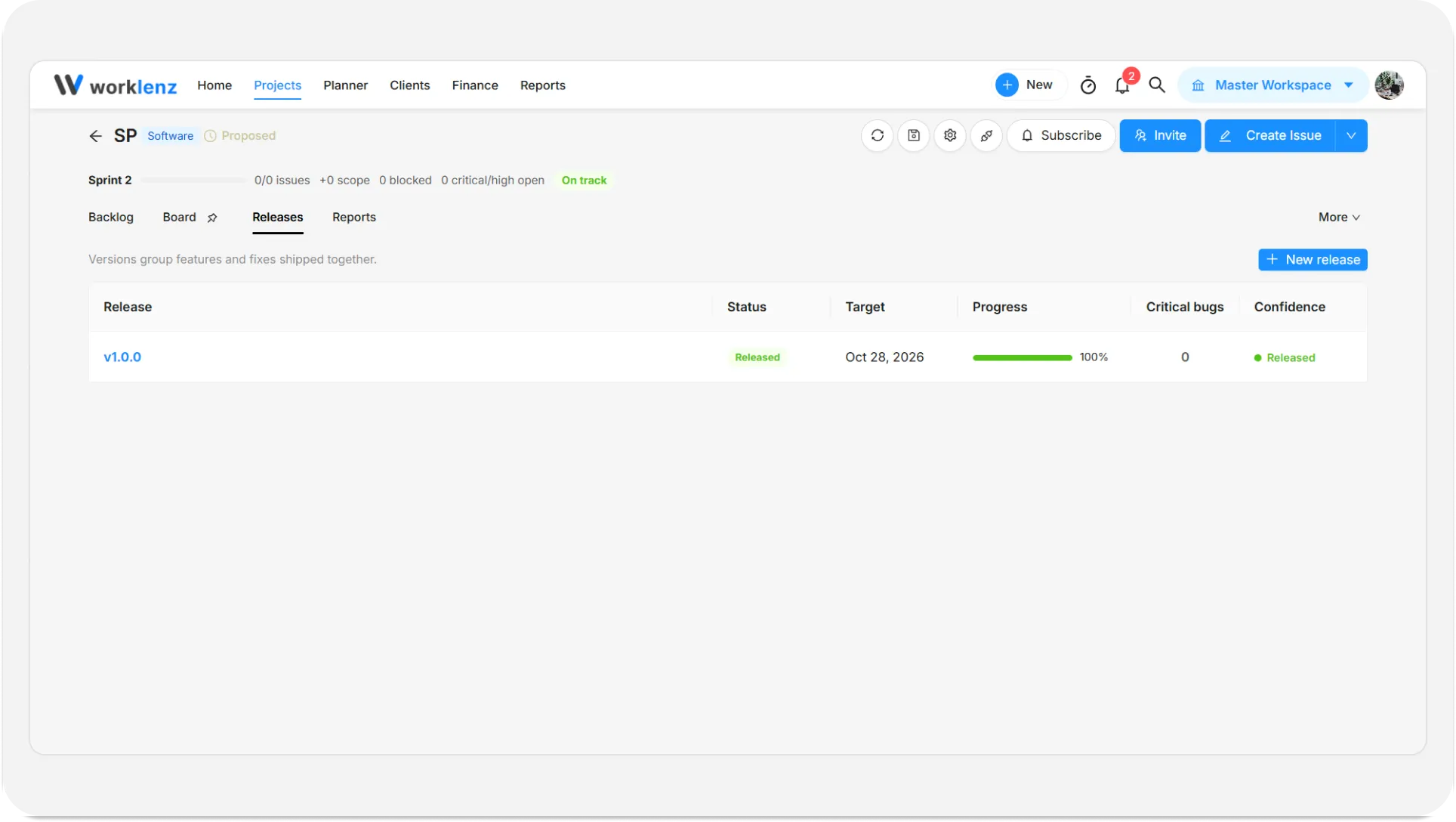
Example
Your team is shipping v2.1.0 in two weeks. You create the release with that target date, add the “Reporting” epic, and untick two stretch stories. Eight days later the label flips to At risk because one critical bug is still open. You fix the bug, the label returns to On track, and on release day you click Mark released.
Limits and things to know
- A release name cannot repeat inside the same project.
- Reports can group by release. See software reports.
- If you cannot see New release, you are probably not an Owner/Admin or Project Manager.
Best practices
- Check the “work items are not done” count in the confirmation before you mark a release as released, because released versions become read-only.
- Set a target date and add work items as soon as you create the release, because the label stays Planning until it has both.
- Add a whole epic and untick the stretch items, because selecting an epic selects its eligible child work and you can exclude individual issues.
- Give each version a distinct name, because a name cannot repeat inside a project and upper and lower case count as the same.
- Act on an At risk label early, because open critical bugs, blocked work, or less than 80% complete within a week of the target all trigger it.