

Workload
Workload shows how much scheduled work is committed per member or per project over a period you choose, so you can spot who’s free, who’s overloaded, and which projects are carrying the most hours. It’s part of Planner, alongside Schedule and Timeline.
How to Access
- Click Planner in the top navigation bar.
- In the left-hand rail, select Workload.
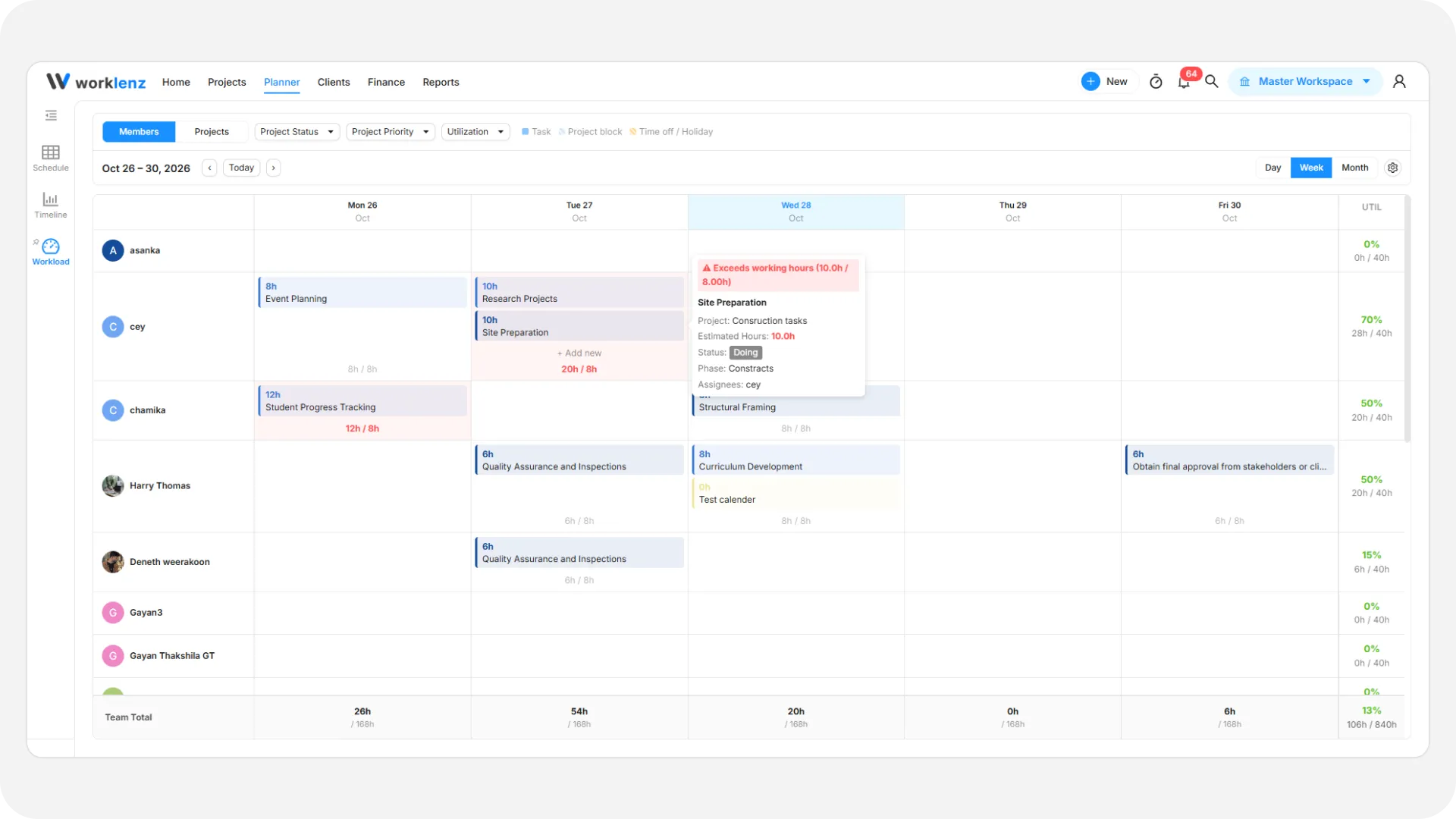
View and filters
- Members / Projects toggle: Switch the grid’s rows between team members and projects.
- Project Status / Priority: Narrow the rows to members or projects matching a given project status or priority.
- Utilization: (Members view only) Show only members in a given capacity band - Available (under 80%), Near capacity (80-100%), or Over-allocated (over 100%).
- Legend: The toolbar marks how Task, Project block, and Time off / Holiday entries are each shown in the grid.
Time range
- Day / Week / Month: Switch the grid’s resolution. Day and Week show individual working-day columns you can drag and drop into; Month rolls scheduled hours up into four weekly totals as a read-only summary.
- Use the ‹ / › arrows to step through periods, or Today to jump back to the current one.
Reading the grid
- Members view: Each row is a team member, with a UTIL column showing their scheduled hours against their capacity for the visible period, as a percentage plus the raw hours (for example,
62% · 5h / 8h). - Projects view: Each row is a project, with a LOAD column showing its total scheduled hours and a bar relative to the busiest project currently shown.
- Each cell can show one or more task chips (the task’s estimated hours and name) for whatever is scheduled on that member or project for that day.
Scheduling and rescheduling
- Add work to a cell: Hover an empty cell and use the + Add hint to schedule an existing unassigned task, or create a new one, directly onto that member and day.
- Reschedule: Drag a task chip to a different day in the same row to move it.
- Reassign: On the Members view, drag a task chip to a different member’s row to reassign it. You can’t drag a task to a different row on the Projects view - edit the task’s Project field instead.
- Rescheduling, reassigning, and removing a task from the grid each show a brief confirmation with an Undo option.
- Click a task chip to open it in the Task Drawer, or right-click it for more actions.
Settings
Click the Settings (gear) icon to open the same Planner settings drawer used by Schedule - working days, working hours per day, and the default estimate used for tasks with no estimate of their own.