

Software board - track sprint work
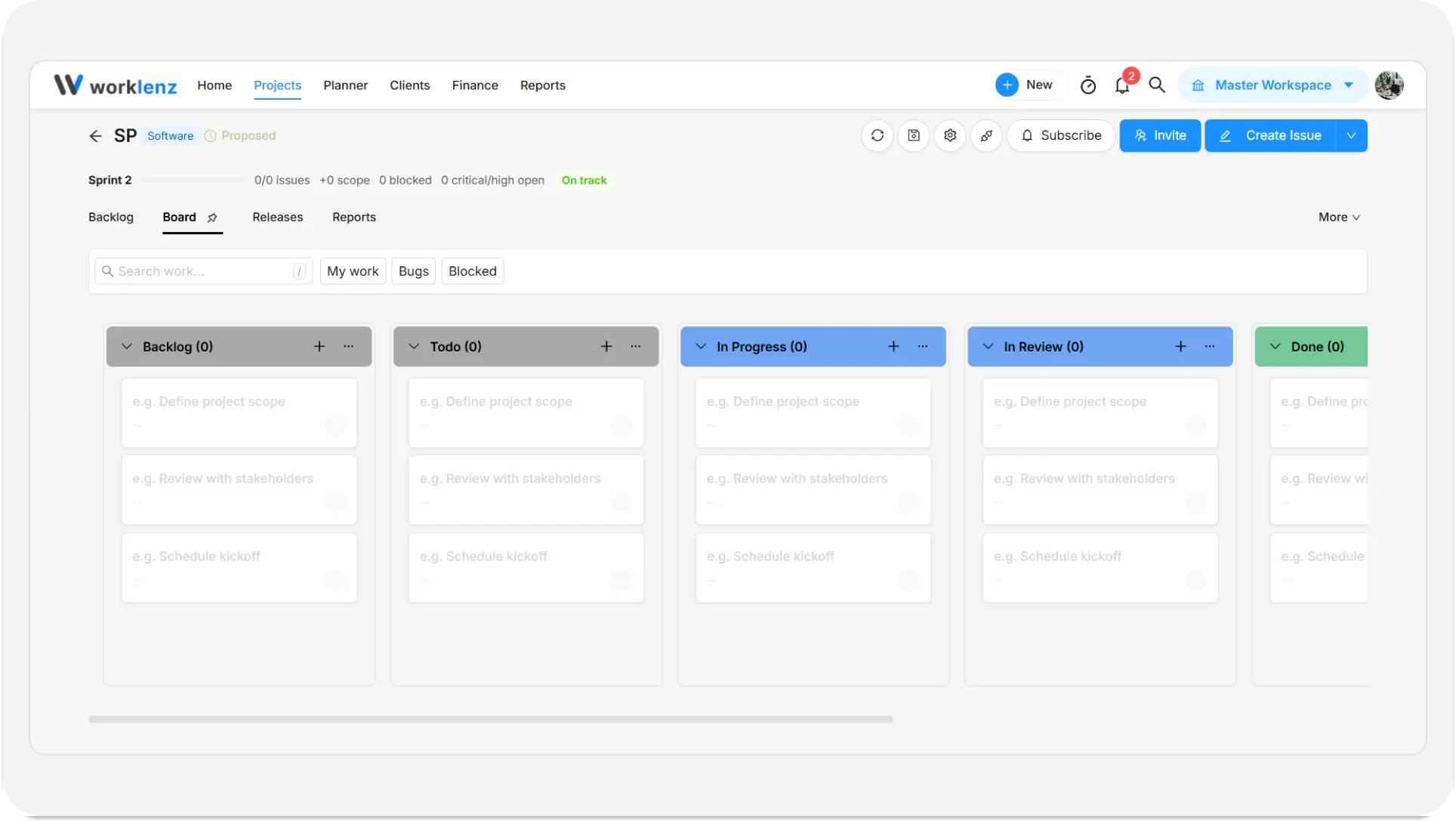
The software board shows your issues as cards in columns, one column per status by default. It opens filtered to the active sprint, so the team sees only this sprint’s work. Cards carry the details you need at a glance, and you move an issue forward by dragging its card to the next column.
At a glance
| What it is | A card board of issues, grouped by status by default |
| Where to find it | Open the project > Board tab, or click View on Board on the active sprint card |
| Who can use it | Members and above can create and drag issues; Guests can view only |
| Plan | Any plan |
What do I see when I open the board?
The first time you open the board in a project load, it filters to the active sprint. The columns are the project’s statuses: Backlog, Todo, In Progress, In Review, Done and Blocked. Cards that belong to no sprint appear under Backlog when grouped by sprint, and cards without an assignee appear under Unassigned when grouped by assignee.
What is on a card?
- The issue type badge and the issue key, for example MOB-12.
- A Blocked flag when the issue is flagged as blocked.
- Labels, the title and the priority.
- A story points badge. Hover it to see “3 story points” or “No estimate”.
- The due date, or “No due date”. Click it to change it if you are allowed to.
- Assignee avatars.
- A Show subtasks / Hide subtasks toggle when the issue has subtasks.
How do I move an issue?
Drag the card to another column. When the board is grouped by status, this changes the issue’s status. You can also drag within a column to reorder cards. Guests cannot drag. Users with the right permissions can also drag whole columns to reorder them.
How do I create an issue from the board?
Each column has a + button in its header and a Create Issue button at the bottom. Both open the Create issue window already aimed at the right place. With the board grouped by status, the new issue goes into the active sprint with that status. If you filtered to a single sprint, the new issue joins that sprint. You only see these buttons if you are allowed to create issues. The full field list is in backlog and issues.
How do I filter the board?
Use the search box (press / to focus it) and the three chips My work, Bugs and Blocked. Chips combine, so My work plus Bugs shows only your bugs.
Can I change how the board is grouped?
The board supports grouping by Status, Priority, Sprint and Assignee. The control for switching can be hard to find on a wide window, so if you only see the status columns, that is the default. Dragging a card while grouped by assignee is not available.
What the board does not have
There are no column work-in-progress limits, so a column can hold as many cards as you like.
Limits and things to know
- The board is for the whole project’s issues, but it opens narrowed to the active sprint. Clear that filter to see other sprints.
- Guests can view the board but cannot drag or create.
- The board uses the same issue keys, types and points you set in the backlog.
- Column menus for renaming or deleting statuses are shown to Owners, Admins and Project Managers.
Example
During stand-up, Priya filters to My work and drags the finished issue from In Review to Done. Sam notices a card with the Blocked flag, opens it, and leaves a comment for the team. The sprint health bar updates a moment later.
Best practices
- Clear the sprint filter when you need work from other sprints, because the board opens filtered to the active sprint.
- Keep the board grouped by status when you drag cards, because dragging changes the status only in that grouping and is not available when grouped by assignee.
- Agree a team limit for each column yourself, because the board has no column work-in-progress limits.
- Create new issues from a column’s + button, because the issue lands in the active sprint with that column’s status.
- Order the statuses in project settings to match your process, because their order is the order of the board columns.