

Time entries
The Time entries page provides a centralized timesheet view of all work hours recorded across tasks and projects.This section is located directly in the Projects left sidebar navigation.
How to Access
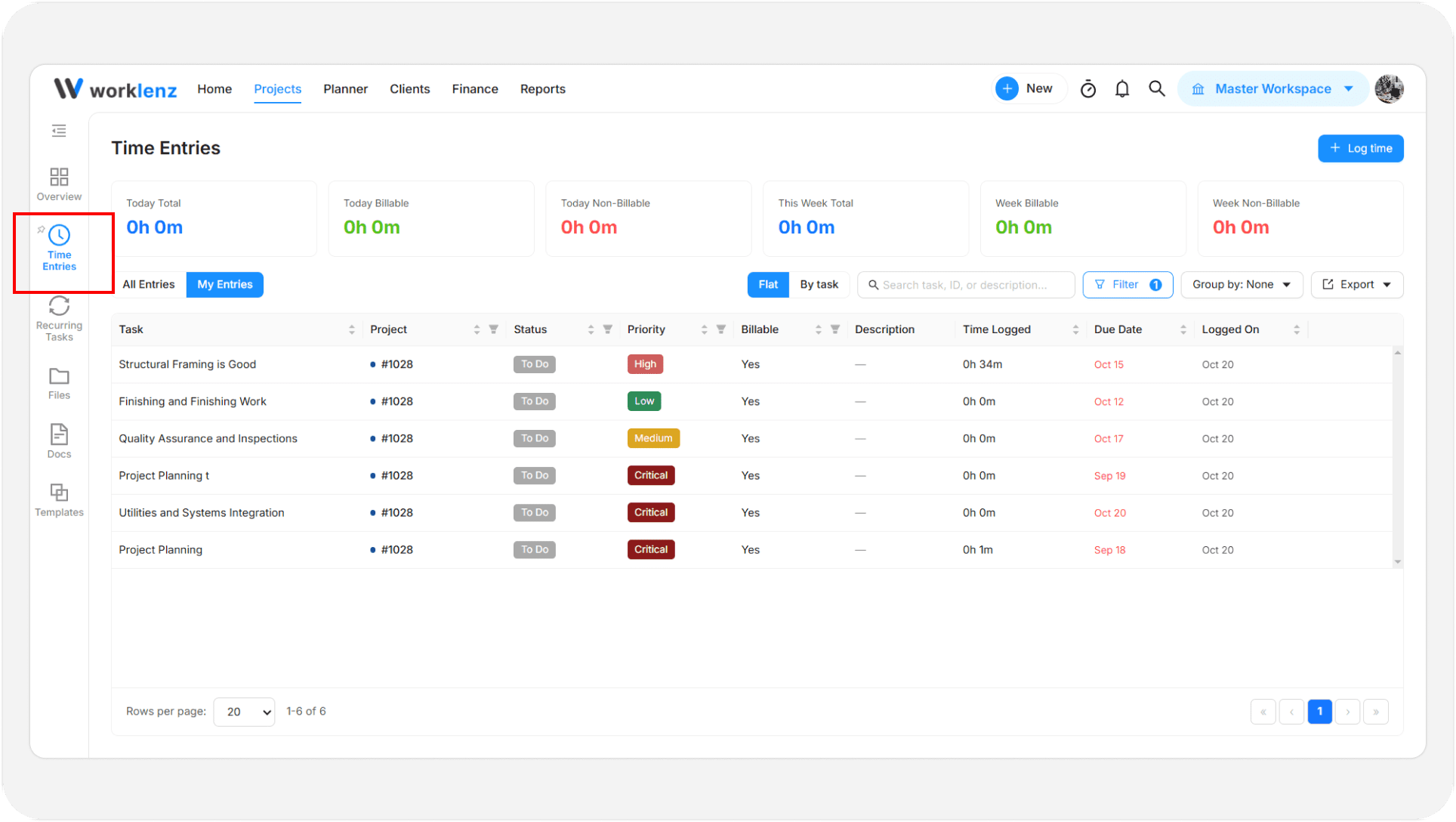
- Click Projects in the top navigation bar.
- In the left sidebar, click Time entries.
Metric cards (top section)
The top summary cards track your logged focus time:
- Today Total / This Week Total: Total recorded work duration.
- Today Billable / Week Billable: Total client-billable hours.
- Today Non-Billable / Week Non-Billable: Internal, administrative, or non-invoiced hours.
Filters and views
- Date Filters: Quick filters for Logged for Today, Yesterday, Last Week, No Logged Time, or select a date range using Custom Range.
- Project Filter: Filter timesheets by a specific project using the All Projects dropdown.
- Search: Quickly search for tasks by task name or task key ID.
- View Modes:
- Flat: Displays each time entry in an individual row.
- Grouped by Task: Groups multiple time entries together under their parent task.
Time entries table
The table lists recorded work logs with details:
- Task & Project: The task title and associated project name.
- Status & Priority: The current status and priority of the task.
- Billable: Shows whether the recorded hours are flagged as billable (Yes / No).
- Time Logged: Total recorded duration for the entry.
- Due Date: Deadline of the associated task.
Quick time entry (log time modal)
Click the blue + Log time button in the top right to open the logging modal:
- Project & Task: Select the destination project and the specific task you worked on.
- Input Mode:
- Duration: Enter hours and minutes directly.
- Time Range: Specify an exact start and end time.
- Date: Pick the date the work was performed.
- Work Description: Add notes or details about the work done (up to 500 characters).
- Click Log Time to save the entry.
- Tip: If you need to quickly record time while reviewing your daily dashboard, use the dedicated Log Time page in your Home workspace.