

Create and set up your account
This page covers everything you need to get into Worklenz: signing up, setting up your workspace, signing in, and resetting your password.
Sign up
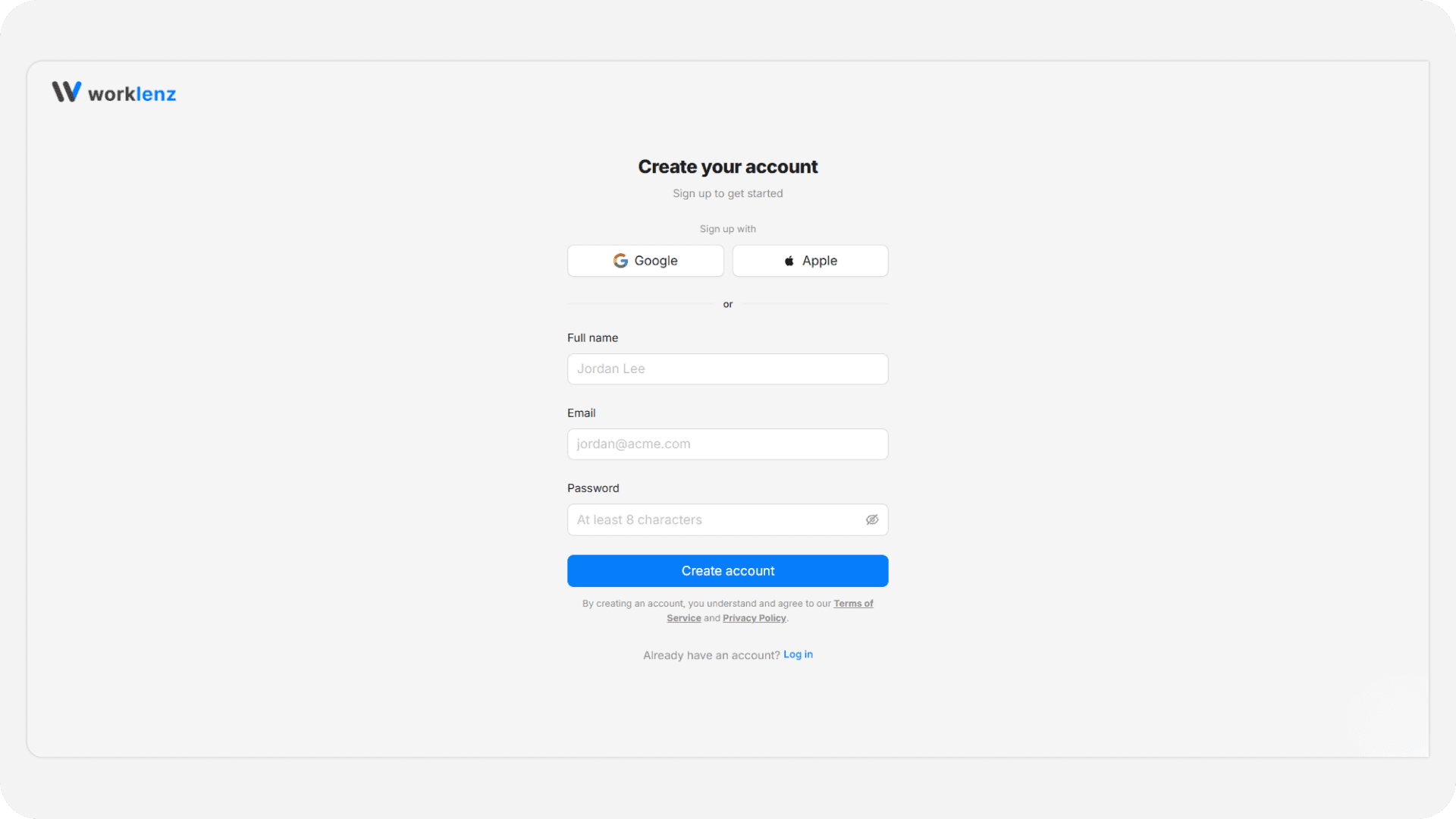
To create a new Worklenz account, go to www.worklenz.com and click the Try for Free button at the top right corner of the page. You can sign up using any of the following methods:
Using email & password:
- Enter your full name, email, and create your own password under the given conditions.
- Read the company Privacy Policy and Terms of Use.
- Click the Create Account button.
Using Google:
- Click Sign up with Google to create your account using your Google account.
Using Apple:
- Click Sign up with Apple to create your account using your Apple account.
Set up your workspace
Once you sign up for Worklenz, you’ll be guided through a short onboarding flow to set up your account and workspace. This takes just a few minutes and gets your team ready to start working in Worklenz.
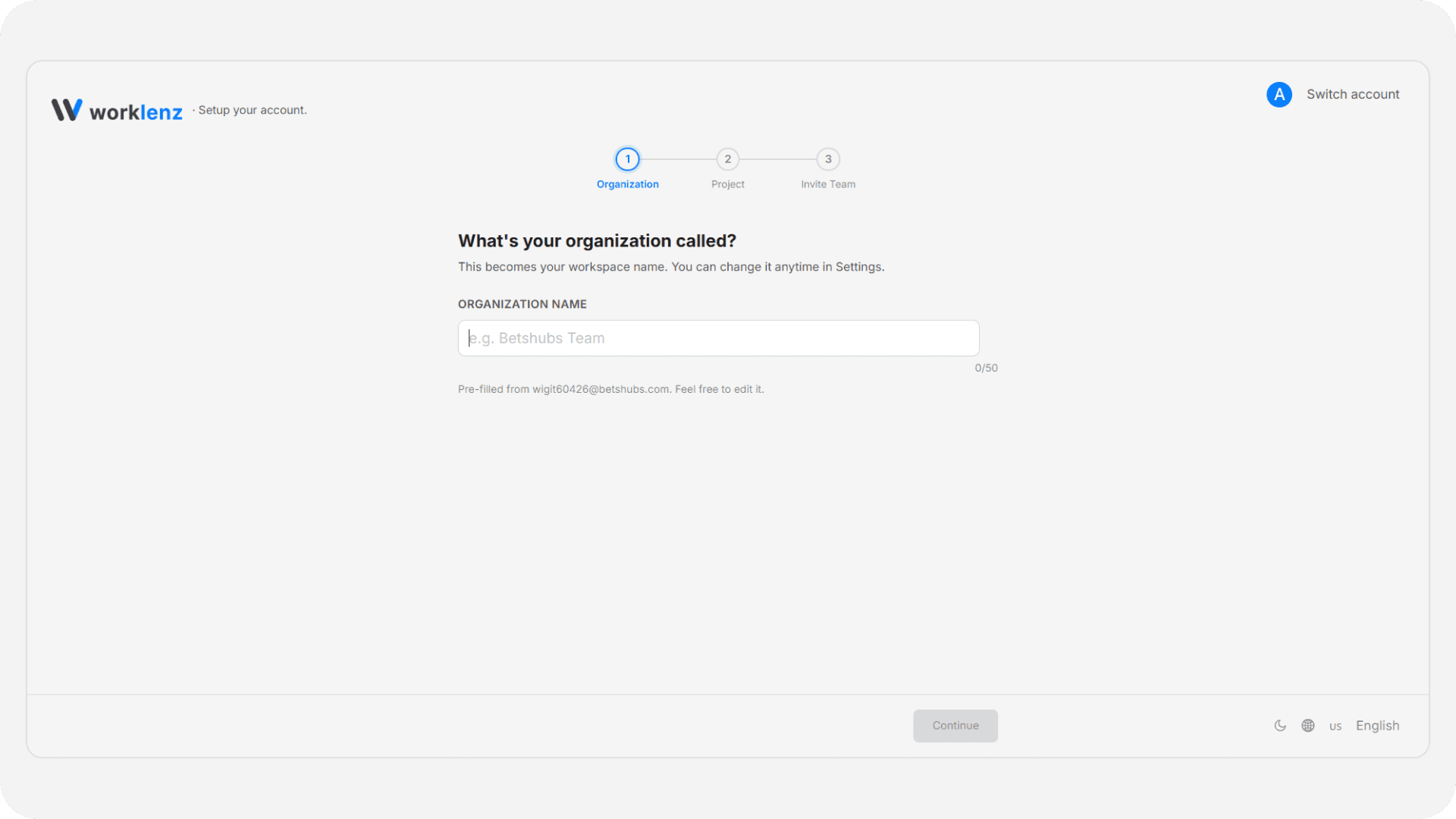
Organization setup
The first step is to set up your organization. Give your organization a name - this is how your workspace will be identified within Worklenz and is shown across your account.
Once you’ve entered a name, continue to the next step.
Create your first project
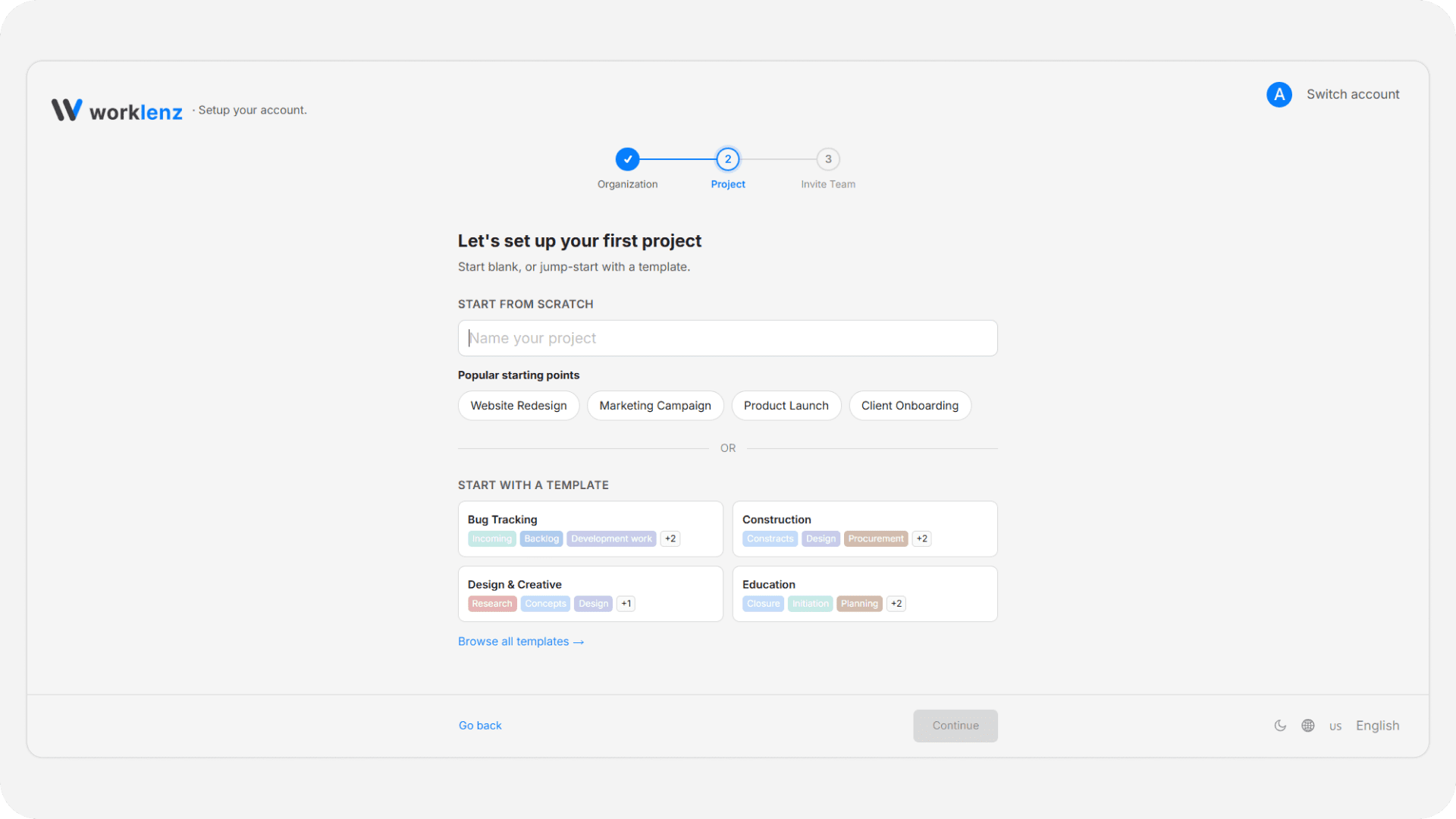
Next, create your first project. Give your project a name to continue.
- You can start with a blank project and build it from scratch.
- Alternatively, you can use a project template to quickly set up a project with a predefined structure.
Invite your team members
Finally, invite your team members to join your workspace.
- Enter the email address of a team member and click Add another to invite multiple people at once.
- If you’re not ready to invite anyone yet, you can click Skip to complete this step later.
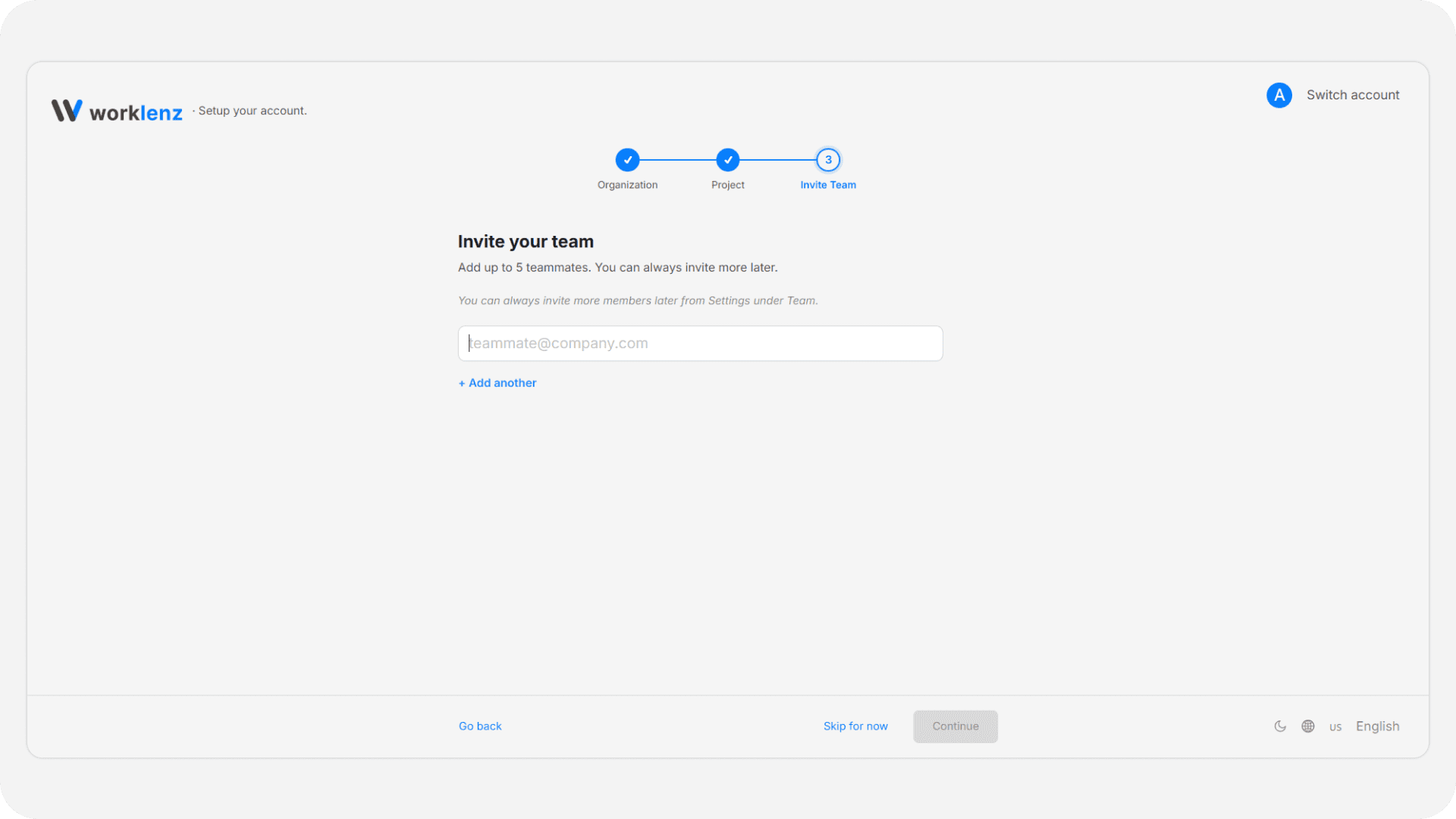
Once you’ve completed these steps, Worklenz will redirect you to your new workspace, ready to use.
Sign in
If you already have a Worklenz account, you can sign in using any of the following methods:
- Go to www.worklenz.com
- Click on Log in at the top right corner of the page.
Using email & password:
- Enter email address.
- Click next button.
- Enter Password.
- Click Log In button.
Using Google:
- Click Sign in with Google and follow the prompts to sign in with your Google account.
Using Apple:
- Click Sign in with Apple and follow the prompts to sign in with your Apple account.
Forgot password?
If you forgot your password, you can reset it using your email.
- Enter Email address and click on Next button.
- Click on Forgot password?
- Enter your email address.
- Click the Reset password button.
- You will receive an email to reset your password.