

Client Portal Account Settings - Profile and Notifications
Settings is where you manage your own details in the Client Portal: your name, how the portal looks, your language and time zone, and which events email you. Client Admins can also manage colleagues here. You reach it from the Settings icon at the bottom of the left rail, or from the avatar menu in the top bar.
At a glance
| What it is | Personal and organization settings for the portal |
| Where to find it | Left rail > Settings, or avatar menu > Settings |
| Who can use it | Every client user. Some actions are Client Admin only |
| Sections | Profile, Appearance, Language and Region, Notifications, Organization, Members, Help, Delete Account |
Use the Search settings box if you cannot find a section.
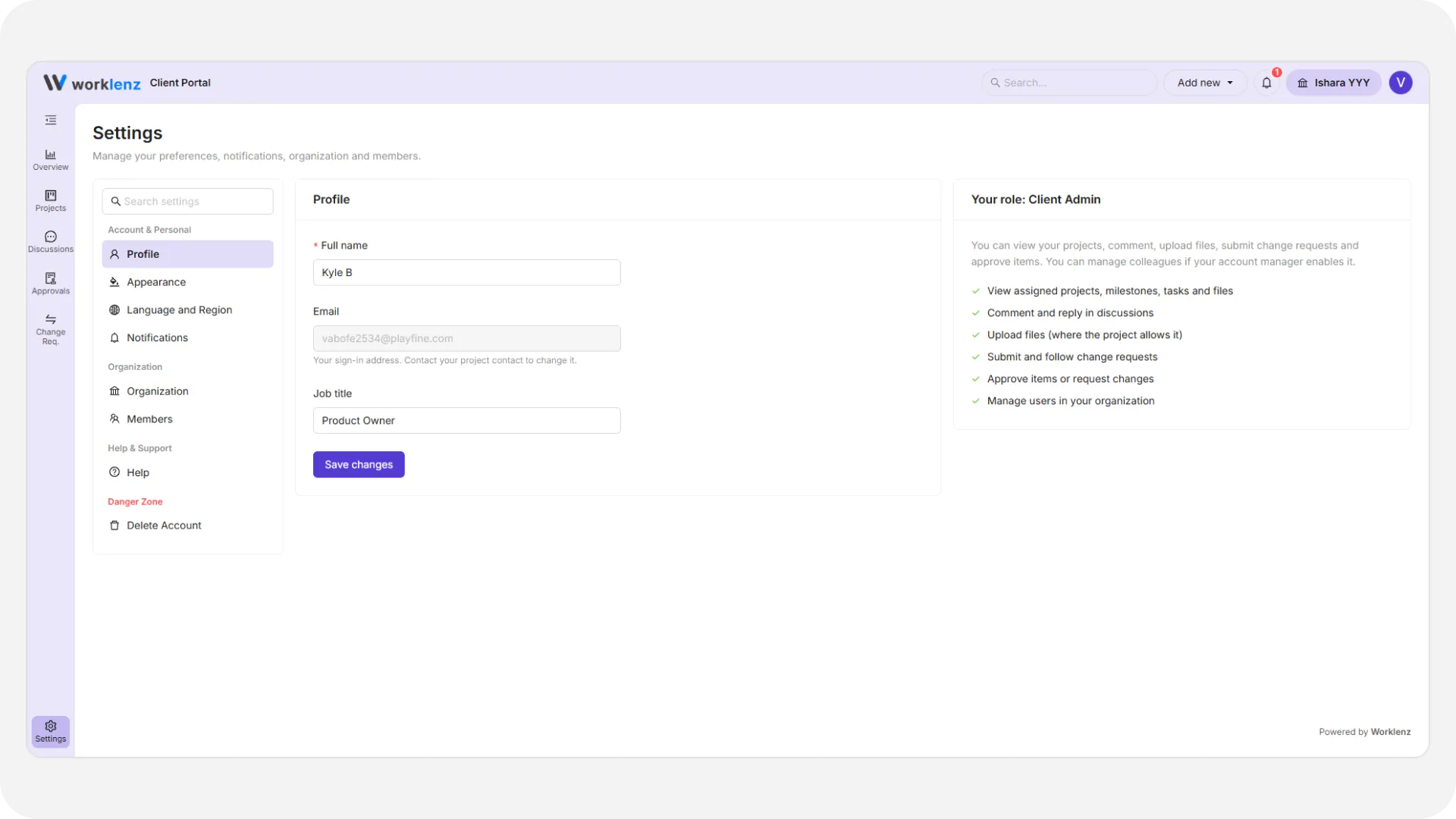
How do I update my profile?
- Open Settings > Profile.
- Change your Full name (required, up to 100 characters) or Job title (up to 100).
- Select Save changes. You will see “Profile saved.”
Your Email is read-only because it is your sign-in address. To change it, contact your project contact. The page also shows Your role with a list of what that role can and cannot do.
How do I change the theme?
Open Settings > Appearance and choose Light or Dark. The avatar menu has the same toggle. The choice is remembered on that browser only, so set it again on a new device.
How do I change language and time zone?
Open Settings > Language and Region. Pick a Language from English, Español, Português, Shqip, Deutsch, 简体中文, Polski or Français. Choose a Time zone from the searchable list, or use your browser’s time zone. Select save. These settings follow your account to any device.
How do I choose which emails I get?
Open Settings > Notifications. The table lists each event with an In-app column and an Email column.
- In-app notifications are always on and cannot be turned off.
- Email is off by default. A checkbox appears only for events your project team has enabled. Events they have not enabled show Not offered.
The events are: changes to your access, approval requests and decisions, change request updates, replies to your comments and mentions, files shared with you, milestone changes and project updates.
You only get an email when both sides agree: your team turned the event on, and you ticked it here. If you expect emails and none arrive, check both. This is a personal preference, so a colleague’s settings never affect yours.
What is under Organization and Members?
Organization is a read-only card with your organization’s name and who manages the portal.
Members lists the people in your organization and their role and status (Active, Invited or Deactivated). You never see people from other organizations. Everyone can read the list. Only Client Admins get actions.
A Client Admin can edit a colleague’s name and job title, change a role, and assign projects. They cannot change their own role or remove themselves, and the last Client Admin stays locked in place. Invite Member and Remove appear only if your project team turned on “Let Client Admins invite users” and “Let Client Admins remove users”. If neither is on, you will see a note asking you to contact your project contact.
To invite colleagues, select Invite Member, enter one or more email addresses and choose Send email invite. Copy invite link works for one address at a time. New members start as Client Viewers with no projects until someone assigns them.
Where is Help?
Settings > Help has documentation, the changelog, email support, community links, the privacy policy and the portal version.
Should I delete my account or just ask my team to remove me?
You have two ways out, and they are not the same.
| Delete Account | Ask your team to remove you | |
|---|---|---|
| Who acts | You | Your project team |
| Scope | Every portal you belong to | One portal |
| Timing | Deactivated at once, data deleted within 30 days | Immediate |
| Undo | Contact support within the 30 days | Team can restore you |
If you only want out of one company’s portal, ask that team. To delete everything, open Settings > Delete Account, read the warning, select Delete My Account, type DELETE exactly and confirm with Yes, delete my account. You are signed out straight away. Past comments and approvals stay under your name.
For how team-side removal and the 30-day window work, see client sign-in and security.
Best practices
- Tick the events you care about under Notifications, because email is off by default.
- If you expect emails and none arrive, ask your project contact whether the event is switched on, because you only get an email when both sides agree.
- Keep at least two Client Admins in your organization, because the last Client Admin is locked in place and cannot be changed without a warning.
- Ask your project team to remove you from one portal instead of deleting your account, because deleting removes you from every portal you belong to.
- Download any files you need before deleting your account, because your data is permanently deleted within 30 days.