

Customize your Home page layout
You can shape the Overview page of Home to show only what you use. Add widgets, move them between the main area and the side panel, drag them into a new order, or remove the ones you do not need. Every change saves as you make it.
At a glance
| Item | Details |
|---|---|
| What it is | Per-user control of which widgets appear on Home and where |
| Where to find it | Home > Overview: the Add widget button above the widgets, and the … menu on each widget |
| Who can use it | Anyone who can open Home. Guests are sent to Projects instead |
| Plan | No plan limit |
| Saved for | You only. Teammates keep their own layout |
How the layout works
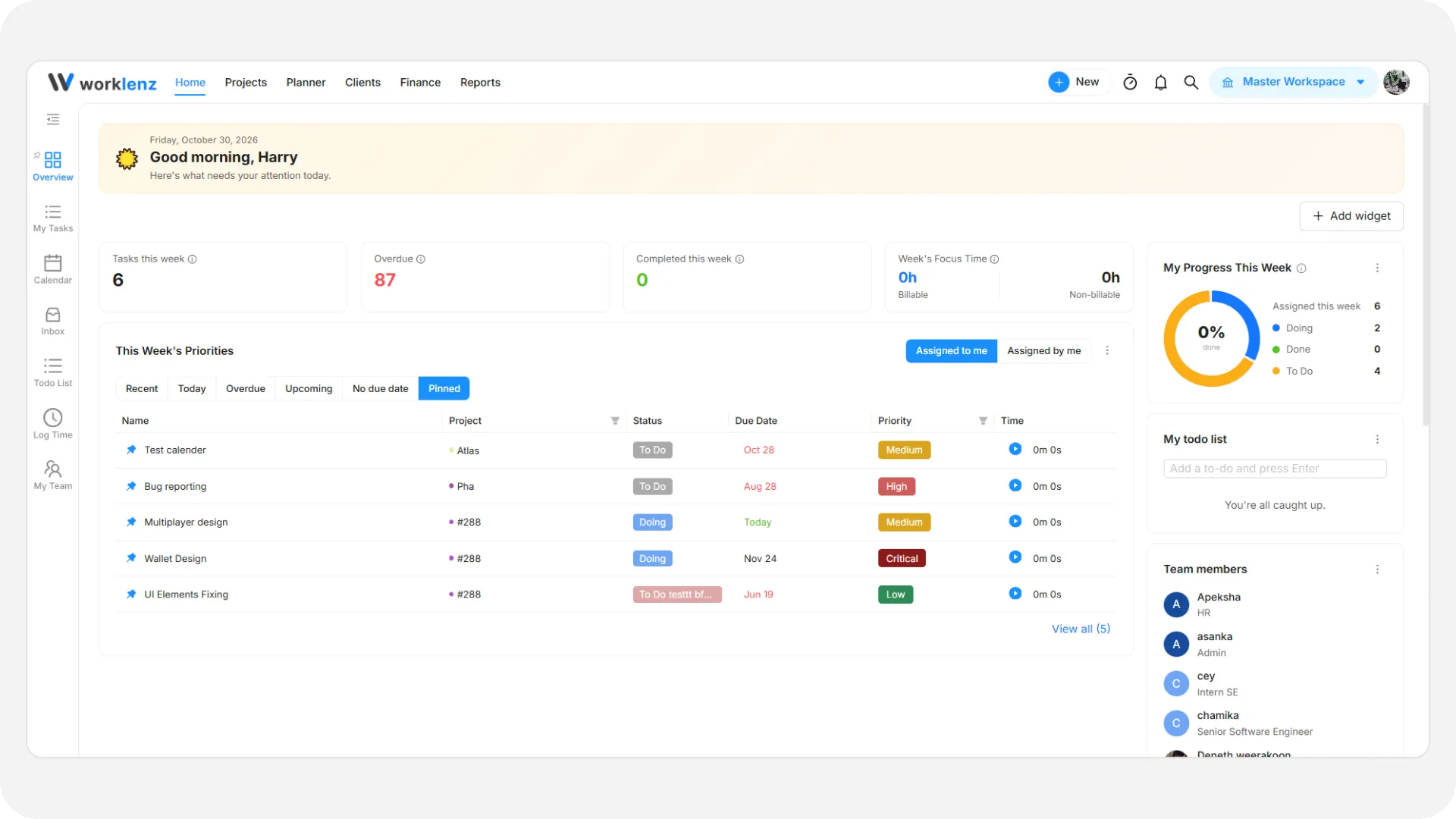
Home has two columns. The main area is flexible and takes most of the width. The side panel is a fixed-width column on the right. You cannot resize either column or any widget.
By default, the main area holds Summary cards and Task priorities. The side panel holds My progress and My todo list. The greeting banner sits across the top. Everyone starts with this same arrangement. See the widgets reference for all eight widgets.
How to add a widget
- Open Home > Overview.
- Click Add widget above the widgets. If the page has no widgets, the button reads Add widgets.
- In the panel that opens, find the widget you want. Each row shows an icon, the widget name and a one-line description.
- Click Add on that row.
The widget appears in its default column and is highlighted for about two seconds. Press Esc to close the panel without adding anything.
The panel lists only widgets that are not already on your page. If every widget is placed, it says “Every widget is already on your Home page.”
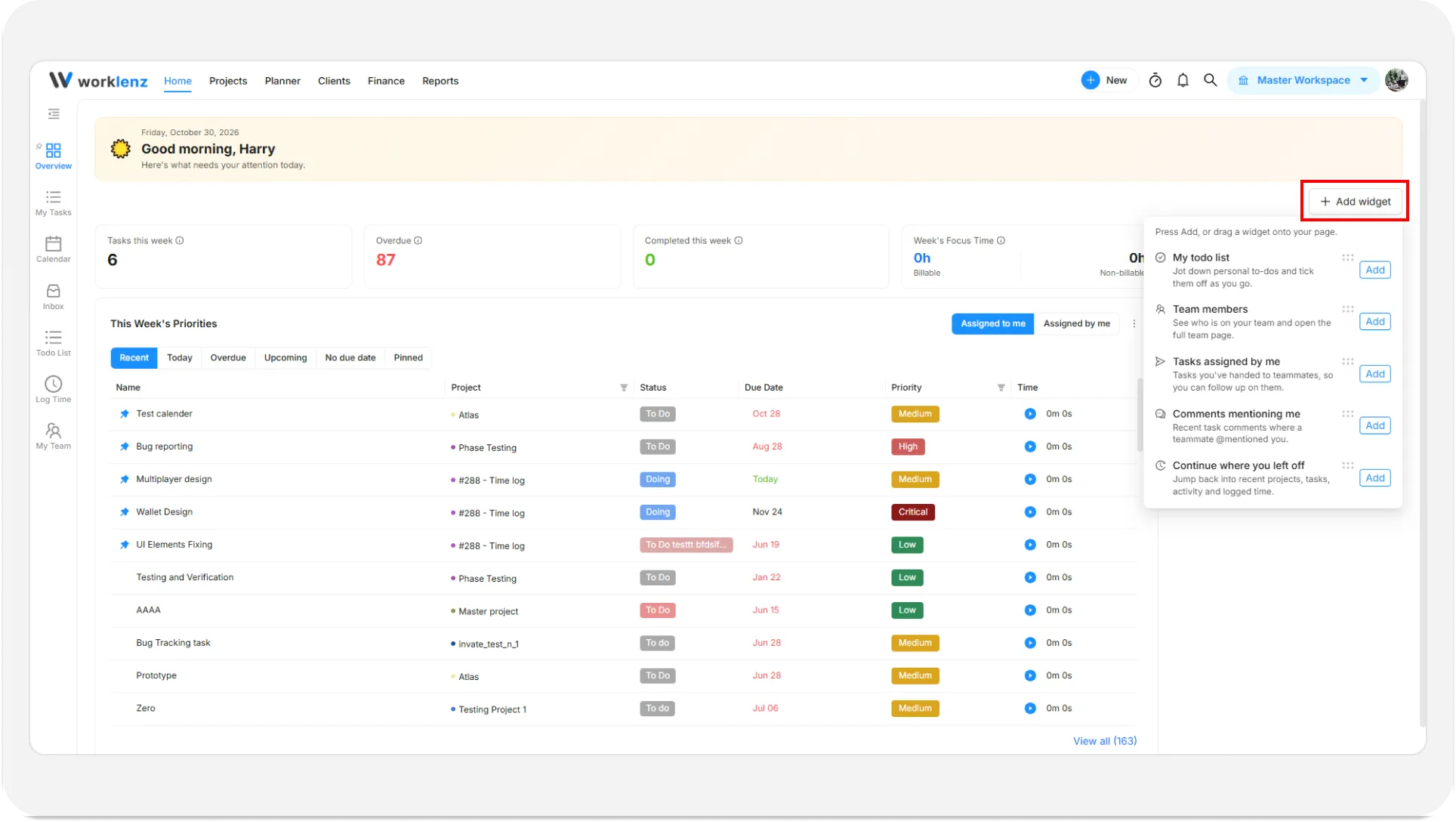
On a desktop-width window you can also drag a row from the panel onto the page.
How to move a widget to the other column
- Click the … (three dots) menu on the widget.
- Choose Move to side panel or Move to main area.
The entry only appears when the move is allowed. Summary cards and Task priorities can only sit in the main area, so their menus have no move option.
How to reorder widgets by dragging
- Make sure your window is at least 1024 pixels wide.
- Grab the grip handle on the widget.
- Drag it to a new position in the same column, or into the other column if the widget allows it. A Drop a widget here zone shows where it can land.
- Release to drop it.
You can also reorder with the keyboard: focus the handle, press Space to pick the widget up, move it with the arrow keys, and press Space again to drop it.
How to remove a widget
- Click the … menu on the widget.
- Choose Remove widget.
Removed widgets are not lost. Open Add widget and add them back at any time. The greeting banner has its own remove control, and it returns at the top of the Add widget list after you remove it.
What gets saved
All of these save immediately, with no Save or Cancel button:
- Which widgets are on the page, and which column each sits in.
- The Today / This week choice.
- The task table’s tabs, default view and sorting.
Settings belong to your user account, not to the team. They load the same way on any computer or phone where you sign in. Worklenz keeps only the latest change, so if you edit on two devices at once, the most recent save wins.
Limits and things to know
- No duplicates. A widget can appear once on the page.
- No resizing. Column widths and widget sizes are fixed. Only Continue where you left off stretches to fill the remaining height of its column.
- Side panel visibility. The side panel only shows when it has widgets in it (or while you drag).
- Small screens. Below 1024 pixels wide, Home becomes one stacked column and dragging is turned off. Adding, moving and removing still work from the buttons and … menus.
- No one-click layout reset. The Reset to default button inside the task table dialog resets only that table. To restore the default layout, re-add and move widgets by hand.
Best practices
- Remove Summary cards if you only work from the table, because hidden widgets can be added back later with no loss.
- Add Comments mentioning me if you often miss @mentions, since it lists recent comments that mention you and lets you reply in place.
- Use the … menu instead of dragging on a laptop with a narrow window, because dragging works only at 1024 pixels wide or more.
- Set up your layout once. It follows your account, so you do not need to repeat it on another device.