

Project expenses
The Expenses page provides a centralized summary of all fixed expenses and project-related costs recorded across your team’s tasks.
How to Access
- Click Finance in the top navigation bar.
- In the left sidebar, click Expenses.
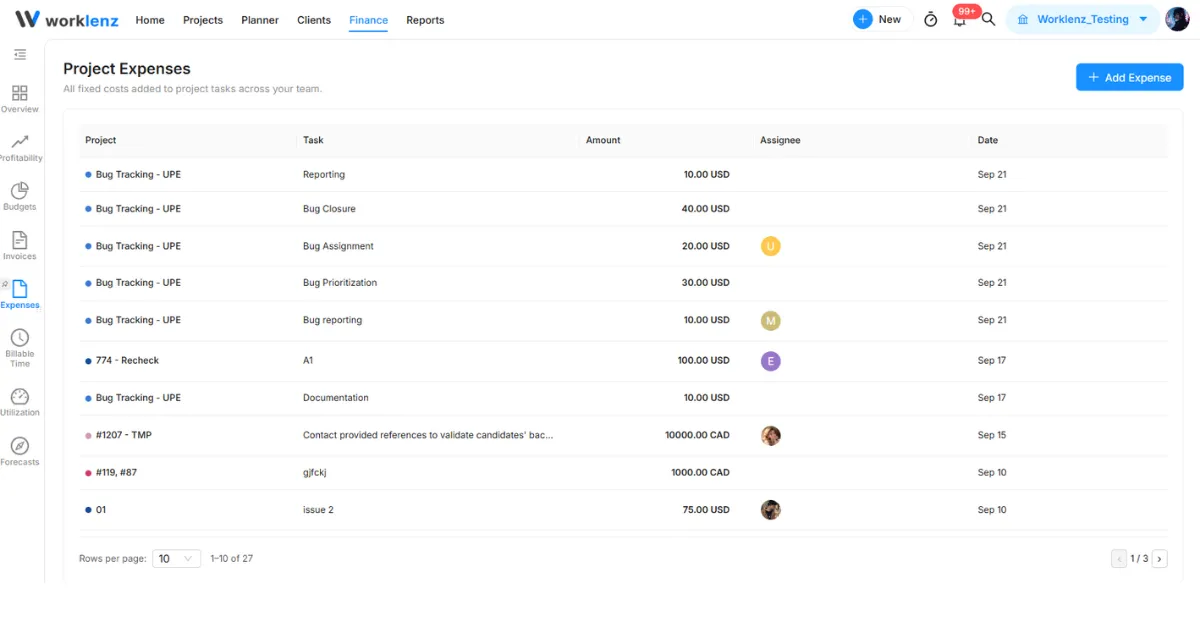
Expenses table overview
The table displays every recorded expense line item across all workspace projects:
- Project: The name and color badge of the project where the cost was recorded.
- Task: The specific task the expense is linked to.
- Amount: The expense cost and currency.
- Assignee: Team member avatar(s) responsible for or associated with the task.
- Date: The date the expense was recorded.
Adding an Expense
- Click the blue + Add Expense button in the top-right corner.
- In the Add Expense modal:
- Project: Choose the project from the dropdown.
- Task: Select the specific task linked to this cost (available after choosing a project).
- Amount: Enter the fixed expense amount.
- Click the Add Task Expense button to save the cost.
Table controls
- Rows per page: Use the bottom dropdown (e.g., 10, 20, 50) to change how many expense records appear per page.
- Pagination: Use the page numbers and navigation arrows (
<,>) to browse through past expenses.