

Client Portal Change Requests - Review and Convert
A change request is how a client asks for something outside the original plan: a new feature, a scope change, a revised deliverable. Clients submit them from the portal. You review, estimate, decide and, if approved, turn them into work. Nothing is created in your project until you choose to convert it.
At a glance
| What it is | Client-submitted requests for scope or feature changes |
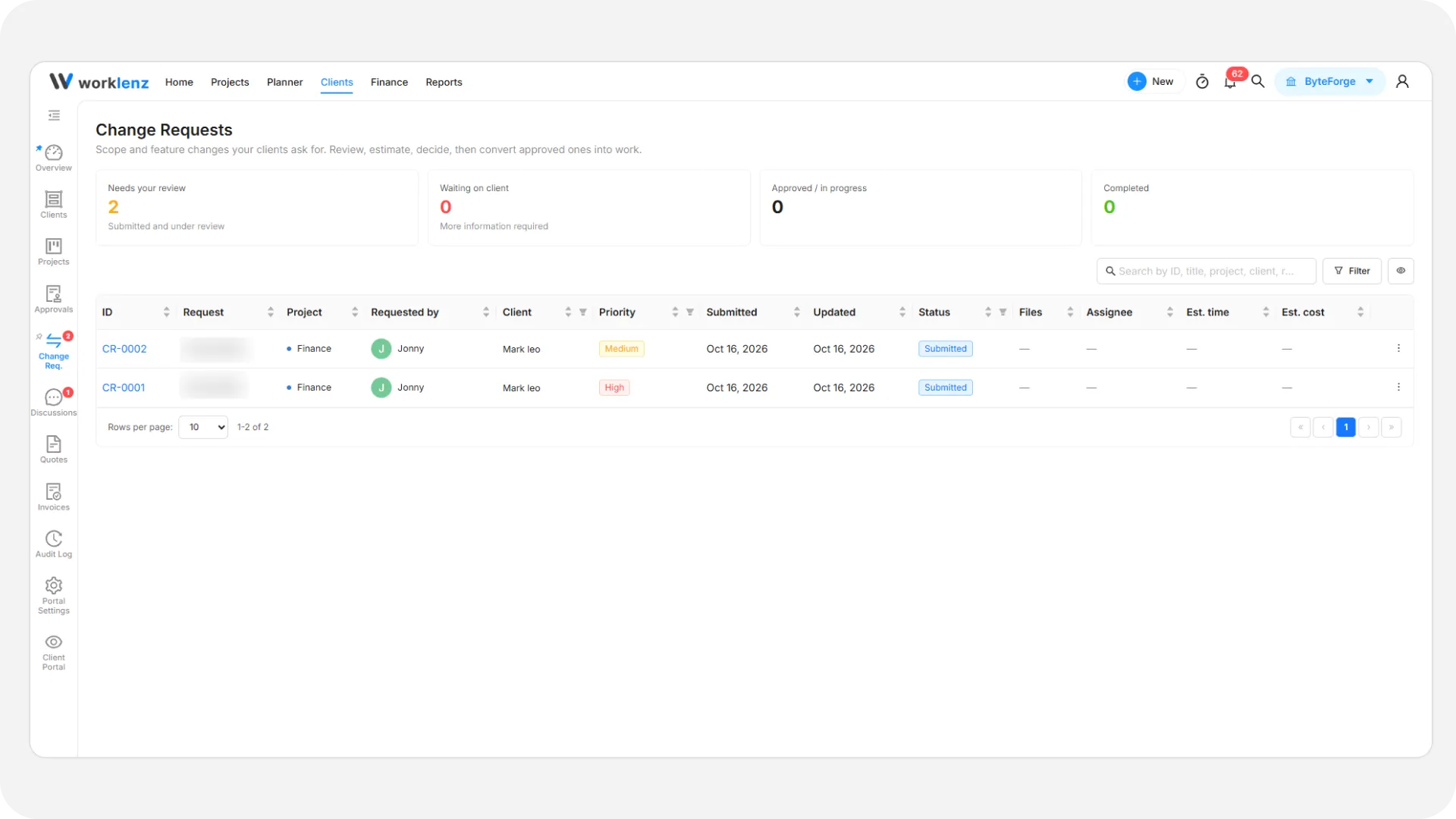
| Where to find it | Staff: Clients in the top navbar > Change Req.. Client: Change Req. in the left rail |
| Who can use it | Staff: Owners and Admins. Clients who submit: Client Admin and Client Member |
| Plan | Pro or Business |
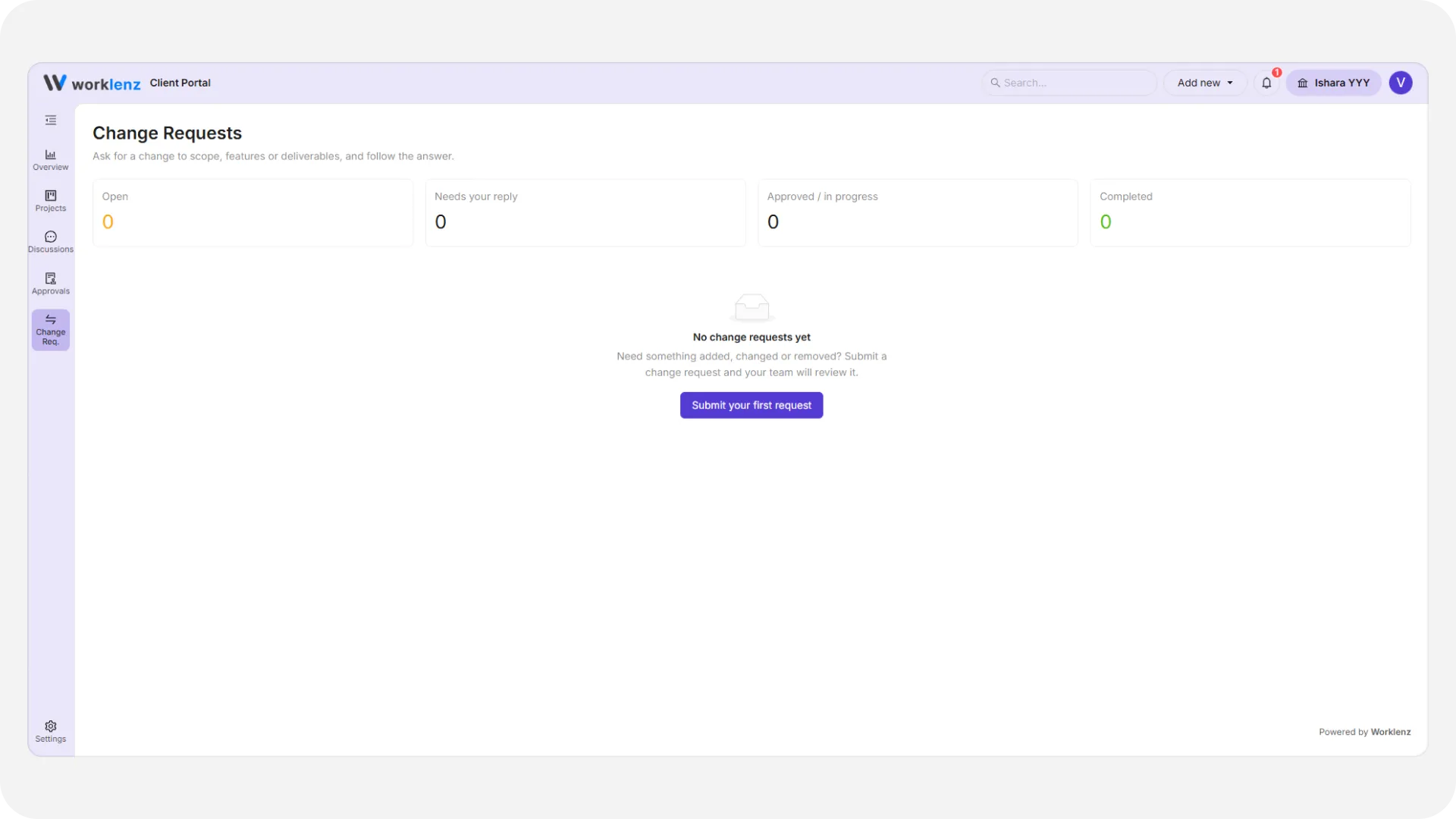
Staff cannot create a change request. They appear only when a client submits one. The empty page says as much: “They appear here when a client submits one from their portal.”
How does a client submit one?
A Client Admin or Client Member selects Add new > New change request in the top bar, or New change request on the page. They fill in:
- Project (required)
- Title (required, up to 200 characters)
- Description (required, up to 5000 characters)
- Priority - Low, Medium or High. Staff cannot change it
- Attachments (optional, up to 5 files, 100 MB each)
- Notes (optional)
Then Submit request. The client sees a message that your team reviews it first and that it does not create a task by itself. Viewers cannot submit.
What are the statuses?
| Status | Meaning | What you can do |
|---|---|---|
| Submitted | Client sent it | Start review, Cancel, or reply with Send response only |
| Under Review | Your team is looking at it | Approve, Ask client for more info, Reject, Cancel |
| More Information Required | Waiting on the client | Return to review, Cancel |
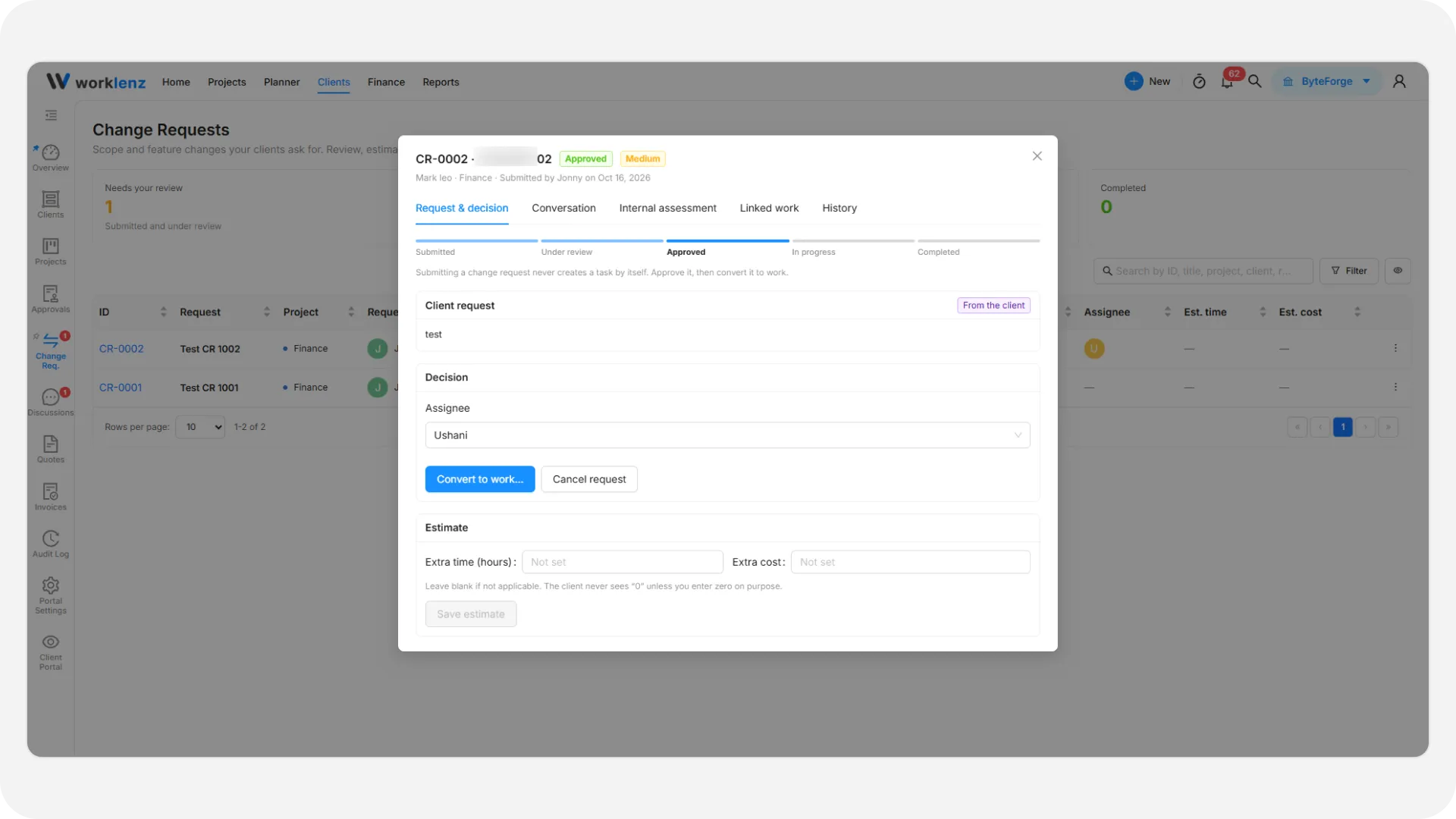
| Approved | Accepted, no task yet | Convert to work, Cancel |
| In Progress | Linked to a task | Mark completed, Cancel |
| Completed, Rejected, Cancelled | Closed | Read-only |
When the client replies to a request waiting for information, it goes back to Under Review. Every status change or response notifies the requester.
How do I review one?
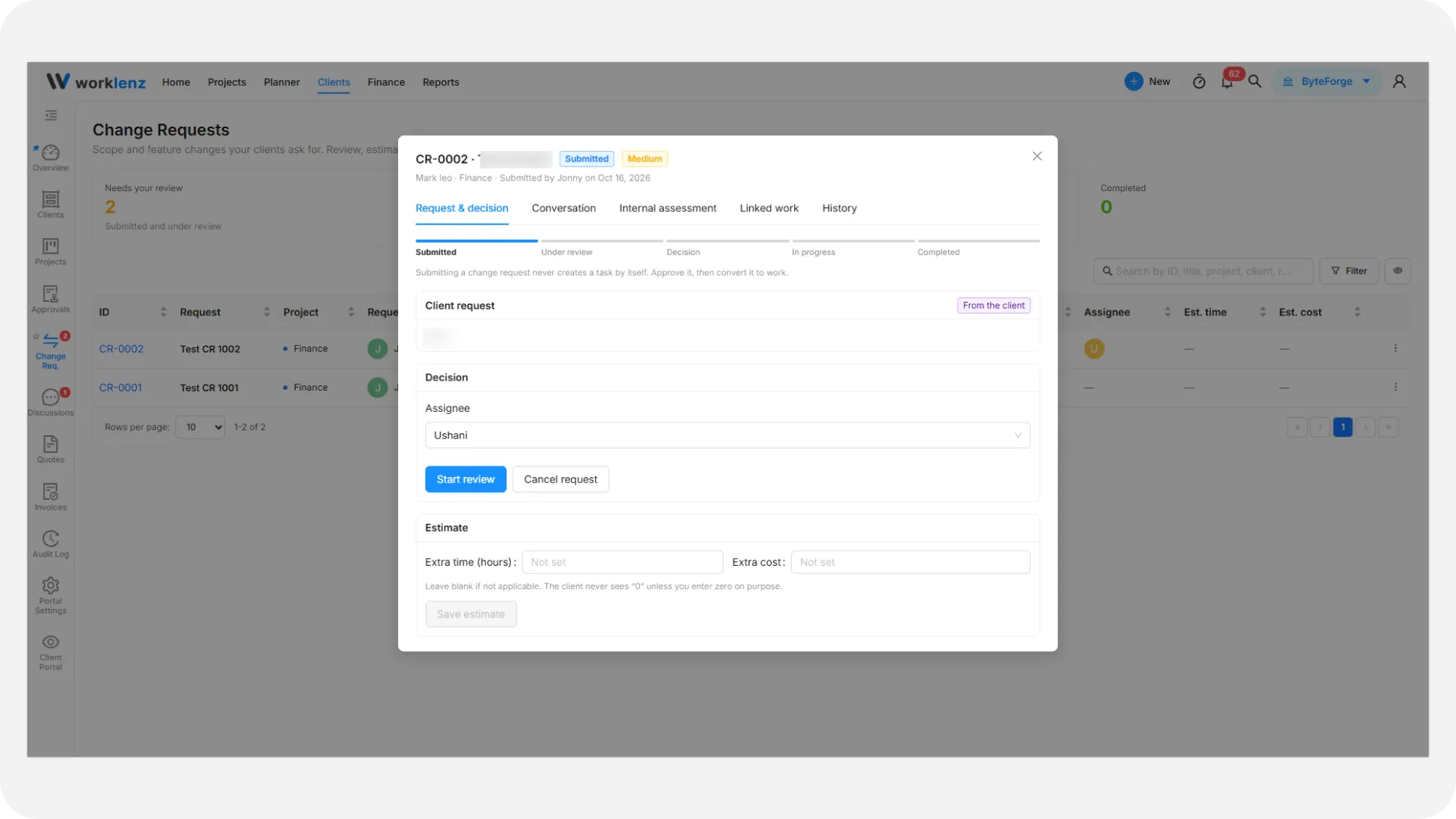
Open a request from Change Req.. The detail has five tabs: Request & decision, Conversation, Internal assessment, Linked work and History.
- Select Start review. If no one is assigned, you become the assignee. The client never sees the assignee.
- Add an estimate: Extra time (hours) and Extra cost, both optional, then Save estimate. Blank means the client sees nothing, not zero.
- Write notes on Internal assessment. They are never shown to the client.
- Choose Approve, Ask client for more info or Reject. Asking for info and rejecting need a written response on the Conversation tab. Approve sends “Approved.” if you leave it empty.
Replies on the Conversation tab are visible to the client. Use Send response only to reply without changing the status. A response can be up to 5000 characters. The same messages also appear in the request’s discussion thread.
How do I convert an approved request to work?
On an Approved request, select Convert to work…. The dialog asks how the work should be tracked:
- Create a new task - set a title (up to 200 characters, prefilled as “CR-0048: title”), an optional assignee, and whether the task is Internal only or Client visible. It copies the description and priority, and sets the time estimate if you entered hours.
- Link an existing task - choose a project task not already linked to another request. The task keeps its own visibility.
Either way the request moves to In Progress. When the work is finished, select Mark completed.
When can I bill a change request?
Only Approved, In Progress and Completed requests are billable. For those, the row menu and Linked work tab offer Create quote and Create invoice. One request can have several invoices, for example one per milestone. See quotes and invoices.
What does the client see?
The reference, title, description, notes, attachments, priority, status, submission date, requester, your responses, the estimate and a progress timeline. They never see the assignee or internal assessment. Clients can cancel their own request while it is Submitted, Under Review or More Information Required. A Client Admin can cancel any in their organization.
Admins see all requests for their organization. Members and Viewers see only ones they submitted. See add a client for roles.
Best practices
- Put your reasoning on the Internal assessment tab, because notes there are never shown to the client.
- Leave the estimate blank rather than entering zero when you have no figure, because blank shows the client nothing while zero would show a value.
- Write a clear response when you reject or ask for more information, because both actions require one.
- Convert an approved request to a task as soon as you accept it, because nothing is created in your project until you do.
- Mark the new task Internal only if the client does not need to follow it, because you choose its visibility when you convert.
- Create the quote or invoice from the Linked work tab, because the charge then traces back to the original request.