

Preview the Client Portal as a client
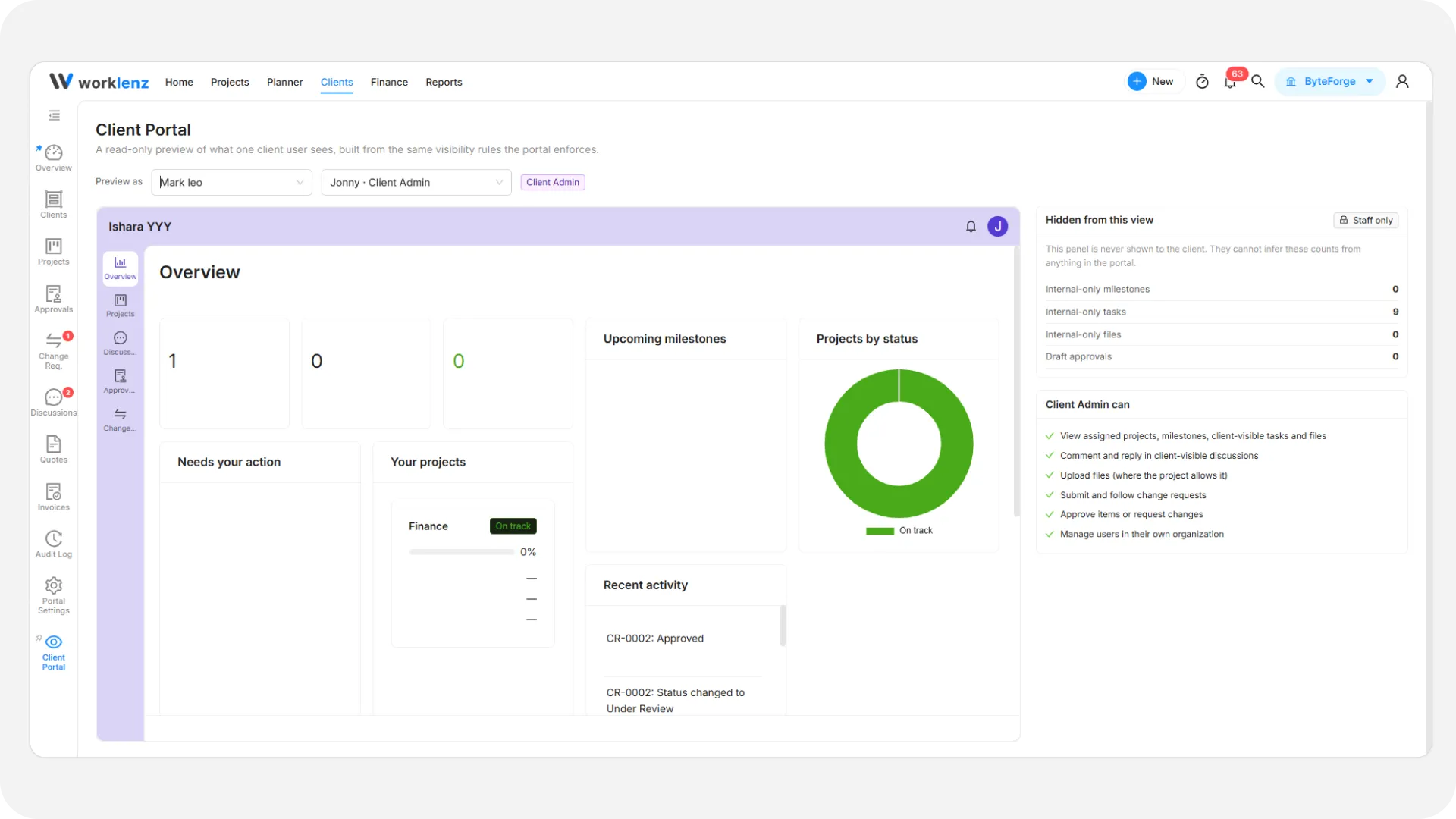
Preview as client shows a read-only copy of the portal for one chosen client person, built from the same rules the real portal enforces. Use it after sharing work or changing a role to confirm the client sees what you intend, and nothing more.
At a glance
| What it is | A read-only view of one client user’s portal |
| Where to find it | The Client Portal item at the bottom of the left menu, or Preview as client inside a project |
| Who can use it | Workspace Owners and Admins |
| Plan | Pro and Business |
How to preview
- Open Client Portal in the left menu of the admin area.
- Under Preview as, choose a client with Select client.
- Choose a person with Select client user. The list shows name and role.
- Browse the tabs: Dashboard, Projects, Approvals, Change Requests and Discussions.
From a project, select Preview as client. It is disabled until the portal is on for that project, and it picks a Client Admin assigned to it.
Who you can preview
Only Active people who are assigned to at least one project. Invited or deactivated users do not appear. If nobody qualifies you see “No active client users with a project yet”. Invite a person and assign a project first, as in add a client.
What the page shows
- The portal frame uses your live branding: title, color, light or dark theme, logo and the “Powered by Worklenz” note.
- A panel lists what that person’s role can do, marked Allowed or Not allowed.
- A staff-only panel, Hidden from this view, counts what the client cannot see: draft approvals, Internal Only files, milestones and tasks. The client cannot work these numbers out from the portal.
- Client-only messages posted by client people appear tagged “Client users only”. Your team cannot see them outside of this preview.
What preview does not do
It never signs you in as the client, changes no data, and writes nothing to the audit log. Reply boxes say “Preview only” because they do not send anything.
Example
You shared two milestones and one design file for Northwind. Preview as their Client Viewer: you should see those items and no reply box. Preview as the Client Admin and you should also see approvals they can decide. If a task shows up that you meant to hide, find it in share projects with clients and switch it to Internal Only.
Best practices
- Preview after sharing work and assigning a project, because you see exactly what the client person will see.
- Preview each role you use, because a Viewer sees no reply box and a Client Admin also sees approvals they can decide.
- Check the Hidden from this view panel, because it counts what the client cannot see, which they cannot work out themselves.
- Preview after every role or project change, because those change what the person sees.
- Invite a person and assign a project first, because only Active people with at least one project can be previewed.