

Sprints in software projects
A sprint is a fixed period in which your team works on a chosen set of issues. You create sprints from the Backlog tab, start one when planning is done, and complete it when time is up. Unfinished work moves to a place you choose, so nothing gets lost between sprints.
At a glance
| What it is | A time-boxed set of issues with a name, goal and dates |
| Where to find it | Backlog tab (sprint cards), and project settings > Sprints |
| Who can use it | Owners, Admins and Project Managers manage sprints; Members work inside them |
| Plan | Any plan |
How do I create a sprint?
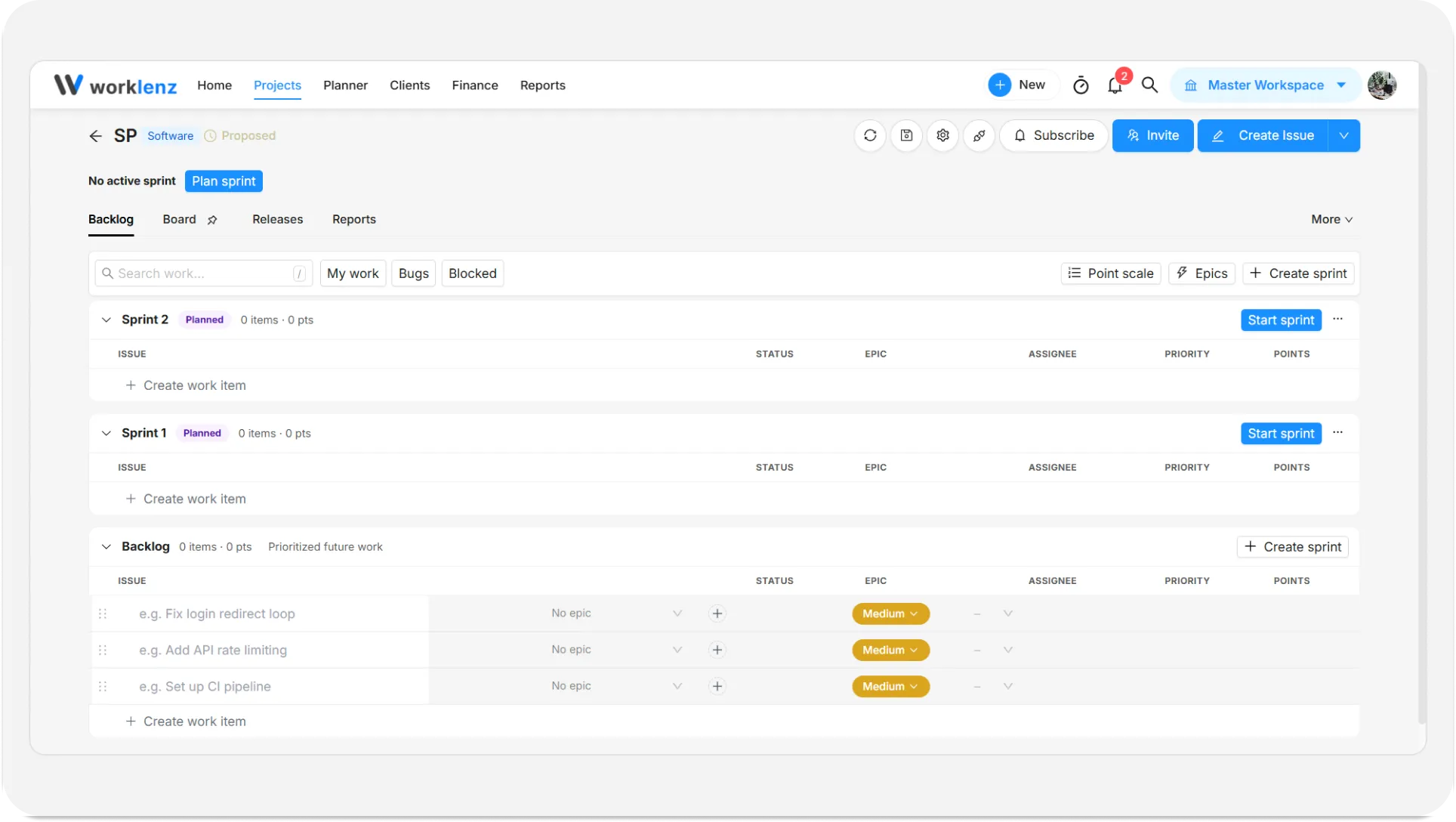
- Open the Backlog tab.
- Click Create sprint in the toolbar.
A sprint named “Sprint 2” (the number is your sprint count plus one) appears at once, with no dates and a message “Sprint 2 created”. There is no form. To name it or set dates, open its … menu and choose Edit sprint.
You can also add sprints from project settings > Sprints. Add sprint continues from the last sprint’s dates. More options lets you pick a start date and a duration of 1 to 12 weeks, or 1 to 90 days.
How do I edit a sprint?
Open the card’s … menu and choose Edit sprint. You can change the name (up to 50 characters), the goal (up to 500 characters) and the dates. Click Save changes. Editing does not change the sprint’s status or move any issues.
How do I start a sprint?
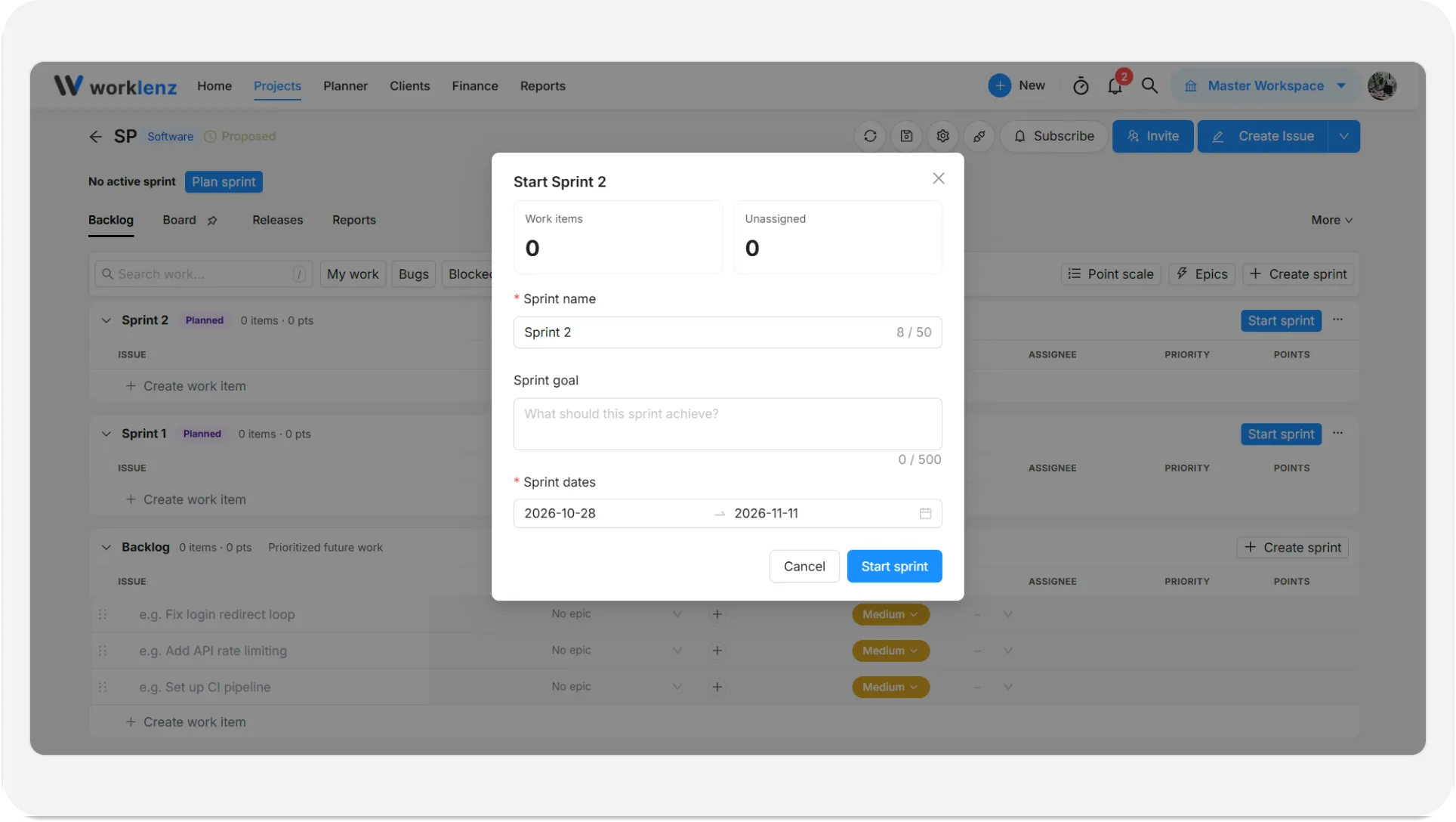
- On a planned sprint’s card, click Start sprint.
- Check the name, goal and Sprint dates. The window opens with today as the start and two weeks later as the end if the sprint has no dates. Both dates are required.
- Review the two counters, Work items and Unassigned.
- Click Start sprint. You see “Sprint started”.
Starting also records how many points and issues you committed to, which feeds the software reports. Issues added after this point count as scope added.
How do I complete a sprint?
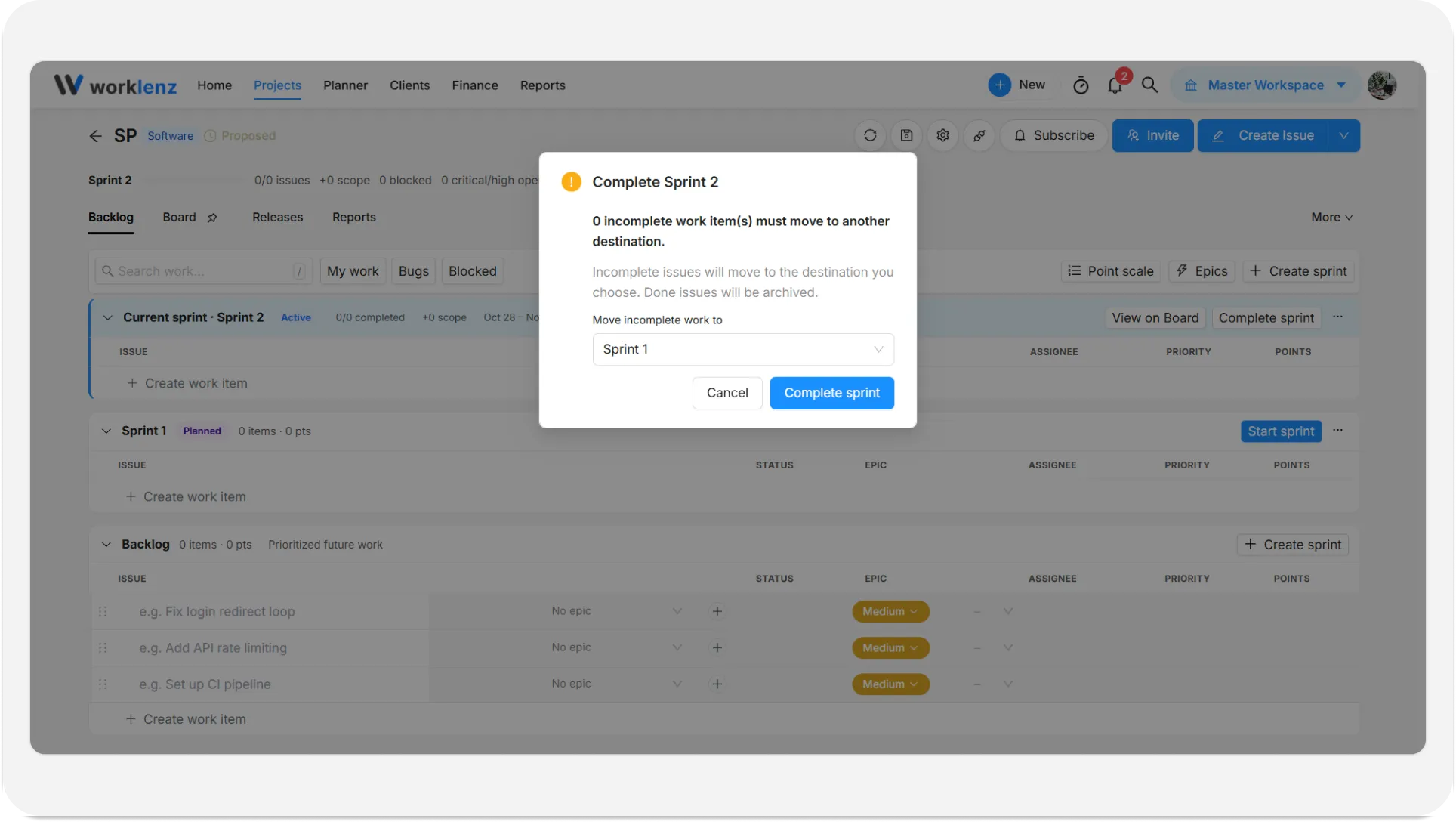
- On the active sprint’s card, click Complete sprint.
- If you started from the Backlog, the window says how many incomplete work items must move.
- Under Move incomplete work to, choose Backlog or any planned sprint. The earliest planned sprint is preselected; if none exists, Backlog is.
- Click Complete sprint.
A summary message shows the sprint completed, how many unfinished issues moved and where, and how many done issues were archived.
What counts as unfinished?
Every issue that is not Done carries over. A Done issue that still has an unfinished subtask also carries over, and its subtasks come with it. Done issues with no loose ends stay in the completed sprint, and are archived if auto-archive is on.
What is the sprint health bar?
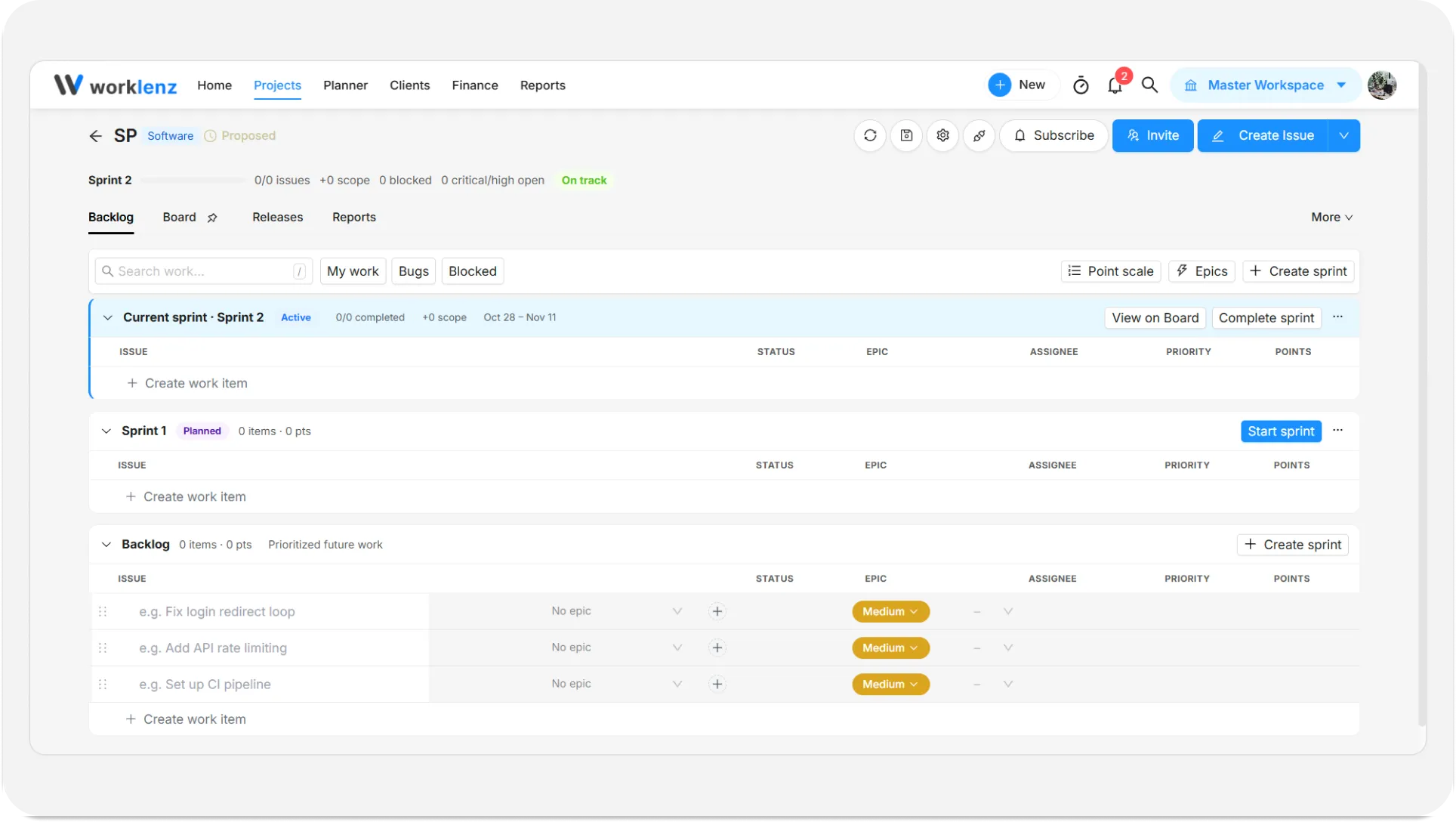
A bar above the project tabs, visible on every tab. With no active sprint it says “No active sprint” and offers Plan sprint. With one running it shows the sprint name and goal, a progress bar, issues or points done out of the total, scope added since the start, blocked issues, open critical or high-priority issues, and a status pill.
| Pill | Meaning |
|---|---|
| On track | Progress is keeping pace with elapsed time |
| At risk | Time elapsed is well ahead of work completed |
| Overdue | The end date has passed and work remains |
The pill needs both sprint dates to work. Click the scope or blocked counts to jump to the Backlog or Board.
Can sprints start and finish by themselves?
Yes, in project settings > Sprints there are two switches that save immediately.
| Setting | Default | What it does |
|---|---|---|
| Start and complete sprints automatically | Off | Planned sprints start on their start date. The active sprint completes after its end date and unfinished work moves to the next planned sprint, or the Backlog. Sprints without dates are untouched. Checks run about every five minutes |
| Auto-archive done issues when a sprint completes | On | Done issues in the completed sprint are archived. Unfinished issues move to your chosen destination |
When the next sprint starts automatically and its dates are already in the past, the dates shift to today and keep the planned length.
How do I delete a sprint?
Open Edit sprint and click Delete sprint. You are warned that its work items move to the Backlog and that this cannot be undone. The issues themselves are kept.
Example
On Friday, Dev completes Sprint 4. Five issues are unfinished, and Sprint 5 is already planned. Dev picks Sprint 5 as the destination, so those issues roll over and the team opens Monday with a head start. The three done issues are archived automatically.
Best practices
- Set both dates when you create or edit a sprint, because starting requires a start and end date, and the health pill and burndown chart need them too.
- Name a planned sprint as the destination when you complete a sprint, because unfinished issues then roll straight into the next sprint instead of returning to the Backlog.
- Finish or move subtasks before completing, because a Done parent with unfinished subtasks is carried over with them.
- Decide on auto-archive before your first sprint completes, because Auto-archive done issues when a sprint completes is on by default.
- Give every sprint dates before turning on automatic start and complete, because sprints without dates are left untouched while dated ones start and finish on their own.
- Complete a finished sprint rather than deleting it, because deleting sends all its issues to the Backlog and cannot be undone.