

Task attachments
The Task attachments view lets you access all files, images, and documents that team members have attached to individual tasks within a project.
How to Access
- Click Projects in the top navigation bar.
- Click on the project name to open it.
- Select the Files tab from the top project navbar.
- Click the Task attachments sub-tab.
Task attachments table
The table displays all files attached to project tasks, sorted by upload date (newest first):
- Name: The attachment filename and file format icon (e.g., PDF, DOCX, JPG). Click the name to preview the file.
- Task: The specific task ID and task name the file belongs to (for example,
#29-2 - BBBB). Click the task name to open the task details. - Size: The file size (e.g.,
20.85 KB,2.33 MB). - Uploaded By: The team member who uploaded the attachment.
- Date: The date or timeframe when the file was attached.
- Actions:
- Download (Cloud icon): Save a copy of the attachment to your computer.
- Delete (Trash bin icon): Remove the attachment from the task.
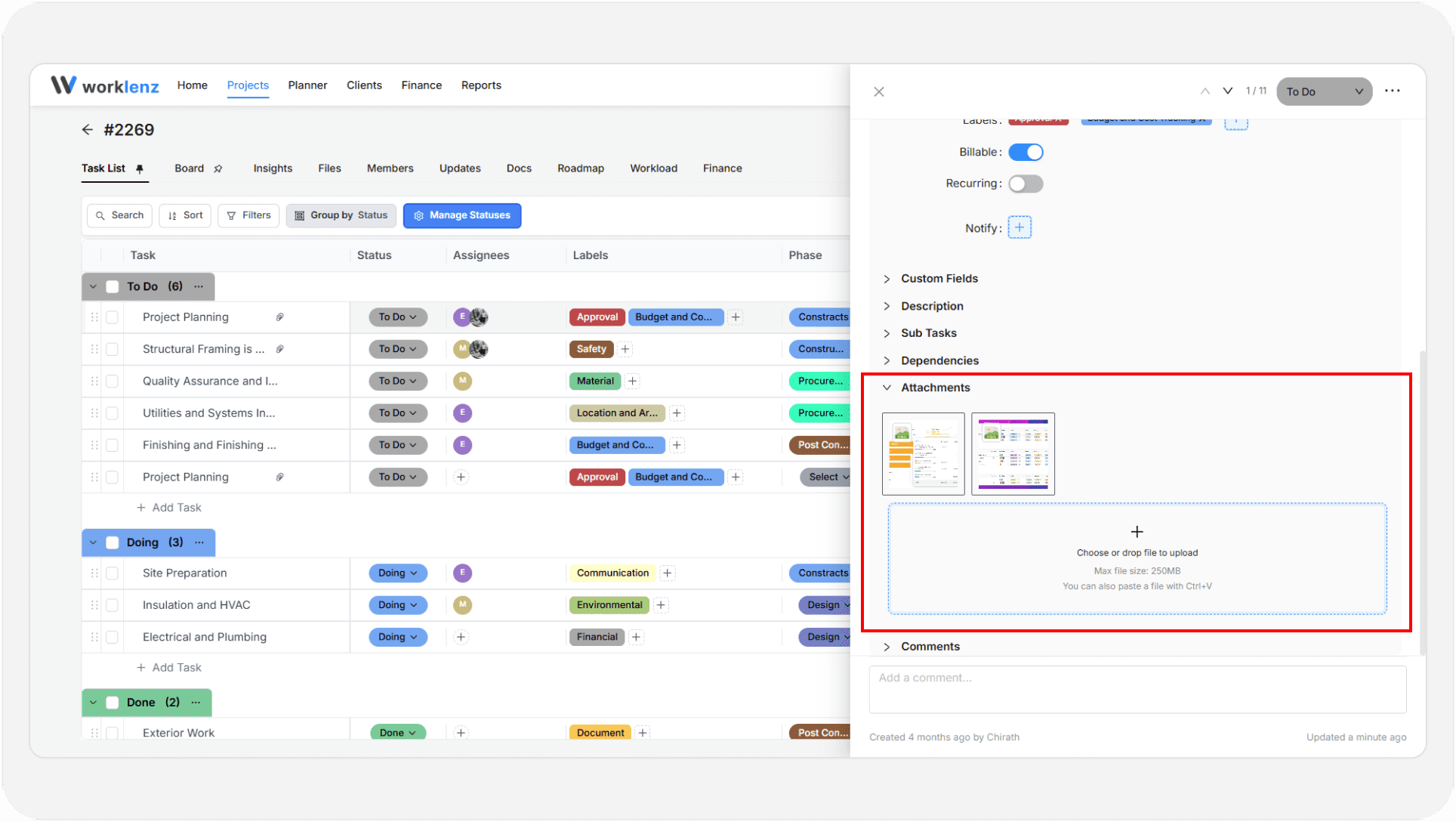
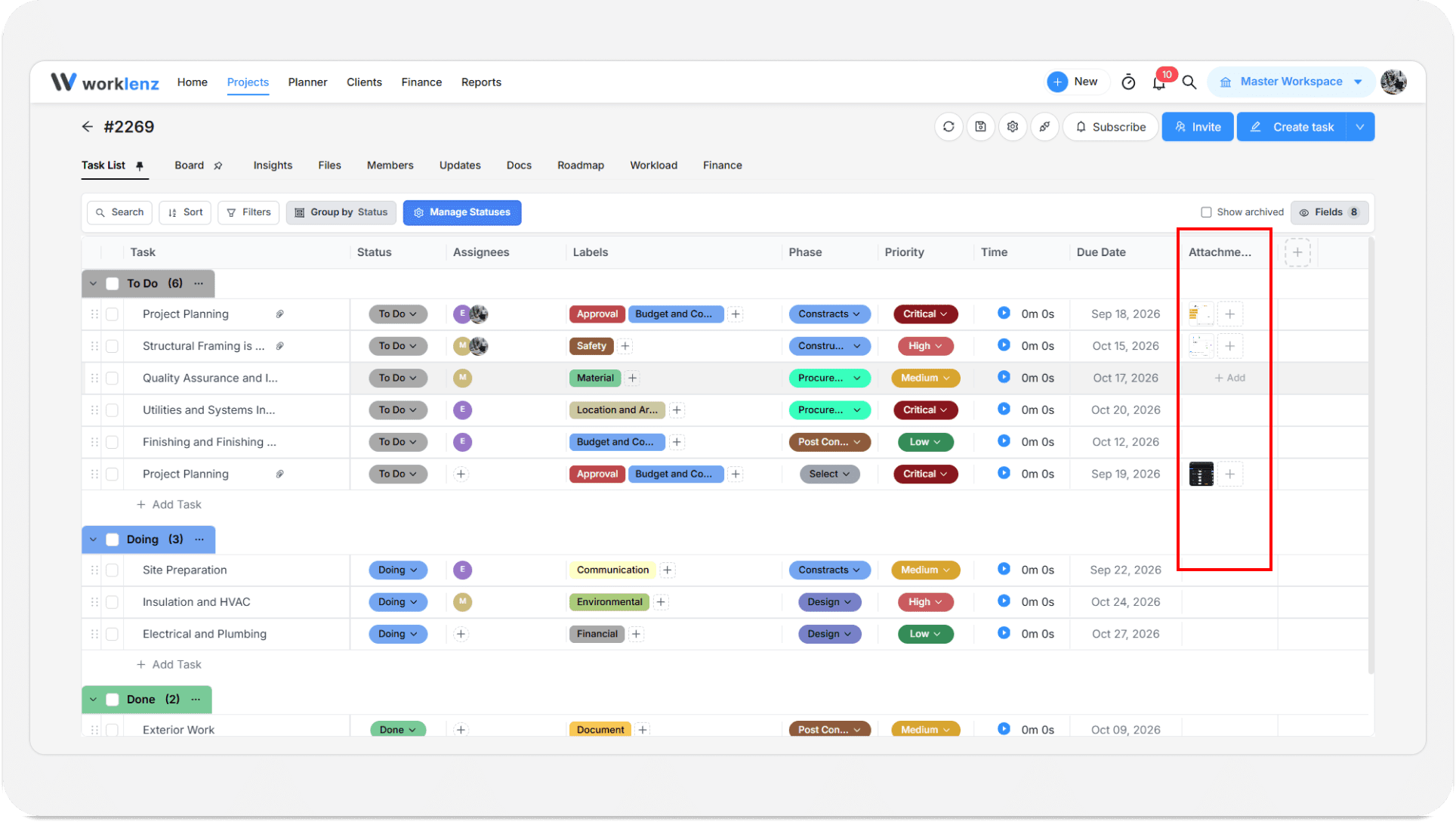
Attachments can be added from any task drawer using the + icon, drag and drop, or by pasting a file with Ctrl+V. See Task attached files for details.