

Guest role
The Guest role lets you collaborate with external clients, contractors, or freelancers without granting them full access to your workspace.
About guest access
- Single-Project Access: Guests only see the specific project they are invited to.
- Privacy Protected: Guests cannot view other workspace projects, workspace finance reports, team settings, or member directories.
- Collaboration Rights: Guests can work within their assigned project. In software projects they are view-only for Backlog and Releases and lose the Insights, Finance, Updates, Files and Docs tabs. See permissions and plans.
How to Invite a Guest
You can invite a guest user using three different methods:
Method 1: From the + New Button
- Click the blue + New button in the top navigation bar and choose Add Guest.
- Select the target project from the Select Project dropdown.
- Enter one or more email addresses under Guest Email Addresses (separated by commas, spaces, or semicolons).
- Click Invite Guest (or switch to the Invite with Link tab to generate a direct sharing link).
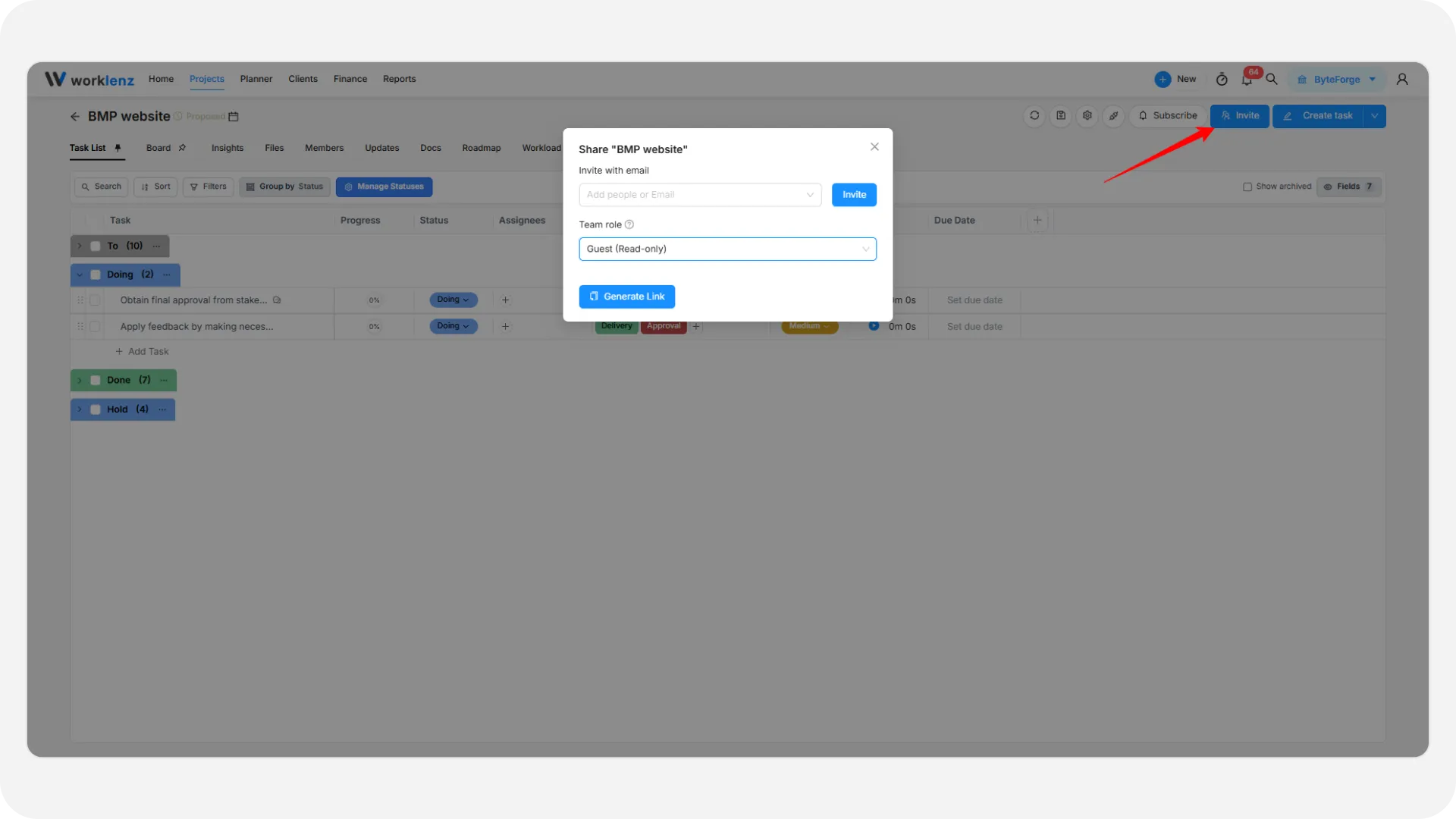
Method 2: From Project Header (Invite Button)
- Open your project and click the blue Invite button at the top right.
- In the Share modal, enter the person’s email address.
- Set the Team role dropdown to Guest.
- Click Invite or use Generate Link to share an invitation URL.
Method 3: From Project Members Tab
- Navigate to the project’s Members tab.
- Click the Invite button next to your seat count.
- Enter the email address and select Guest as the role.
- Click Invite.
Managing guest members
- You can review guest users directly from the project’s Members tab.
- Project managers and Admins can remove a guest or change their access role at any time.
To see every guest in one list, with their project counts, and to deactivate, reactivate or delete a guest, open Guest Members in workspace settings. Guests are not available on the Free plan, and a plan’s guest limit applies when you invite. For roles, see member access levels.