

Managing team members
You can manage your team members by navigating to Settings > Workspace Setup > Team Members. Only Owners and Admins can open this page.
What does the member list show?
The header shows the member count and, on seat-based plans, how many seats are used. Use Search members by name to filter and the refresh button to reload the list.
| Column | What it shows |
|---|---|
| Name | Name and job title, with “(Invitation pending)” or “(Currently deactivated)” when it applies |
| Projects | Number of projects |
| Email address | |
| Team Access | The role: Owner, Admin, Team Lead or Member |
| Team Lead | The member’s team lead, “Unassigned”, or ”-” for roles that do not have one |
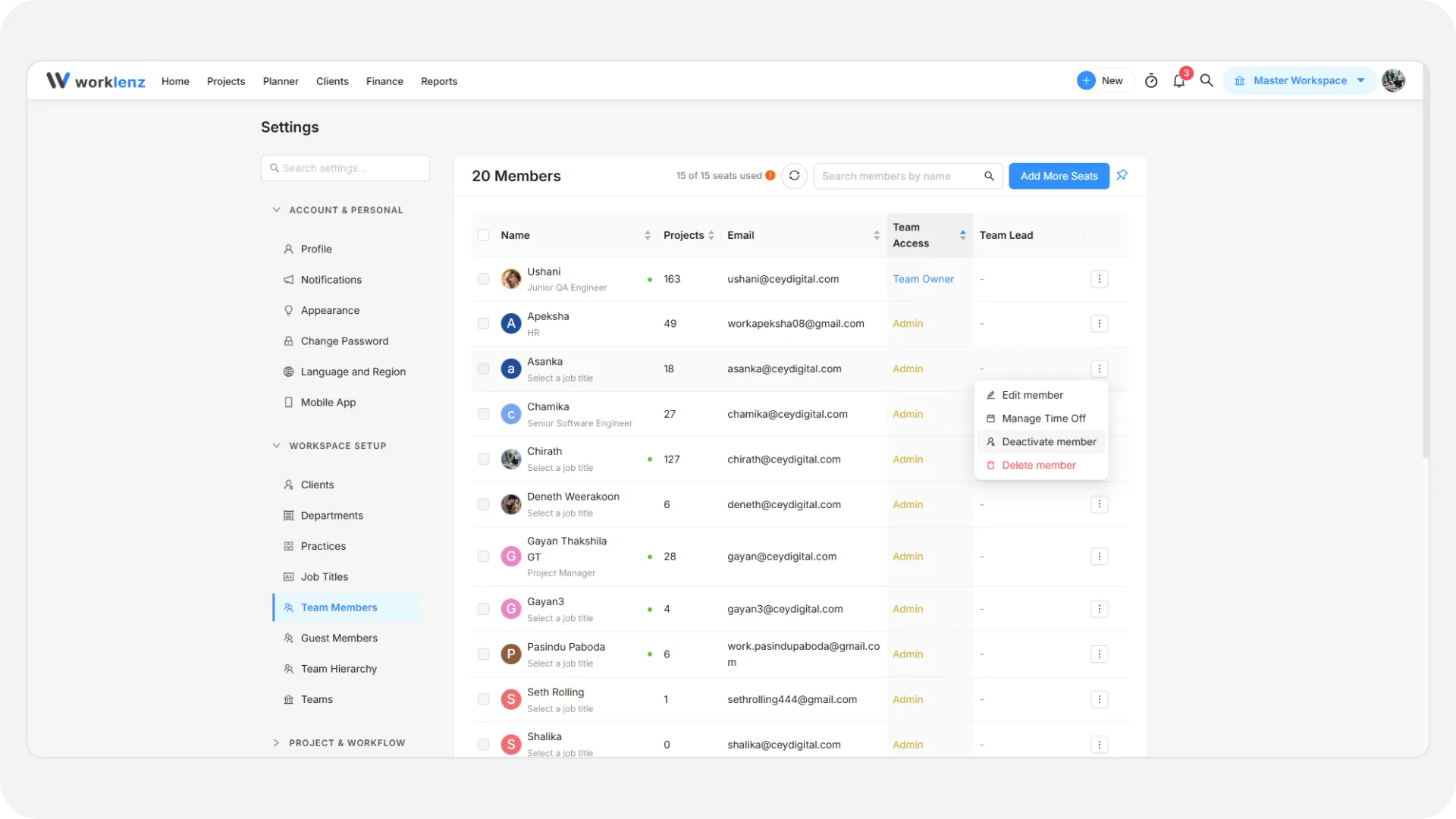
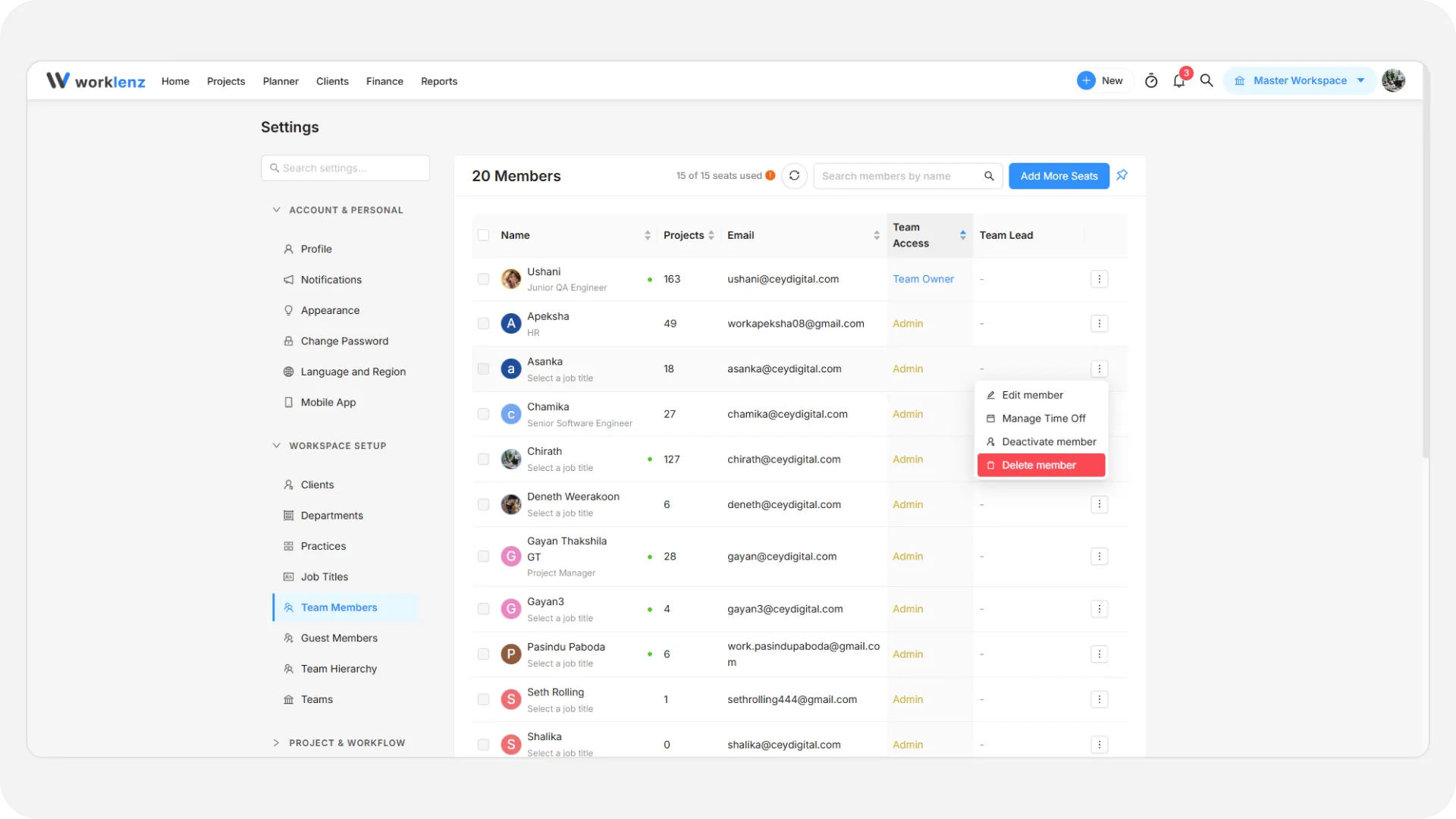
The list is sorted by Team Access by default, and your sort choice is remembered in your browser. Click the three-dot icon on a row for the actions below.
Edit member
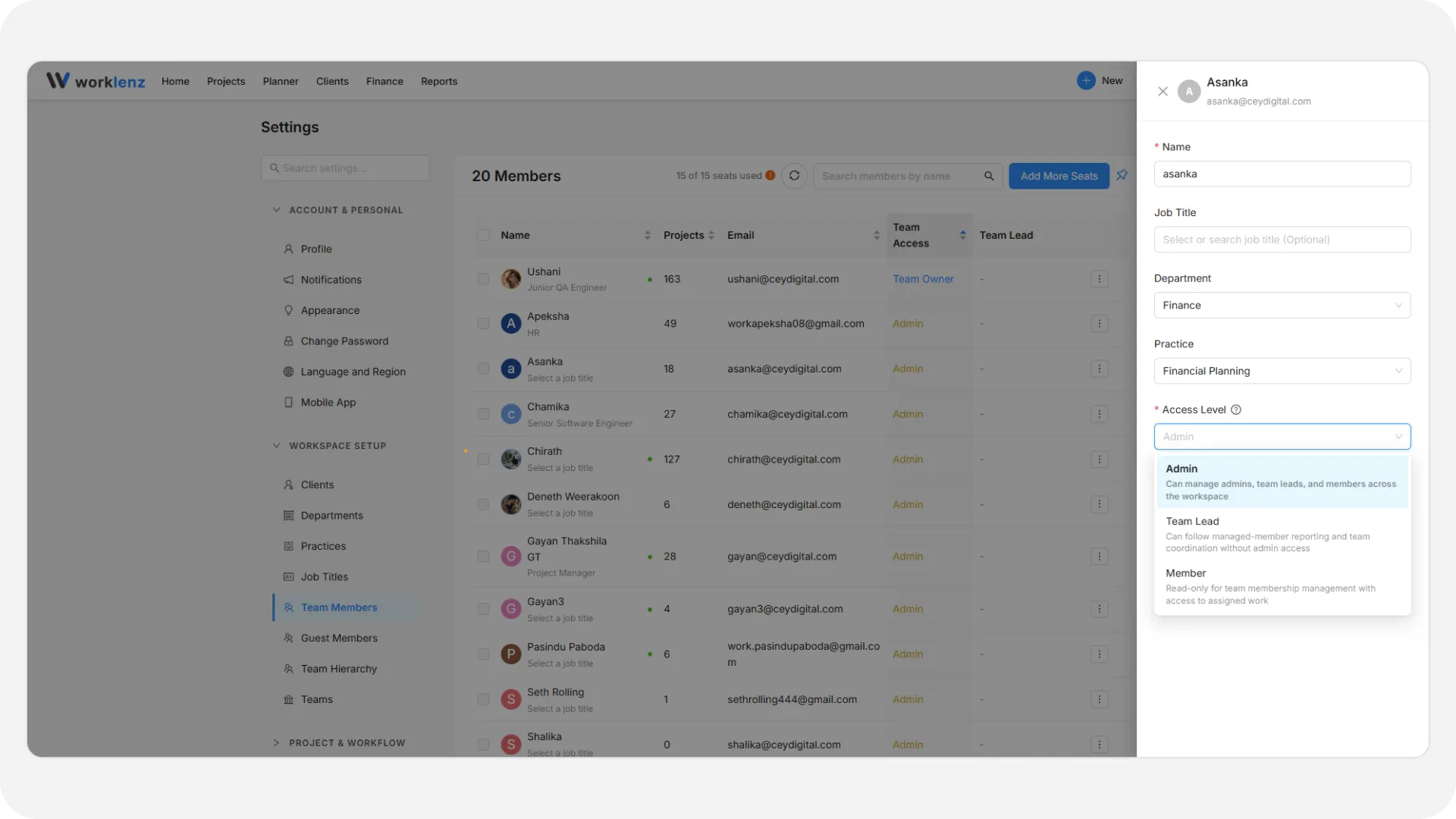
Select Edit member to open Update Team Member.
- Name (required)
- Job Title, Department and Practice (all optional). See job titles and departments and practices.
- Access Level: Member, Admin or Team Lead. Learn more in access levels. It is hidden when an owner edits their own details.
- Manager: assign a Team Lead. Only Members can be given a manager.
Click Save Changes. While an invitation is pending, Resend Invitation Email also appears.
Manage time off
Select Manage Time Off from the row menu, or the Manage Time Off button in the edit drawer, to record time off for that member.
Deactivate member
- Select Deactivate member and confirm to remove a member’s access without deleting them.
- They can be reactivated later with Activate member.
- Deactivated members are not counted toward your seat usage.
Delete member
- Select Delete member and confirm to remove the member from the team. This also removes their task assignments, and they receive a notification that they were removed.
- You cannot delete the team owner or yourself. Admins cannot manage the owner.
Assign a team lead in bulk
Tick several rows (only Members can be selected), then click Assign Team Lead in the bar that appears. Choose a Team Lead, review the preview, and confirm. To remove one person’s assignment, use the “x” on the Team Lead tag. The result feeds the team hierarchy.