

Using the Client Portal - Dashboard, Projects, Files
Once you are signed in, the portal is a small set of pages: Overview, Projects, Discussions, Approvals, Change Req. and, if your team turns it on, Invoices. This tour covers what each page shows and how your role changes what you can do. If you have not signed in yet, start with the client getting-started guide.
At a glance
| What it is | The client-facing app where you follow your projects |
| Where to find it | The icon rail on the left, plus Settings at the bottom |
| Who can use it | Client Admin, Client Member and Client Viewer, with different abilities |
| Plan | Provided by your project team |
What is on the Overview page?
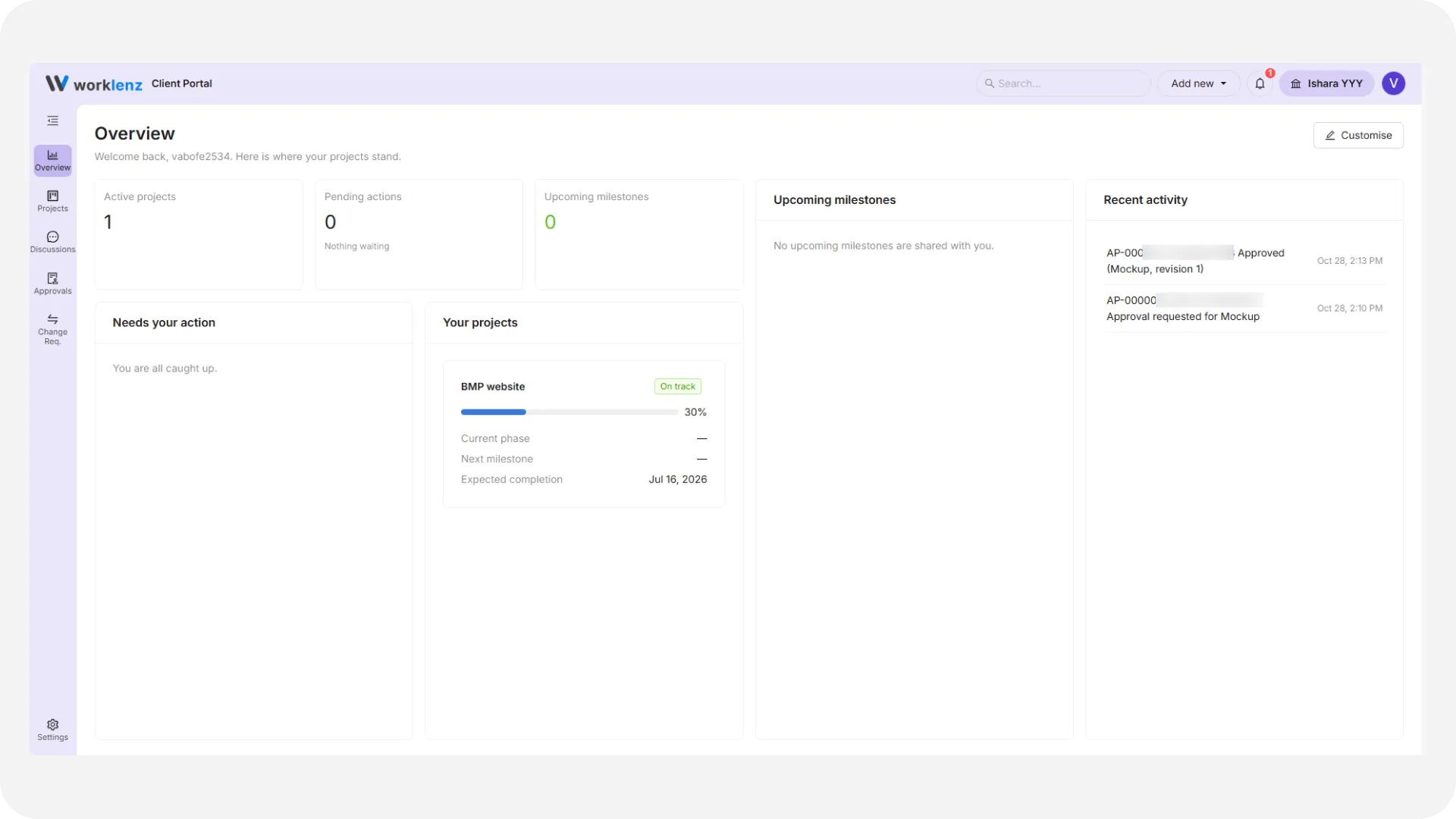
Overview greets you by name and shows widgets you can rearrange. By default you see:
- Tiles for Active projects, Pending actions and Upcoming milestones. A fourth tile, Unpaid amount, appears only if invoices are on.
- Needs your action - approvals (tagged Approve) and change requests (tagged Reply) waiting for you. A Client Admin with nothing pending sees “You are all caught up.” Other roles see a note that only a Client Admin can approve.
- Upcoming milestones, Your projects and Recent activity.
Three charts are hidden until you add them: Projects by status, Project progress and Open items by project.
To change the layout on a desktop or tablet, select Customise. You can drag widgets, pick a width, hide ones you do not need, choose Add widget, then Save. Reset restores the default. The layout is not available on phones.
What do I see under Projects?
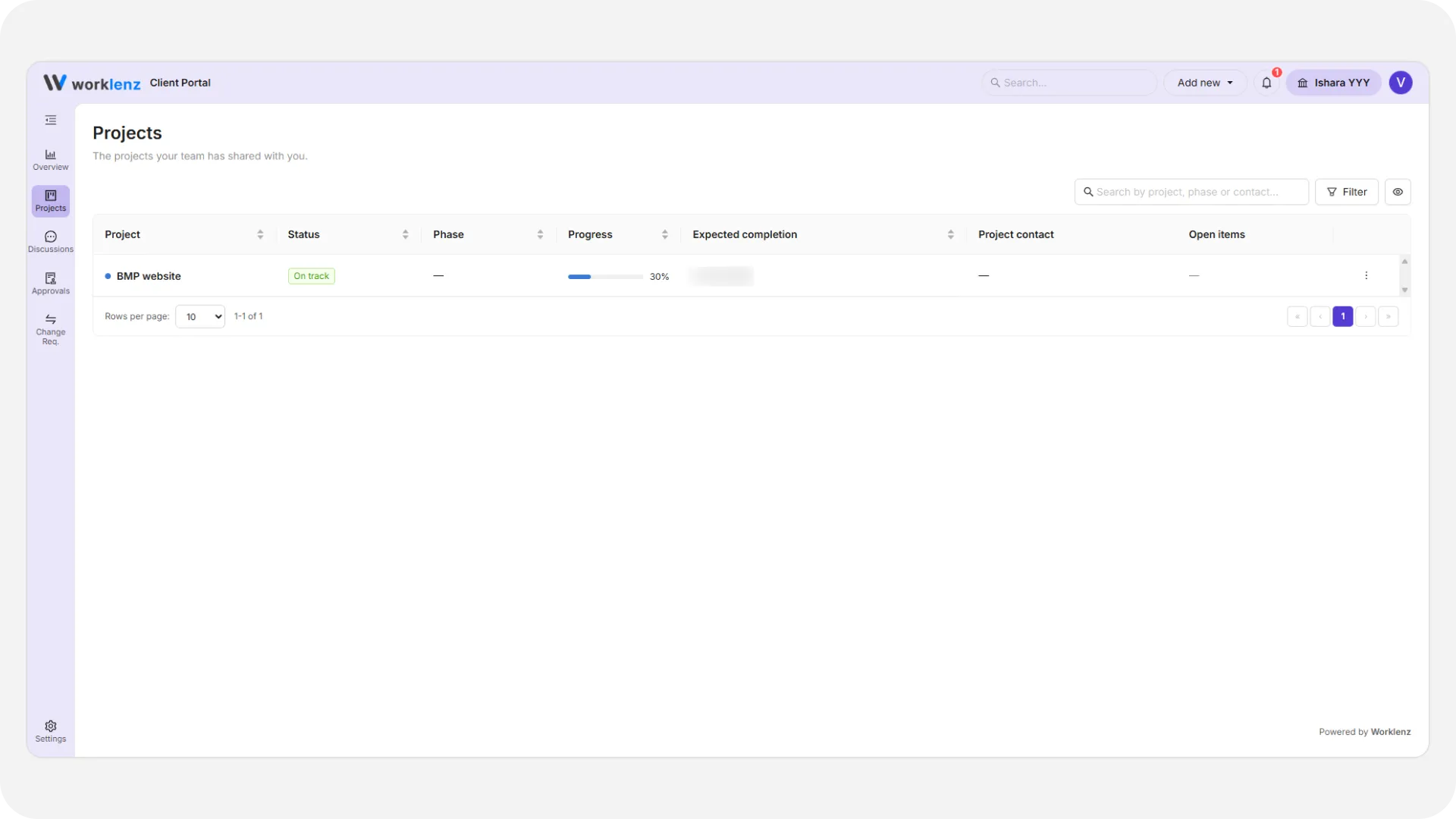
Projects lists the projects shared with you, with status, phase, progress, expected completion, project contact and open items. You can search and filter by status or phase. A Client Admin sees every project of their organization. Members and Viewers see only the projects assigned to them.
Select View details on a row to open the project. The tabs are:
| Tab | What it shows |
|---|---|
| Overview | Progress, phase, the Latest update from your team, key dates, project contact, quick links |
| Milestones | Target dates and status: Upcoming, In Progress, Completed or Delayed. Read-only |
| Tasks | Tasks your team chose to share, with status, due date and a comment thread |
| Files | Shared files, with category, version and who uploaded them |
| Discussions | Conversations about this project. See discussions |
| Members | Who is assigned to the project. Client Admins can add or remove people here |
A project status is one of On track, At risk, On hold or Completed.
Tasks, milestones and files
You cannot edit tasks or milestones. They are there so you can see where things stand. You will not see your team’s internal comments, time logs, estimates, costs or dependencies.
On Files, each row has a Preview and a download icon. Preview opens a window with category, version, uploader, date and size, plus Open preview and Download. Download links are created fresh each time and last about a minute, so use them right away. If your access was removed you will see “Download denied. This file is no longer shared with you.”
To upload a file, you must be a Client Admin or Client Member, and uploads must be on for that project. Select Upload file, choose the file, pick a category (the default is Supporting Document) and select Upload. Your team can see everything you upload and is notified. Files up to 250 MB are accepted, but program and script files such as .exe, .bat and .sh are blocked, and so are web page and markup files like .html and .svg.
How do notifications work?
The bell in the top bar shows a count of unread items. Select it to see Notifications, switch between New and Read, or use Mark all as read. Selecting a row opens the item. A tag Emailed appears when you also got an email. Which events email you is set in account settings.
How do I switch portals?
If you belong to more than one portal, the portal switcher in the top bar lists them. Search by name, pick one, and the portal reloads with that team’s data. You will see “Switched to” and the portal name. With only one portal, the switcher just shows its name.
What can each role do here?
- Client Admin - everything above, plus approving items, submitting change requests, and managing colleagues if your team allows it.
- Client Member - comment, upload and submit change requests, but not approve.
- Client Viewer - read only.
Controls you cannot use stay on screen with a short note, so you know why.
Best practices
- Start at Needs your action on Overview, because it lists the approvals and change requests waiting for you.
- Download files right away, because download links last about a minute.
- Check the file type before uploading, because program, script and web page files such as .exe, .html and .svg are blocked.
- Read the note beside a disabled button, because it tells you which role is needed.
- Use Customise on a desktop or tablet to hide widgets you do not need, because the layout cannot be changed on phones.