

Templates
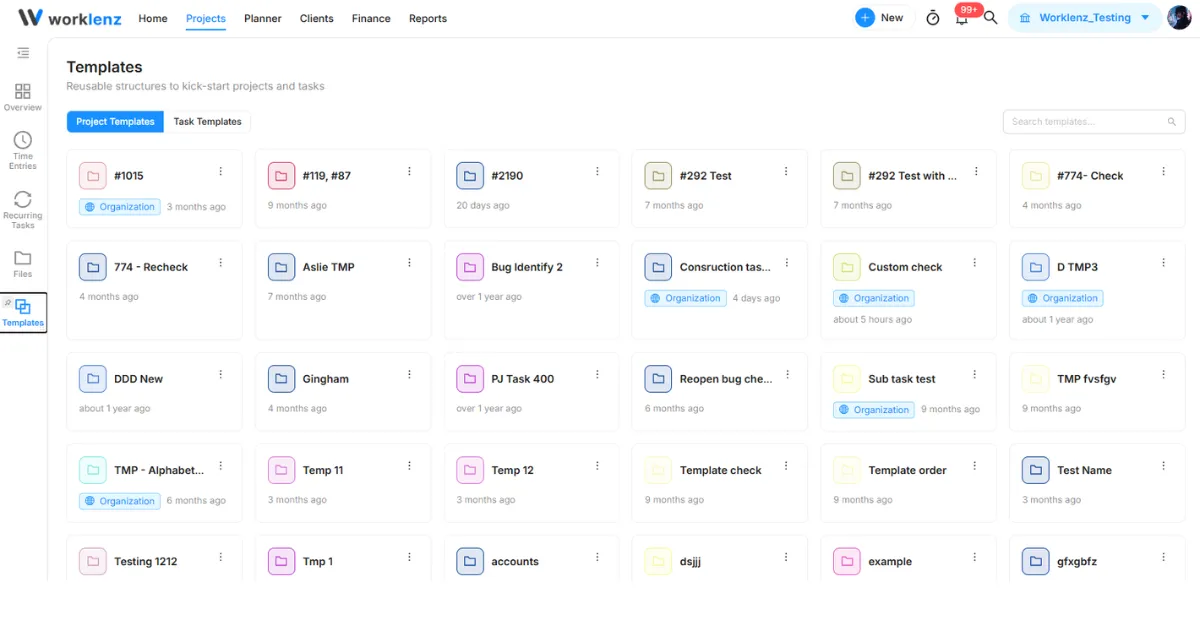
The Templates page is your central library for reusable templates. It allows your team to standardize workflows, avoid repetitive setup, and kick-start new projects and tasks quickly.
Accessing Templates
- Click Projects in the top navigation bar.
- In the left sidebar, click Templates.
Template Types
You can switch between two tabs at the top left of the library:
- Project Templates: Complete project frameworks including phases, default statuses, task lists, and custom settings.
- Task Templates: Predefined task cards with set descriptions, checklists, subtasks, and labels.
Managing Templates
Each template is displayed as a card showing its folder icon, template name, and creation time.
Quick Actions (⋮)
Click the three-dot menu icon on any template card to perform the following actions:
- Use this Template: Immediately start creating a new project or task using this template’s pre-configured structure.
- Preview: Inspect the contents, phases, and tasks included in the template before applying it.
- Share With Organization: Toggle this on or off to make the template available to all members across your organization’s shared library.
- Rename: Update the title of the template.
- Delete: Permanently remove the template from your workspace library.
Managing templates from Settings
Owners and Admins also see saved project templates under Settings > Project Templates, with Preview, rename, delete and import. See project templates in Settings.
Finding Templates
- Use the Search templates… input in the top-right corner to quickly search by template name.