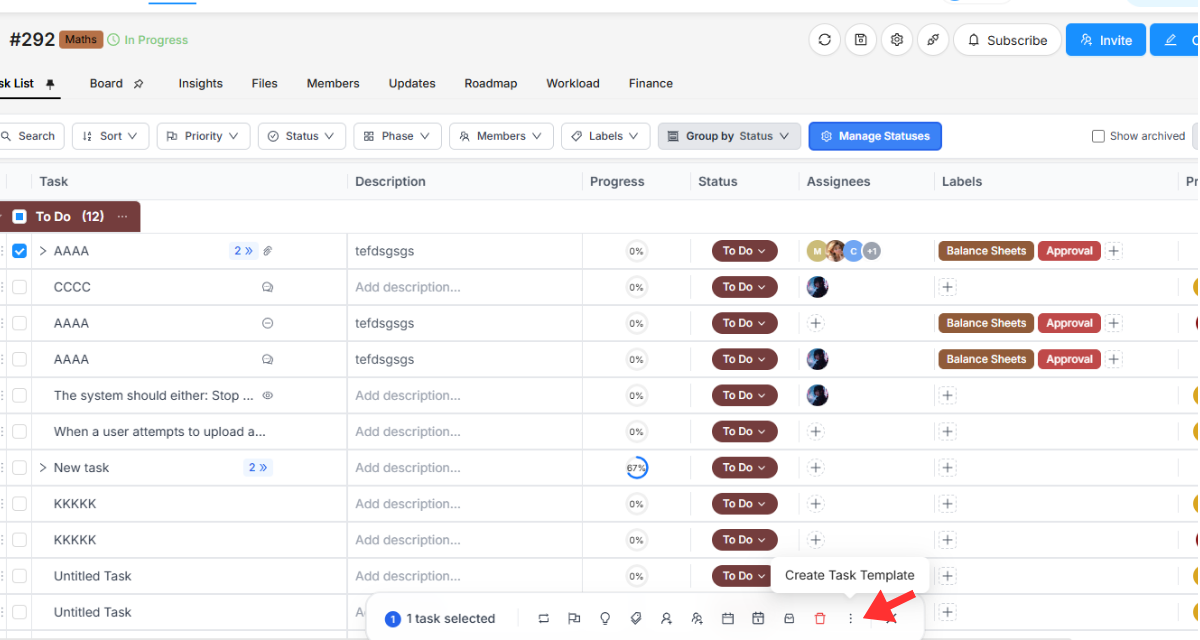
How to create a task template
If you want to create reusable tasks, Worklenz gives you the chance to create a task template. You can create a task template using any task and easily reuse that template entire project. To use a saved template, see how to import a task template.
First, you should select wanted tasks.
- Then you can see option bar appear at the bottom of the page.
- Click the three dots on the right side of this bar
- click Create Task Template option
- It will open a new Create Task Template drawer
- In that drawio, you have to see your selected task. If you want to remove any task, it can be done easily with the given Remove button
- Give the name of your task template
- Tick Include subtask hierarchy to keep subtasks under their parent task. If you leave it unticked, subtasks are saved as separate main tasks.
- Click the save button
You can later rename, edit or delete saved templates in Settings > Task Templates.