

Client Portal audit log
The audit log is a permanent record of important Client Portal actions: who invited whom, what was shared, which files clients opened, and how approvals were decided. Each entry shows who acted, when, and on what. Nobody can edit or delete entries.
At a glance
| What it is | An append-only history of client and internal actions |
| Where to find it | Client Portal > Audit Log, or a client’s Activity tab and its Open full audit log link |
| Who can use it | Workspace Owners and Admins |
| Plan | Pro and Business |
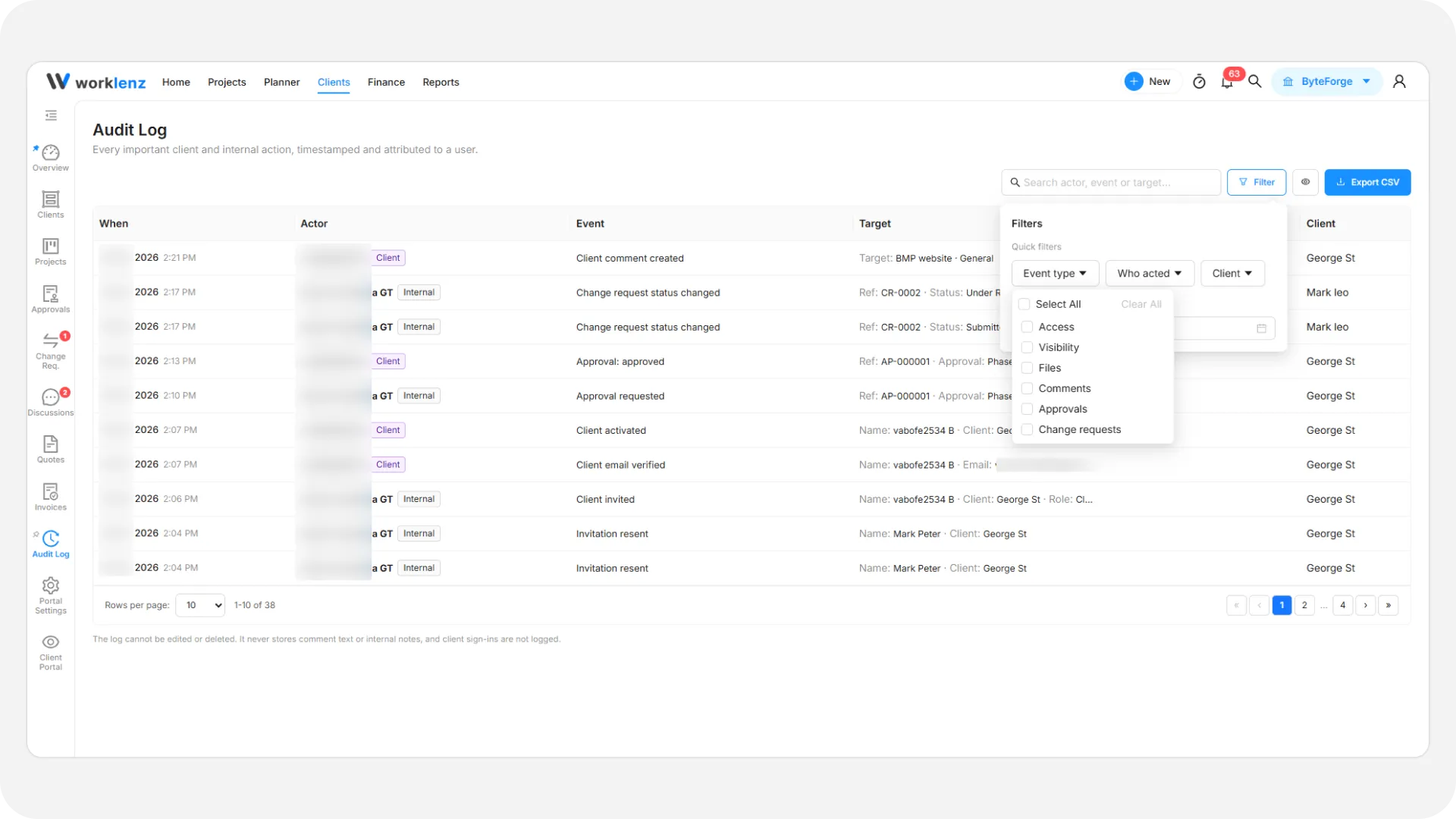
What each column shows
| Column | Contents |
|---|---|
| When | Date and time |
| Actor | The person, tagged Client or Internal |
| Event | What happened |
| Target | The item affected, such as an approval reference and title. Hover for the full text |
| Client | The client organization |
Newest entries come first.
What gets recorded
| Event type | Examples |
|---|---|
| Access | Client invited, invitation resent, role changed, client deactivated or removed, project access assigned or removed, project portal enabled or disabled, permission setting changed |
| Visibility | Entity made Client Visible, entity returned to Internal Only, milestone deleted |
| Files | Client file uploaded, previewed or downloaded; file version uploaded |
| Comments | Client comment created |
| Approvals | Drafted, requested, edited, deleted, cancelled, approved, changes requested |
| Change requests | Created, status changed, completed |
What is deliberately not recorded
Client sign-ins, internal comments, the text of any comment or note, published project updates, milestone completion and estimate changes. The log notes that a comment happened, not what it said.
How to filter and search
- Type in the search box to match an actor, event or target.
- Pick an Event type, Who acted (Client actions or Internal actions) or Client.
- Set a Date range with From and To, or a preset such as This week or Last month. The end date is not included.
Inside a client, the Activity tab shows the same trail for that client alone.
How to export to CSV
Select Export CSV, then Export all as CSV or Export filtered as CSV to export only what your current filters show. The file has When, Actor, Side, Event, Target and Client, newest first, and holds up to 5000 rows. Narrow the date range if you need a longer history in pieces.
Example
A client says a file vanished. Filter Event type to Visibility and search the file name. You find an entry showing it was returned to Internal Only by a teammate two days ago. Then check the file in share projects with clients and share it again if needed.
Best practices
- Filter by Event type and a date range before you search, because the log lists newest entries first and can grow long.
- Check the Visibility events first when a client says something disappeared, because they show whether an item was returned to Internal Only.
- Use Export filtered as CSV for a specific question, because an export holds up to 5000 rows.
- Use the Activity tab inside a client for one client’s history, because it shows the same trail for that client alone.
- Do not look here for sign-ins or comment text, because the log does not record them.