

Share projects with clients in the Client Portal
Sharing in the Client Portal happens at two levels. First you turn the portal on for a project. Then you mark individual tasks, files and milestones as Client Visible. Everything starts as Internal Only, so a client sees nothing until you decide otherwise.
At a glance
| What it is | Per-project portal switch plus item-level sharing |
| Where to find it | Client Portal > Projects (titled Portal Projects), then open a project |
| Who can use it | Workspace Owners and Admins |
| Plan | Pro and Business |
What a client needs before they see anything
All four must be true:
- The project belongs to a client.
- The project’s portal switch is on.
- The person is assigned to the project (Client Admins see all projects of their organization).
- The item is marked Client Visible.
Turning the project switch off hides everything, even items marked visible.
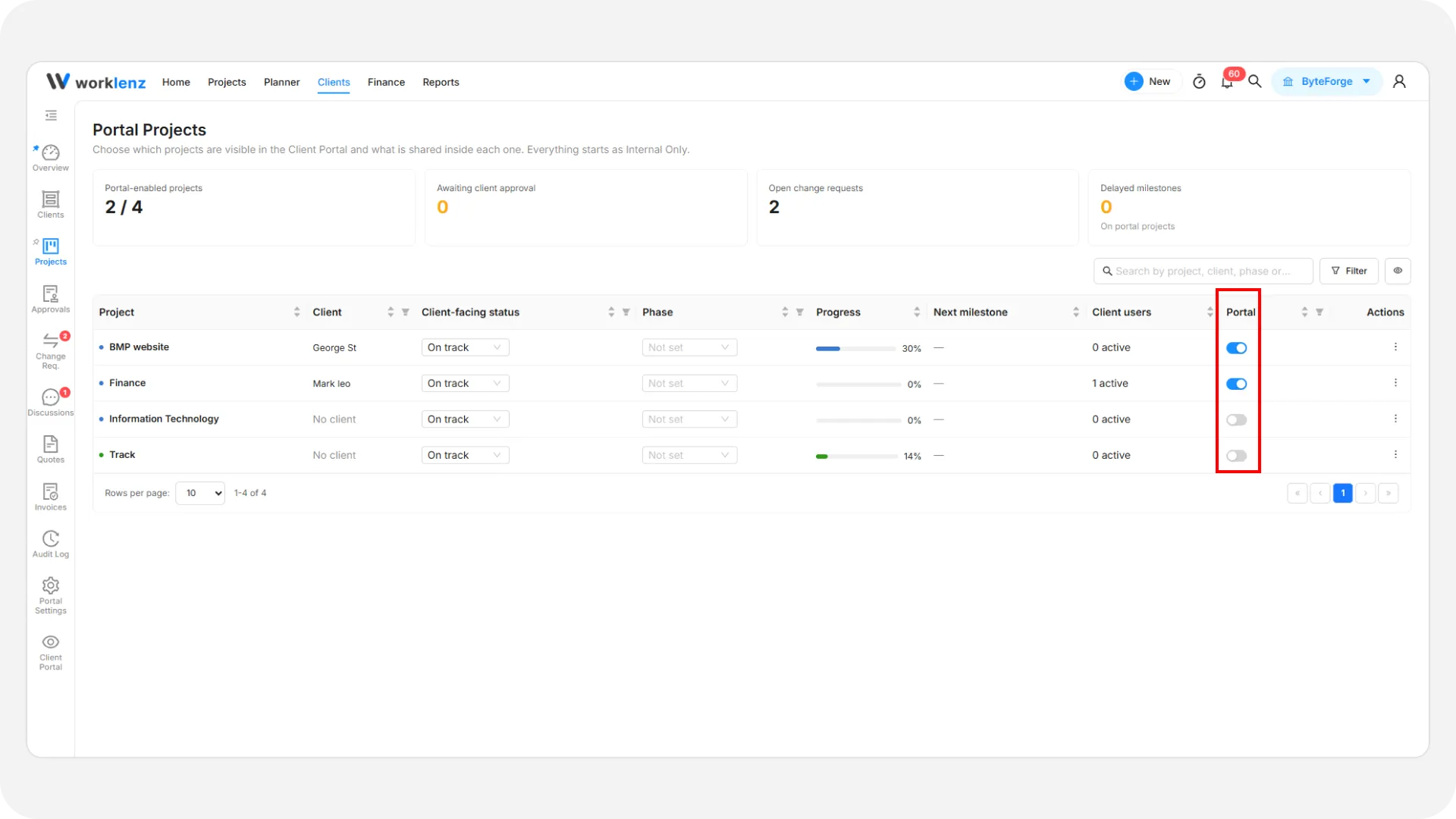
How to turn the portal on for a project
- Open Projects in the Client Portal area.
- If the project has no client, open it and use Link client on the Client Access tab.
- Switch on the Portal toggle in the row, or the Client Portal switch inside the project.
Turning it off asks you to confirm and tells you how many client users lose access. Nothing is deleted, and you can turn it back on later.
Share tasks, files and milestones
Open a project. The tabs are Overview, Milestones, Tasks, Files, Discussions and Client Access.
- Tasks: each row has a Client visible switch. Open a task to add an optional client-facing title (up to 200 characters) and description when your internal wording is too technical.
- Files: use Upload file (up to 250 MB, categories such as Proposal or Deliverable) and flip Client visible. Uploads default to Internal Only. Executable and script files are not allowed.
- Milestones: choose WorkLenz phases (dated phases are shared automatically) or Set manually. Manual milestones need a name and target date, and have their own visibility setting.
Switching an item back to Internal Only removes it from the portal immediately.
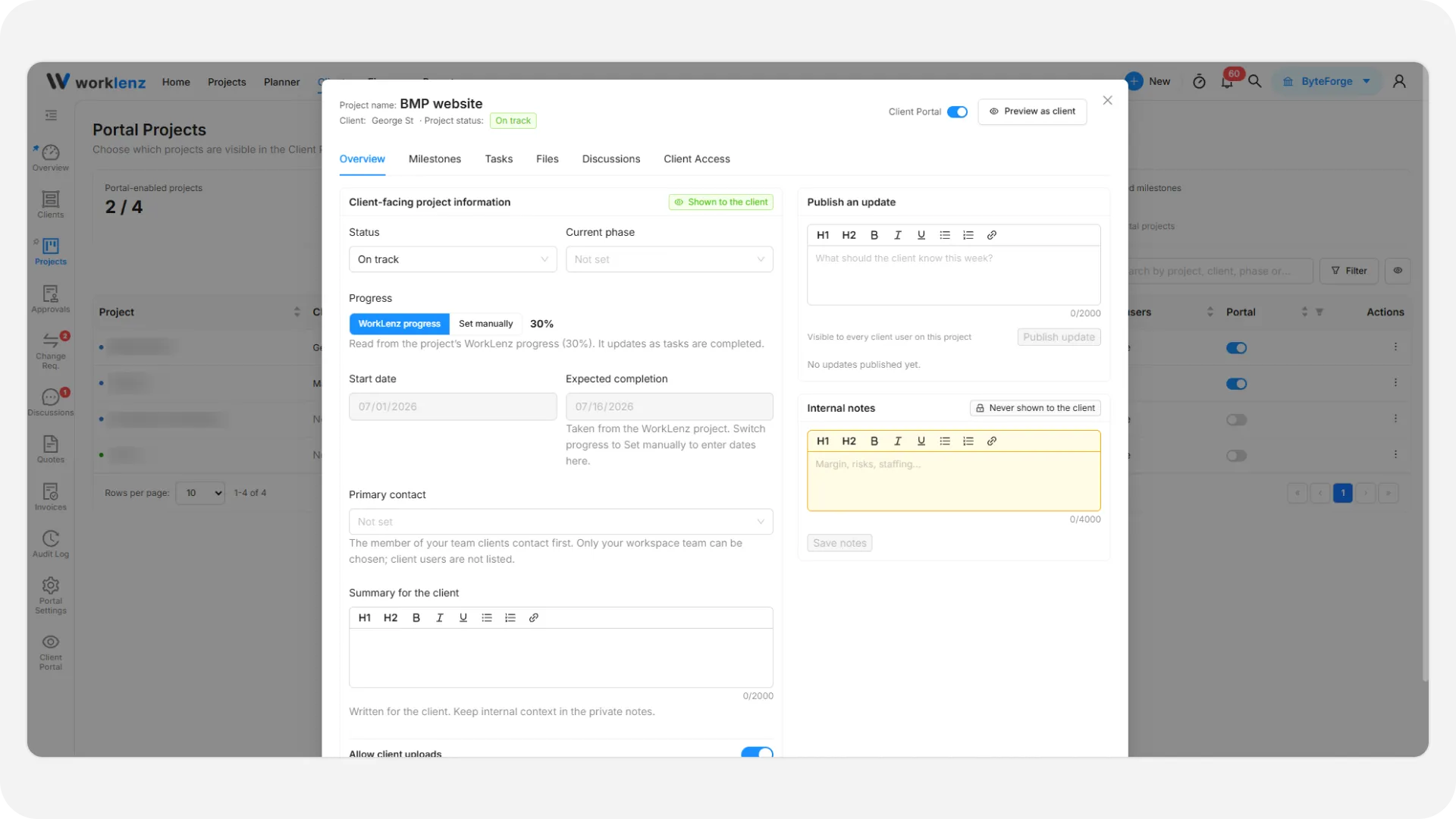
Publish an update
On the Overview tab you can set the client-facing status (On track, At risk, On hold, Completed), phase, dates, a summary of up to 2000 characters and whether clients may upload files. In the update box, write what the client should know this week and select Publish update. Clients are notified in the portal and by email if that event is turned on in portal settings.
Progress can follow Worklenz task progress or be Set manually from 0 to 100. Internal notes on the same tab are never shown to clients.
Who can open the project
The Client Access tab lists the client people assigned. Use Add a user and Assign to add one, or Remove access to take it away. It applies on their next action.
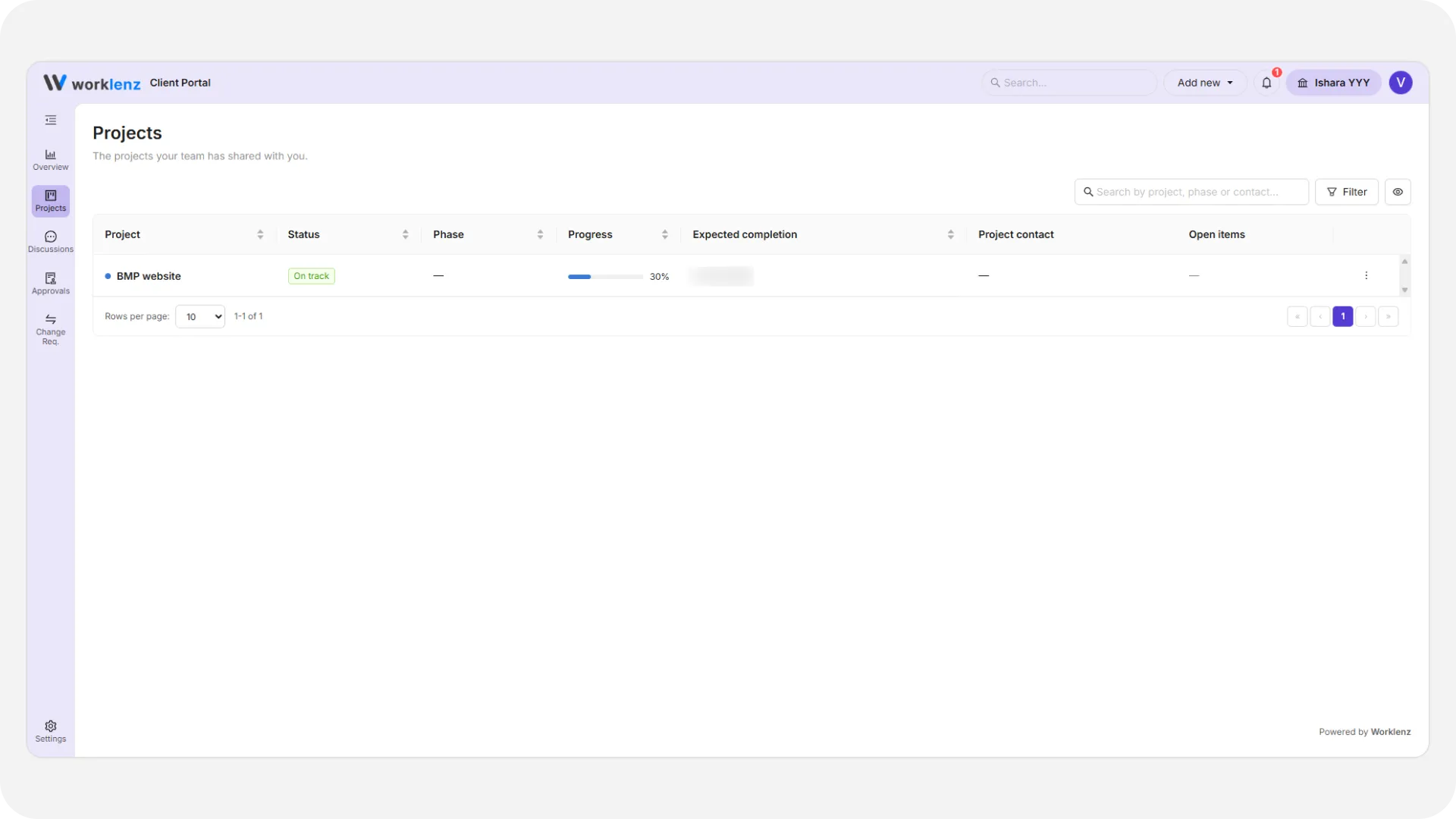
This is the client’s own portal view: only projects they are assigned to, with the Client Portal switch turned on, appear in their list.
What is never shared
Internal comments, time estimates, time logged, cost and billing rate, dependencies and private assignee notes never reach the client. Hidden items are not counted. A file attached to a shared task is visible only if that file is also marked Client Visible.
Check before you rely on it
Use Preview as client inside the project or the preview page to see exactly what one client person sees.
Best practices
- Start with milestones and one deliverable file, because sharing more later is easier than explaining something shared by mistake.
- Add a client-facing title and description to technical tasks, because your internal wording may not suit a client.
- Mark a task’s attached file Client Visible as well, because a file on a shared task stays hidden otherwise.
- Publish updates regularly, because clients see the latest update on the project Overview tab.
- Preview as a client after changes, because all four conditions for visibility must be true.