

Manage team/workspace
Create a new team/workspace
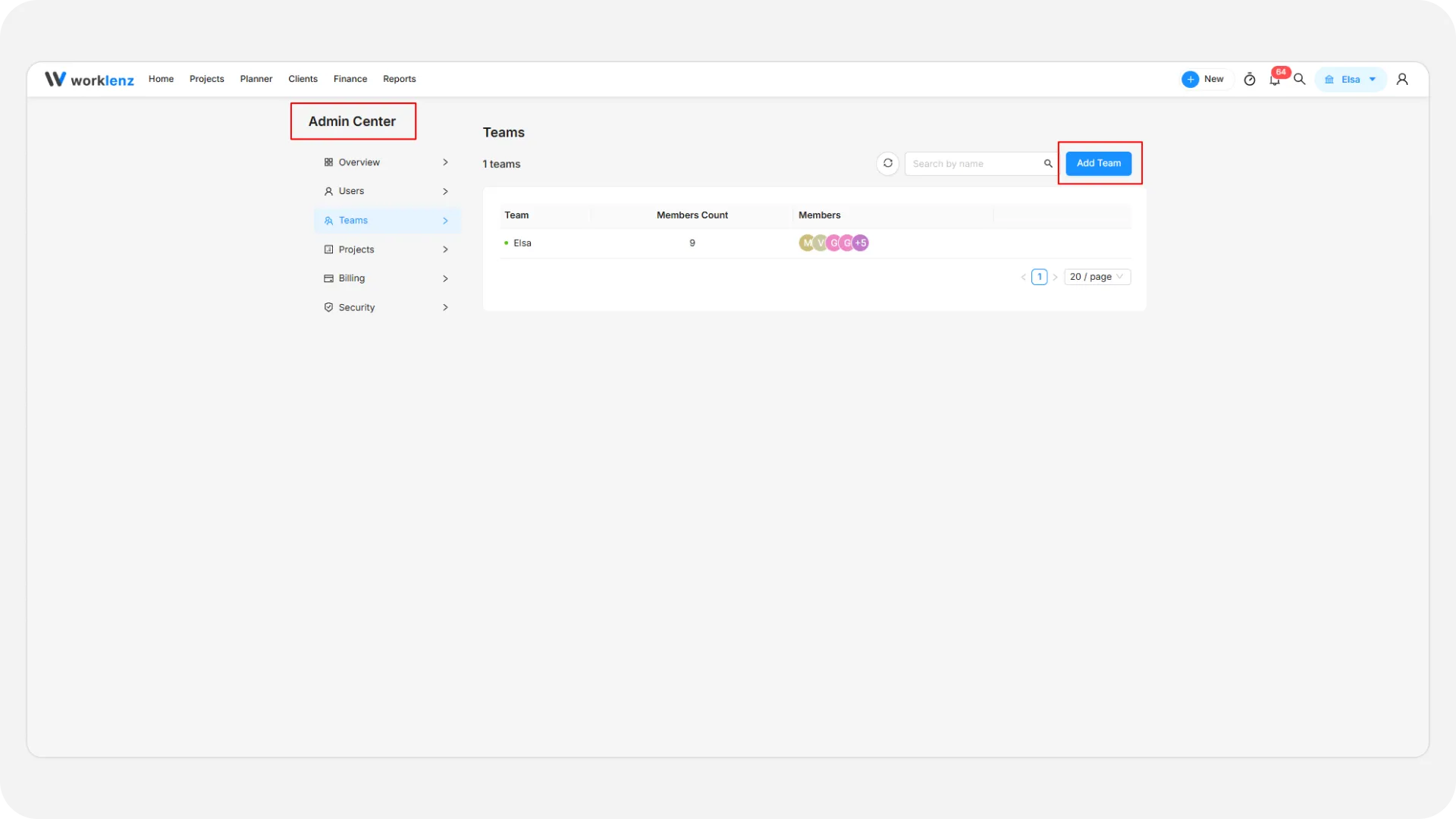
To create a new team or workspace in Worklenz, follow these steps:
- Click on the Profile icon on the top right menu bar.
- Select Admin Center.
- Go to the Teams section.
- Click the Add Team button.
- Give a name to your team and click Create.
Adding members to your new team
Once your team is created, you can add members by following these steps:
- Navigate to Settings > Workspace Setup > Team Members.
- Click the Add New Member button.
You will have two options to add members:
Invite with email
- Add one or more email addresses of the members you want to invite.
- Set the access level for each member (Member, Admin, or Team Lead).
- Click Send Invitation.
- Invited members will receive an invitation email and can join the team by completing the sign-up process.
Invite with link
- Click the Create Link button to generate an invite link.
- Copy the generated link and share it with others through any preferred method (email, messaging apps, etc.).
- Anyone with the link can join the team by signing up if they don’t have a Worklenz account, or by signing in with their existing Worklenz account.
Note: Members will be added to the currently active team, which is shown on the top menu bar on the right side. The active team is marked with a green check mark in the team dropdown.
You can also invite members to your team directly from the top navigation bar. See Add/invite new member to team for more details.
Switch between teams
If you belong to several teams, use the team switcher in the top navigation bar. Each team shows its logo or an avatar. Type in the Search teams… box to find a team by name. If nothing matches, you will see “No teams found”.