

Manage client users in the Client Portal
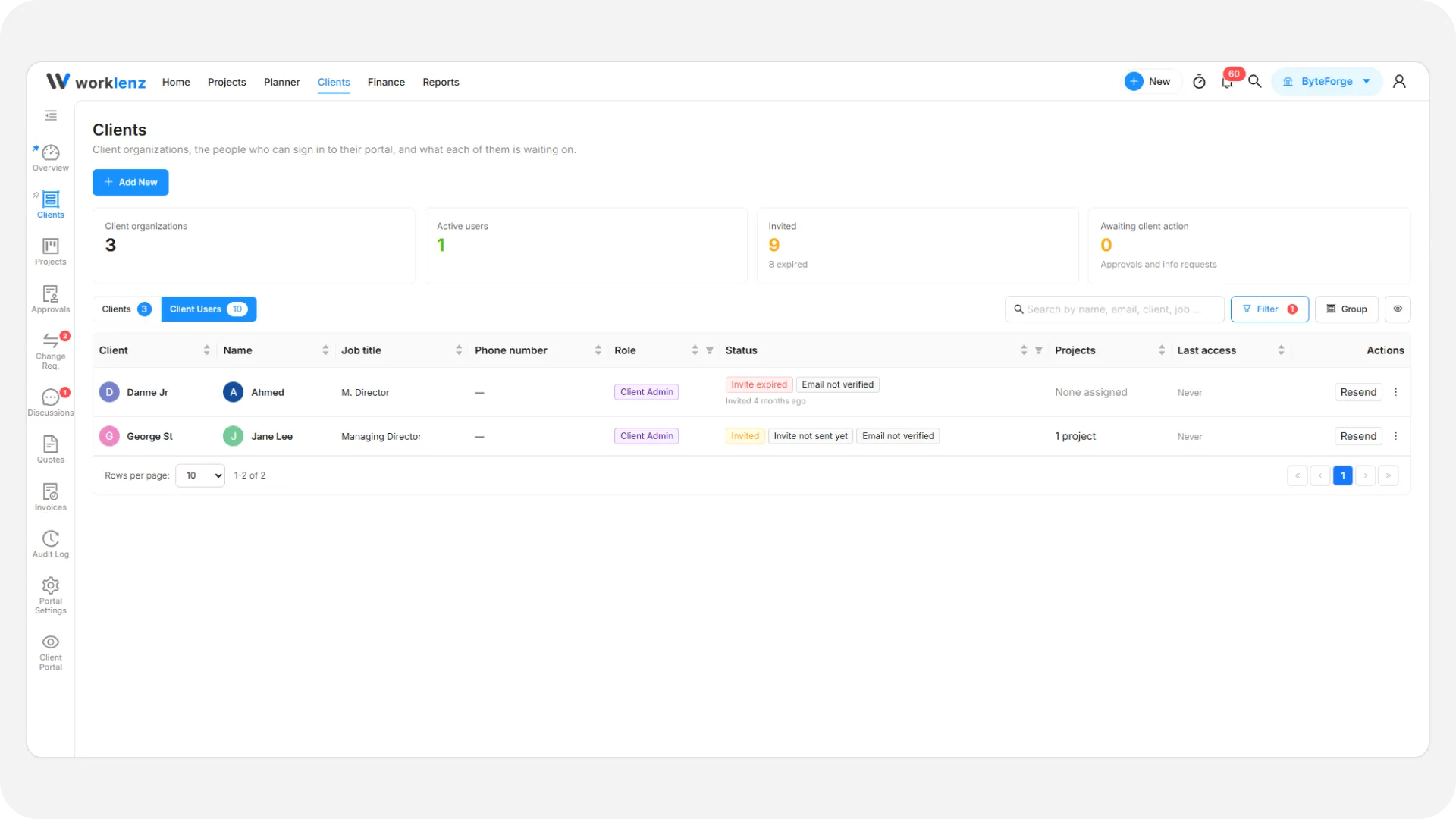
Once clients are added, you manage their people from the Client Users view: change a role, give them projects, send a fresh sign-in link, or cut off access. Access changes apply on the person’s very next action, so a deactivated user is locked out immediately.
At a glance
| What it is | The Client Users list and the Users and Access tab inside each client |
| Where to find it | Client Portal > Clients, then the Client Users toggle, or open a client and choose Users & Access |
| Who can use it | Workspace Owners and Admins |
| Plan | Pro and Business |
What the statuses mean
| Status | Meaning |
|---|---|
| Invited | The person has been added but has not completed sign-in. Extra flags may show: Invite expired, Asked for a new link, Invite not sent yet, Email not verified. |
| Active | They have signed in and can use the portal. |
| Deactivated | You turned off their access. Their record and history stay. |
What you can do to a user
Open the actions menu on a row.
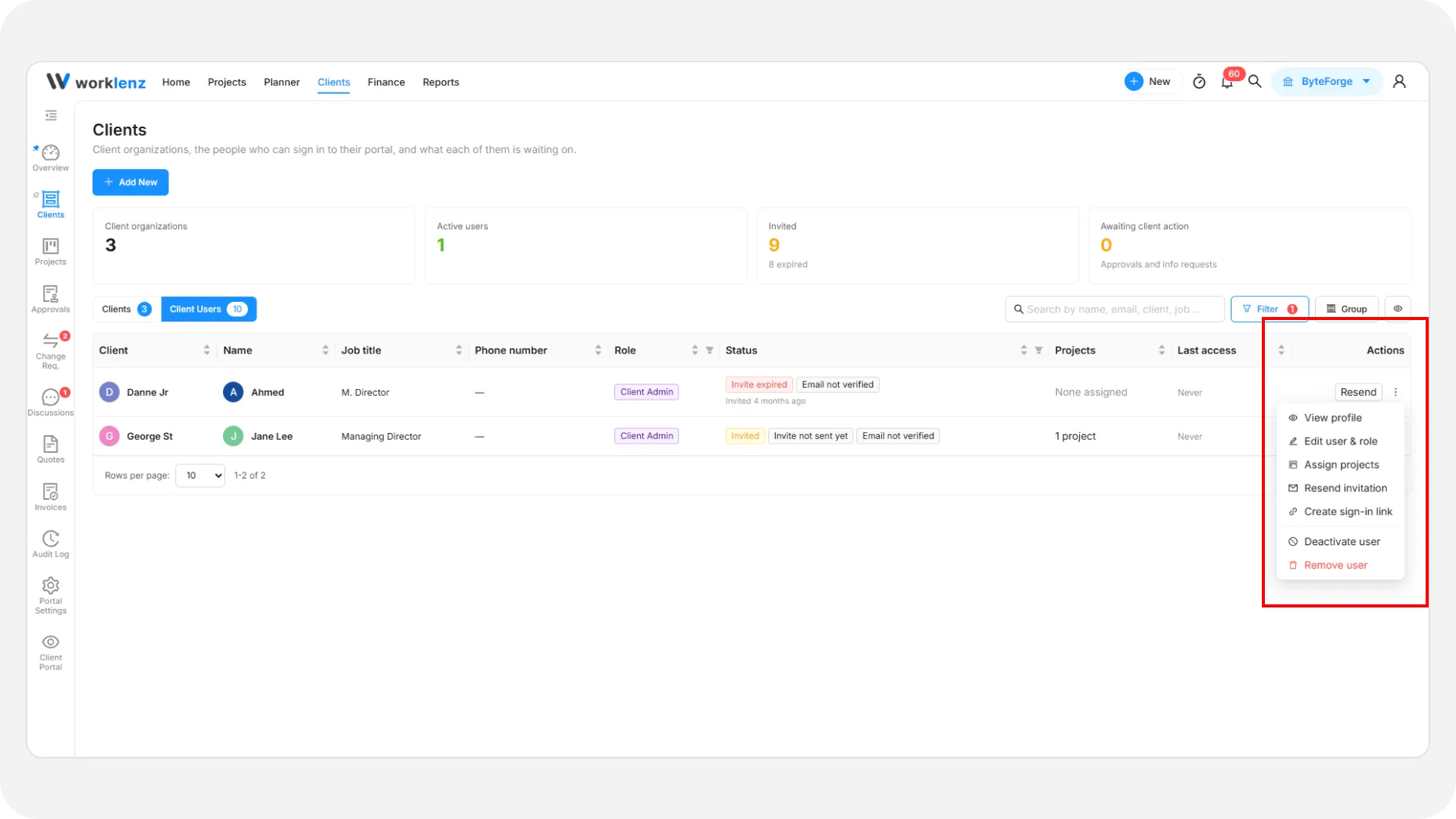
- Edit user & role changes name, email, phone, job title and role. The email locks after the first sign-in: “This user has already signed in, so their email can no longer change”.
- Assign projects controls which projects they see. A user only sees projects assigned here, even though they belong to the organization. If the portal is off for a project, turn it on first. Removing a project takes effect immediately.
- Resend invitation (Invited users) emails a new 7-day link and cancels the old one. If the email fails, a window offers Copy link.
- Create sign-in link gives you a link to share yourself. It also works for already-active users who lost their email.
- Deactivate user blocks access right away. Choose Reactivate user later and their previous status returns.
- Remove user deletes the person and their project assignments. Comments and approvals they made stay in the history.
Organization actions
Organizations can be deactivated, reactivated, deleted and restored. Deleting shows a preview of what will be affected first. A client who deletes their own account is held for a 30-day window before permanent removal. To restore someone during that window, contact support.
Safeguards you will run into
- You cannot remove, deactivate or demote the last active Client Admin of an organization without confirming. The warning reads “This is the last Client Admin”, with a Continue anyway button. Without a Client Admin, no approval can be sent to that organization.
- If a person is the only approver on a pending approval, you must confirm, and a history line asks you to name a new approver.
- A user with no projects signs in to an empty portal.
Example
A Northwind contact leaves the company. Open Client Users, find them, and choose Deactivate user. Their access ends at once, but their past comments stay. Then invite a replacement with Add New and Add a user to an existing organization, and assign the same projects. See add a client.
Best practices
- Deactivate a person instead of removing them if they might come back, because removing deletes their project assignments permanently.
- Assign projects as soon as you add someone, because a user with no projects signs in to an empty portal.
- Keep at least two Client Admins, because the last active one cannot be removed, deactivated or demoted without confirming.
- Name a replacement approver before deactivating the only approver on a pending approval, because the approval otherwise has nobody who can decide it.
- Preview as the person after changing a role or project, because access changes apply on their very next action.