

Calendar
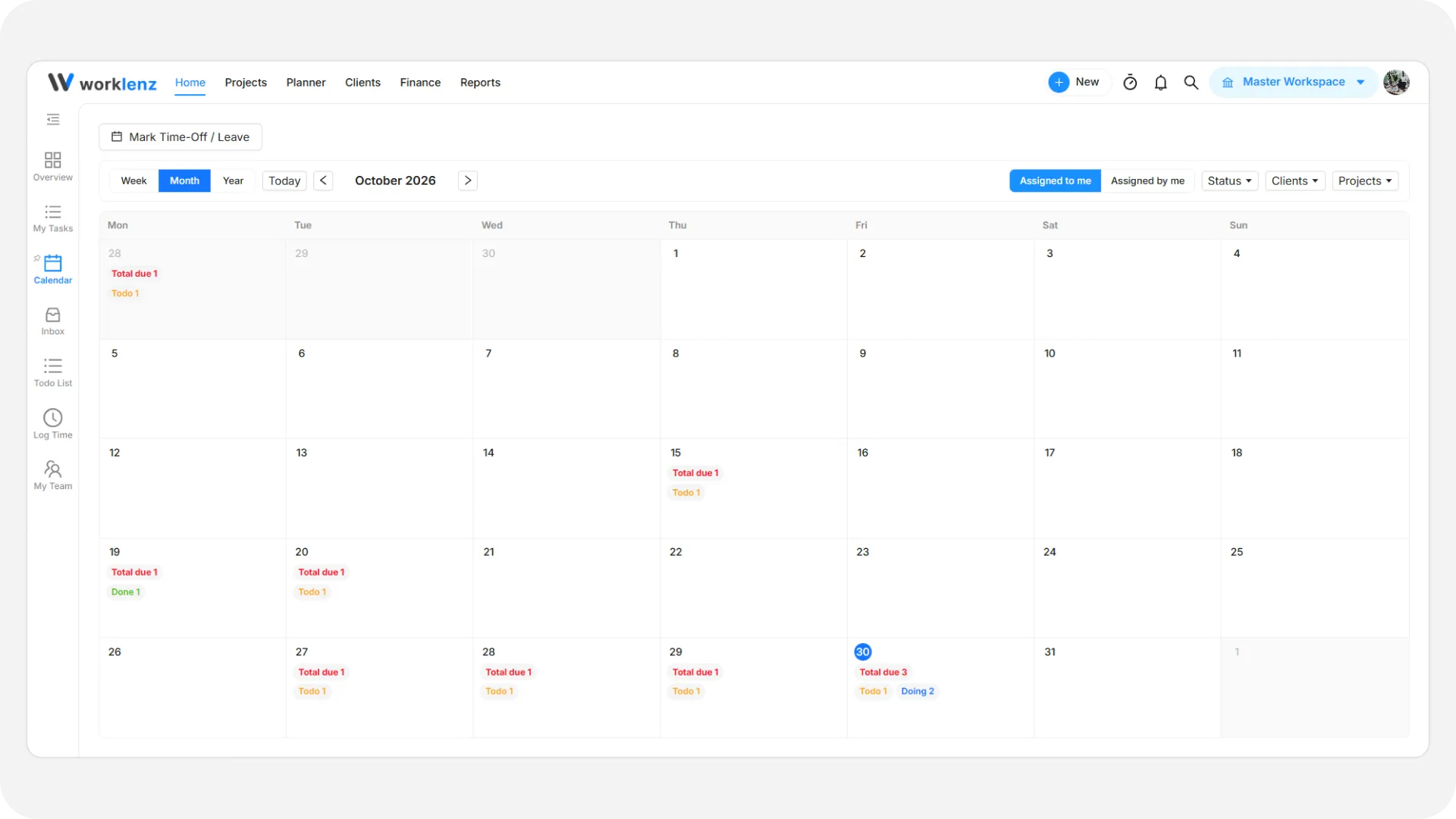
The Calendar page provides a visual timeline of your schedule, deadlines, and team availability.
Views & Navigation
- Display Modes: Switch between Week, Month, and Year views.
- Date Controls: Jump to Today or navigate between months using the left/right arrows.
- Filters: Filter calendar tasks by Assigned to me, Assigned by me, Status, Clients, or Projects.
Key actions
- Add Task: Click + Add on any date cell to create a task scheduled for that day.
- Task Badges: View task counts due on specific days (e.g., Total due, Todo).
- Mark Time-Off: Schedule and track team leave, holidays, and sick days.
Time-Off Management
Click the Mark Time-Off button in the top toolbar:
- Team Member: Select the member taking time off from the dropdown.
- Start – end date: Choose the date or date range from the calendar picker.
- Duration Type: Choose All day or Partial day.
- Type: Select the leave category: Vacation, Sick, Personal, or Other. For a partial day, enter the Hours Off.
- Reason (Optional): Enter a brief note (such as Vacation, Sick leave, or Personal day).
- Click Create to save the entry.
Time-Off History Table
The table at the bottom of the modal displays all registered time-off records:
- Columns: Team Member, Start – end date, Duration, Type, Reason, and Actions.
- Use the Actions menu to review or delete existing entries.
See Mark time off and leave for every place you can add time off.