

Configuration
Before you start tracking project finances, you need to complete a few setup steps. In Worklenz, finance calculations are based on logged time and rates assigned to job titles. Follow the steps below in order.
Step 1: Create job titles
Every team member needs a job title for finance tracking to work correctly.
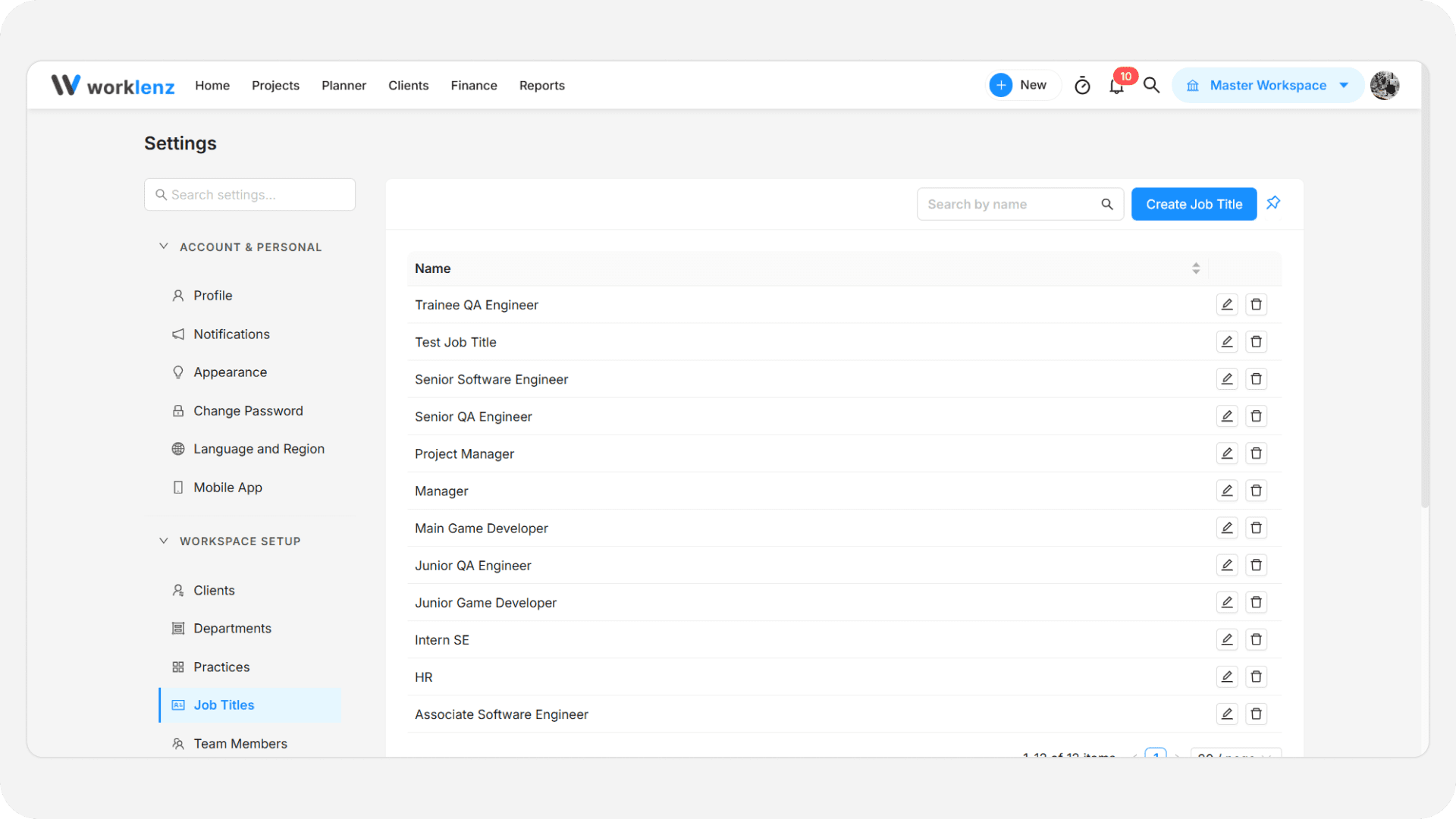
- Go to Settings.
- In the Workspace Setup, select Job Titles.
- Enter the job title name.
- Click Create.
Repeat this for all job titles in your organization. See Job titles for editing and deleting titles.
Step 2: Create rate cards
Rate cards define the hourly rates for each job role.
- Go to Settings.
- Under Financial & Billing, select Rate Card. This page is only visible on the Business plan.
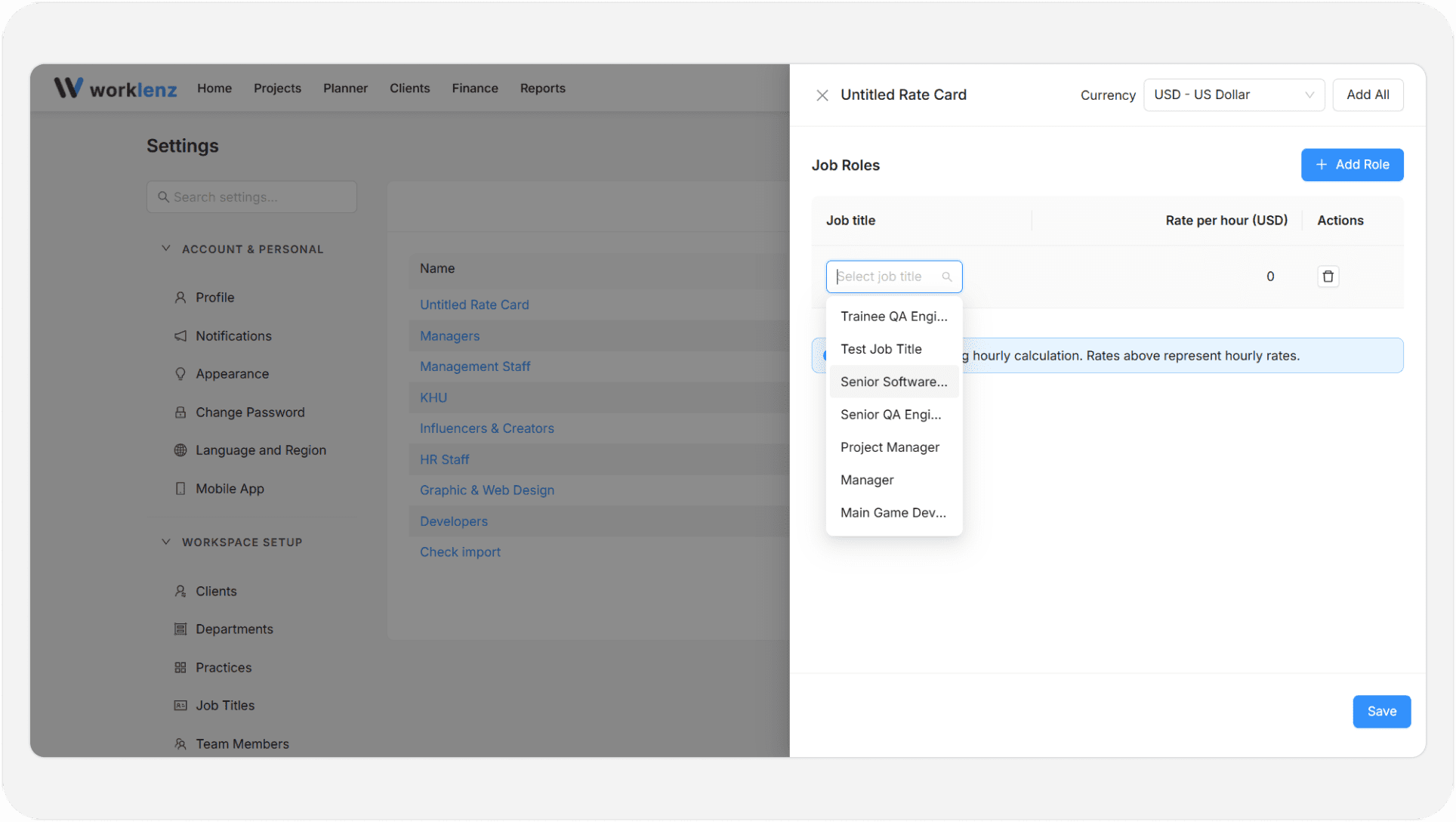
- Click Create Rate Card. Worklenz creates a card called Untitled Rate Card with the default currency and opens its drawer.
- Enter a name for the rate card. You cannot save a card that is still untitled and has no roles.
- Select the Currency.
- Add the job roles you want to include. Pick a job title in each row and enter its rate. Rates cannot be below 0.
- Click Save.
If you close the drawer with changes you have not saved, Worklenz asks whether to Save or Discard them.
Tip: Click Add All to add every job title in one go, or Remove All to clear the table and start again. Add Role adds a single row.
If you have no job titles yet, the drawer asks you to create them in the Job Titles settings first. You can also use Create New Job Title inside the drawer.
Hourly or per-day rates
The rate column is labeled Rate per hour or Rate per day, with the currency code. Which one you see depends on the calculation method your organization uses, which an owner or admin sets in the Admin Center. A note in the drawer tells you whether the organization uses hourly or man-day (hours per day) calculation.
Currency
Each rate card has its own currency. Your organization’s base currency is set separately in Currency settings. See Rate card settings for the full list page.
Step 3: Configure rate card in your project
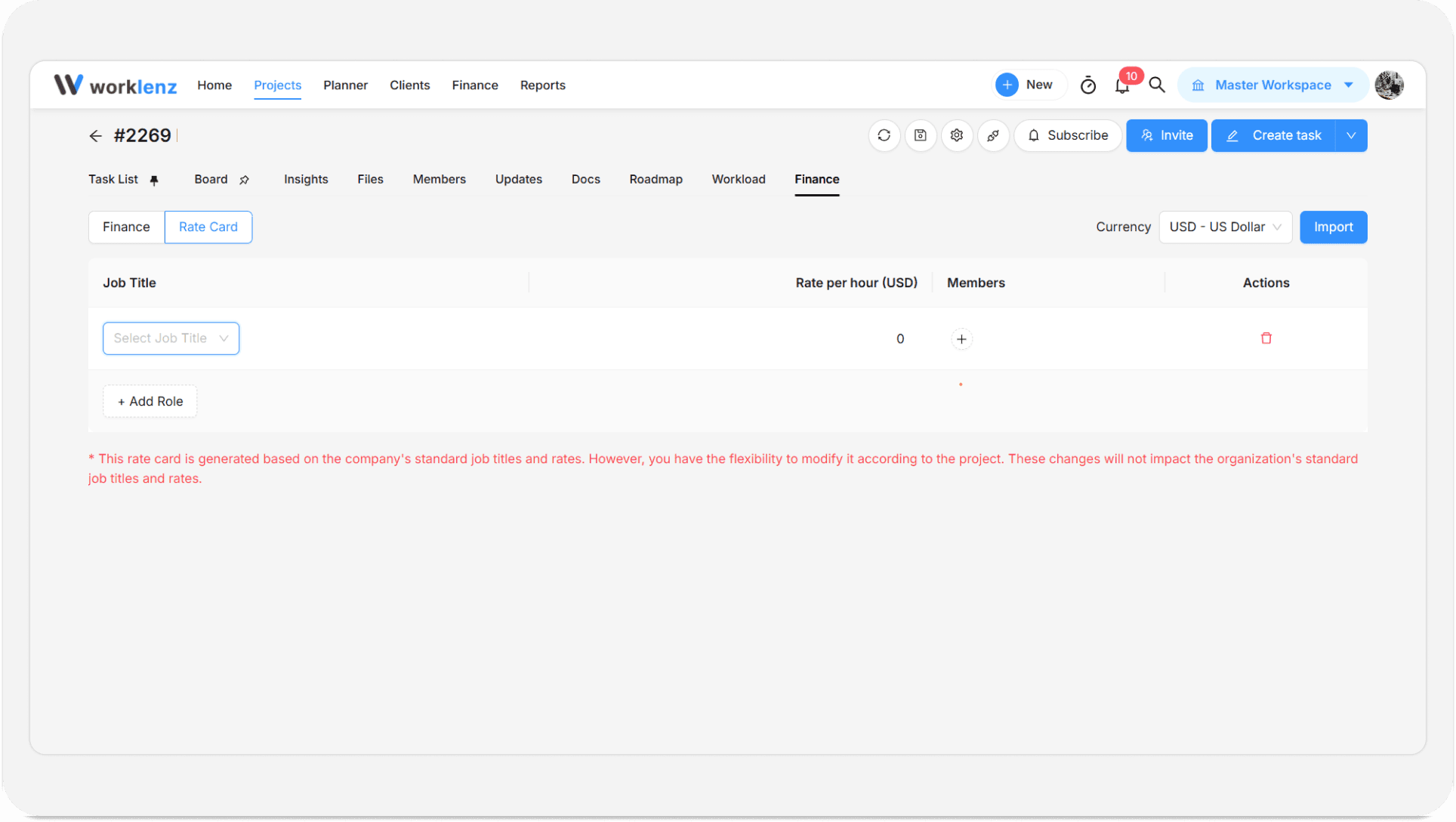
Now, add job roles to your project. You can do this in two ways:
- Open your project.
- Click on the Finance tab.
- Click on Rate Card.
Option 1: Import a Rate Card
- Click the Import button.
- Select the rate card you created in the Settings page.
- All job roles from that rate card will be imported automatically.
Option 2: Add Roles Manually
- Click the Add Role button.
- Select the job roles you want to add.
- Repeat for each role you need.
After adding roles using either option:
- Set the Rate per Hour for each role.
- Assign the appropriate job role to each team member.
Step 4: Set the project budget
You can set your project budget in two ways:
- Option 1: Click the pencil icon on the Manual Budget card section.
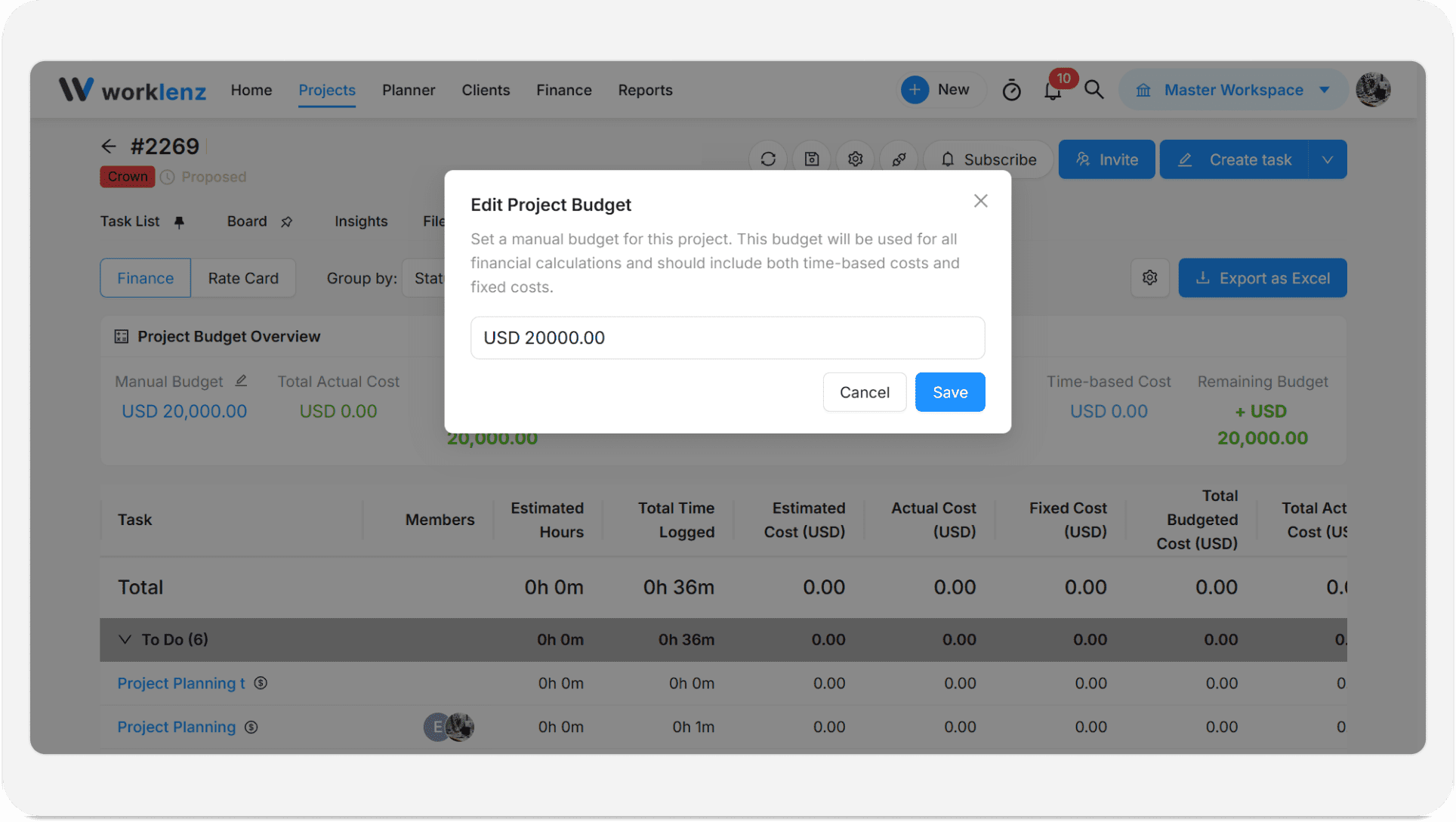
- Option 2: Click the gear icon on the right side of the Overview section.
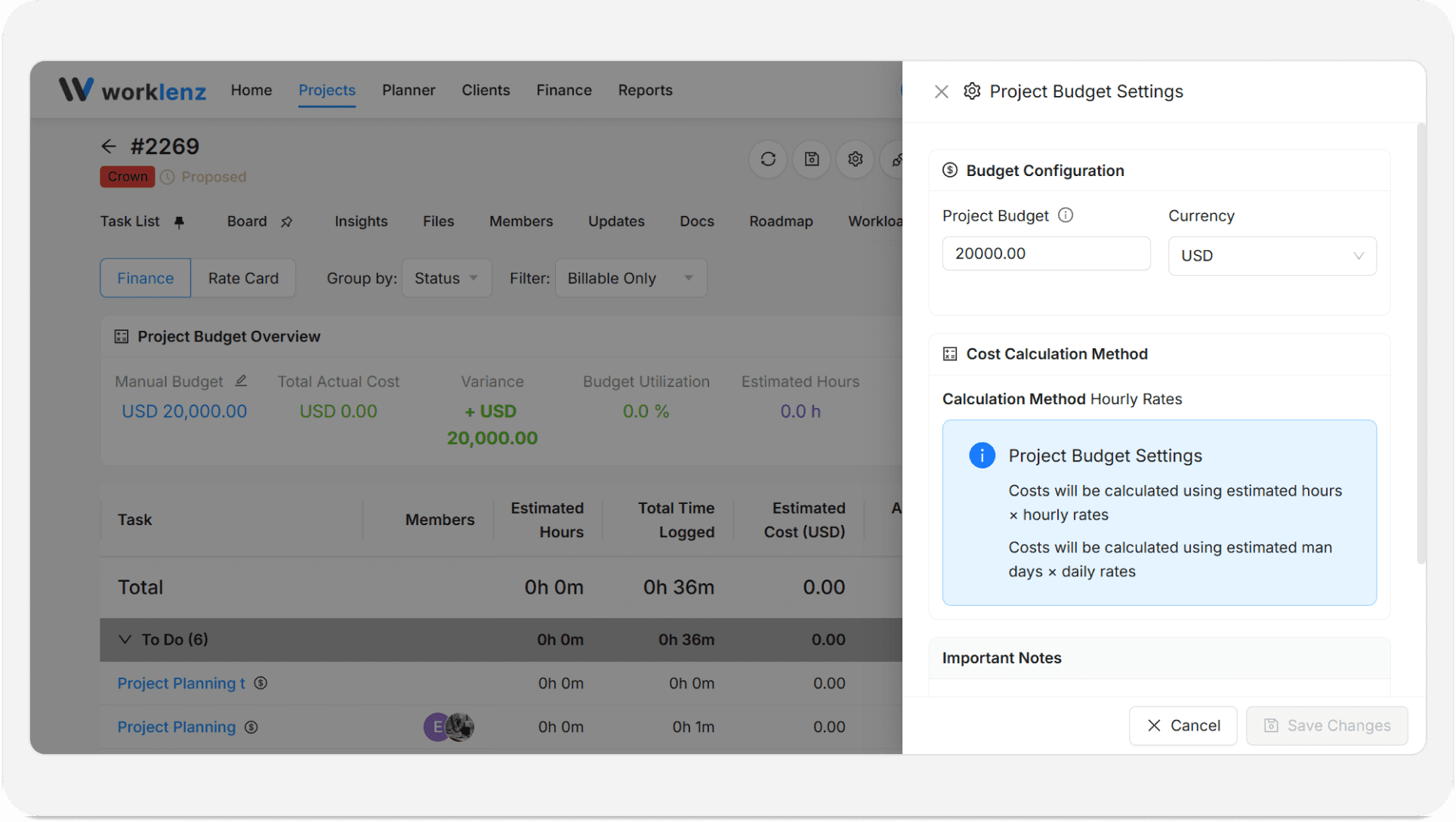
Enter your budget amount and save.
Important notes
- Time costs are calculated based on the estimated time per task and the logged time by each assignee. While adding estimated time is not required, we recommend asking team members to add estimated time when creating a task or at the beginning of work.
- When creating a task, make sure to select whether the task is Billable or Non-Billable. This ensures accurate financial tracking and reporting.
- You can add fixed costs per task in addition to the calculated costs. This is useful for expenses that are not based on time, such as materials or external services.
Best practices
- Create job titles before you open the rate card drawer, because the drawer cannot add roles until titles exist.
- Check the calculation method in the Admin Center before entering rates, because it decides whether the column asks for hourly or per-day amounts.
- Give every rate card a real name instead of keeping Untitled Rate Card, because an untitled card with no roles cannot be saved and is hard to tell apart in the list.
- Think twice before deleting a job title, because its rates disappear from all rate cards and project rate cards with it.
- Assign a job title to each member, because finance costs are calculated from the rate attached to that title.