

Backlog and issues in software projects
The Backlog tab is where a software project’s planning happens. It lists every issue grouped by sprint, with a Backlog section at the bottom for work that is not planned yet. You create issues here, rank them, size them and move them into sprints. An issue is Worklenz’s name for a task in a software project.
At a glance
| What it is | The planning view for all open sprints and unplanned work |
| Where to find it | Open the project > Backlog tab (the default landing tab) |
| Who can use it | Members and above create and edit issues; Guests can view |
| Plan | Any plan |
What does the Backlog tab show?
One card for each planned or active sprint, then a Backlog card. Completed sprints are not listed here. Each issue row has a drag handle, the title, and columns for status, epic, assignee, priority and points. You can edit most cells in place.
The toolbar has a search box (press / to jump to it), the quick filters My work, Bugs and Blocked, and the buttons Point scale, Epics and Create sprint. The last three are shown to Owners, Admins and Project Managers only. Above the tabs, the sprint health bar tells you how the active sprint is doing; see sprints.
How do I create an issue?
There are two ways.
From the header or modal
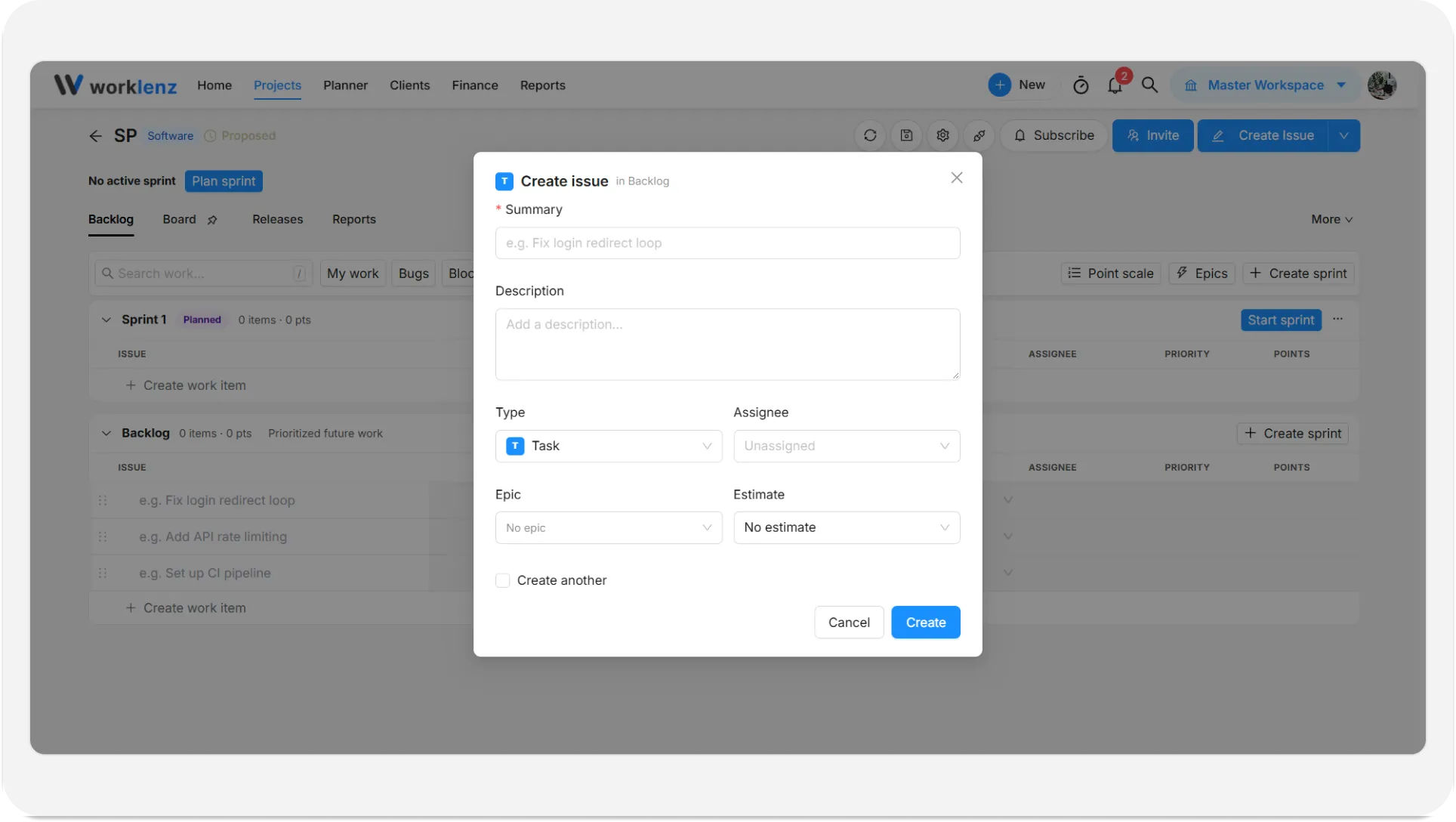
- Click Create Issue in the project header.
- Fill in the fields below. Only Summary is required, and Parent issue is required for a subtask.
- Click Create. A message confirms “Issue MOB-12 created”, using your project key.
Tick Create another to keep the window open for the next issue.
From a row in the list
Each sprint card and the Backlog card end with a Create work item row. Type a title where it says “Type issue title and press Enter to save” and press Enter. Press Shift+Enter to create the issue and open it straight away. Press Esc to clear the text. The issue lands in the group where you typed it.
| Field | Notes |
|---|---|
| Summary | Required. Up to 250 characters |
| Description | Up to 5,000 characters |
| Type | Task, Story, Bug, Subtask or Epic |
| Assignee | Unassigned by default. Called Owner when the type is Epic |
| Parent issue | Subtasks only. Search for the issue it belongs to |
| Epic | Optional. Defaults to No epic |
| Estimate | Story points from your project’s point scale. Defaults to No estimate |
New issues start in the Backlog status. If your workspace restricts task creation, non-admins see “Task creation is restricted. Please contact admin for access.”
What are the issue types?
- Task - a general piece of work.
- Story - a user-facing piece of value.
- Bug - something that is broken.
- Subtask - a smaller step that belongs to another issue. It needs a parent issue.
- Epic - a larger goal that groups other issues. Choosing Epic creates an epic, not an issue, and you see “Epic {name} created”. See epics.
You can change an existing top-level issue’s type, but only between Task, Story and Bug. Subtasks and epics keep their type.
How do subtasks work?
Choose Subtask as the type, then pick the Parent issue. The subtask appears under its parent. When a sprint is completed, subtasks move with their parent. A parent that is Done but has unfinished subtasks is still carried over.
How do I flag an issue as blocked?
Use Flag as blocked on the issue. The flag shows as a Blocked badge, with the hint “This issue is flagged as blocked”. It is separate from the Blocked status: you can flag an issue without moving it, and the Blocked quick filter uses the flag.
How do I filter the backlog?
Click My work (issues assigned to you), Bugs or Blocked. They combine: switching on My work and Bugs shows only your bugs. Typing in the search box narrows the list further. To see one epic’s issues, use the filter in the epics drawer.
What’s in the issue drawer?
Click an issue to open its drawer. The header shows the type badge and the issue key, such as MOB-12, with Copy issue key beside it. Below that are the description, details, a development section for linked GitHub activity, and comments. The details include Story points, Epic, Release, Blocked, Sprint and Issue key. The Sprint list leaves out completed sprints, and the Release field is read-only once a release has shipped.
How do I move issues into a sprint?
- Drag and drop. Drag an issue by its handle onto another sprint card, or onto the Backlog card to take it out of a sprint.
- The drawer. Open the issue and change Sprint. Leave it on Backlog to keep it unplanned.
When you move an issue from the Backlog into a sprint, Worklenz changes its status from Backlog to Todo automatically. Guests cannot drag issues.
Best practices
- Keep the summary short and put the detail in the description, because the summary stops at 250 characters while the description allows 5,000.
- Pick the issue type carefully when you create it, because a top-level issue can only be switched between Task, Story and Bug, and subtasks and epics keep their type.
- Use Flag as blocked on stuck issues, not just the Blocked status, because the Blocked quick filter reads the flag.
- Keep the Backlog card ordered by priority, because planning means dragging from the top down until the sprint’s points match your capacity.