

Epics - group related issues
An epic groups related stories, tasks and bugs into one larger goal, such as “Payments” or “Reporting platform”. Use epics to see how much of a bigger outcome is done without listing every issue. Each epic shows how many issues it holds and how far along they are.
At a glance
| What it is | A named group of issues with a color, owner and progress |
| Where to find it | Backlog tab > Epics button |
| Who can use it | Owners, Admins and Project Managers create and manage epics; everyone who sees the Backlog can view them |
| Plan | Any plan |
How do I create an epic?
- Open the Backlog tab and click Epics in the toolbar.
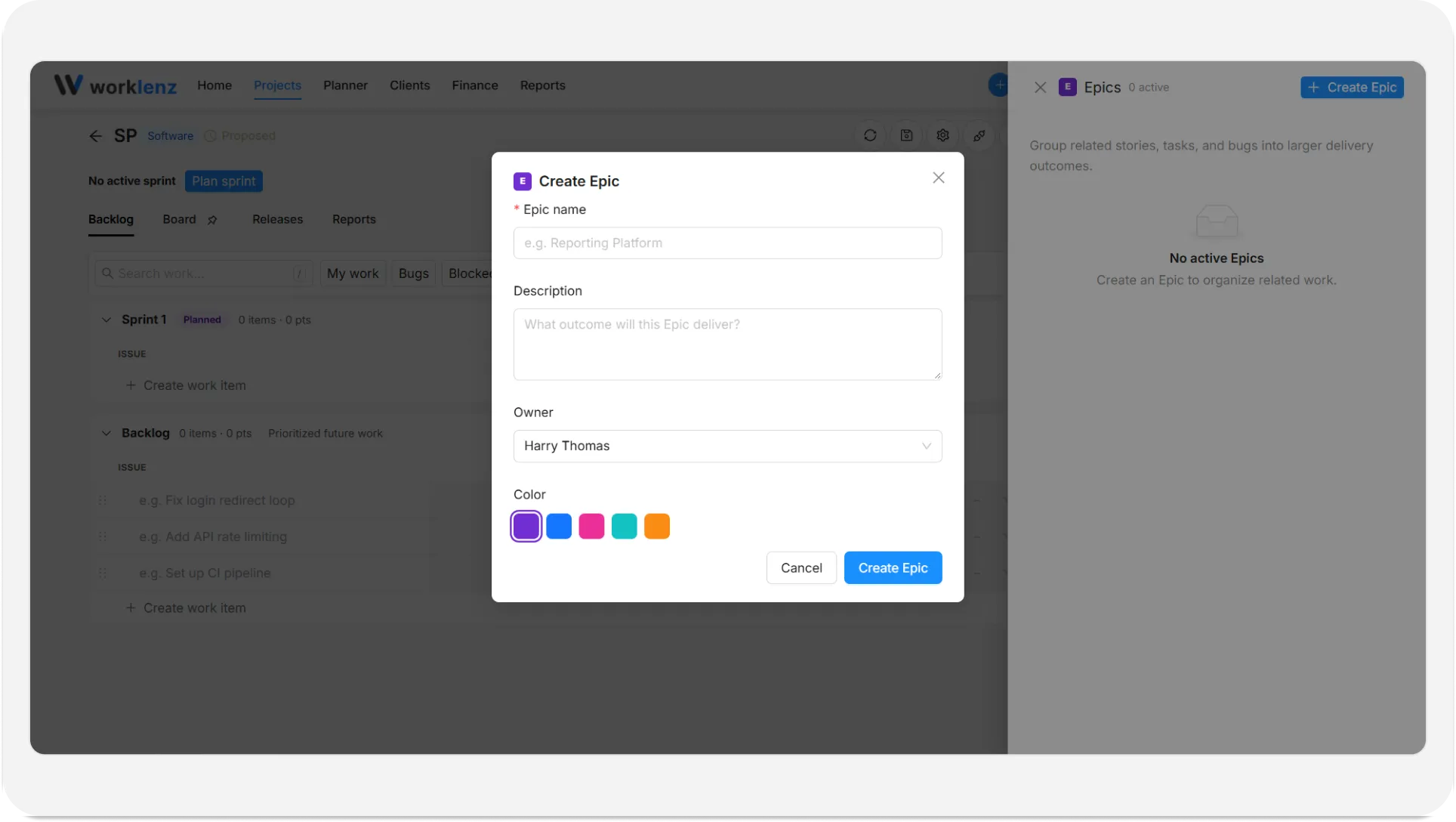
- Click Create Epic. This button is shown to Owners, Admins and Project Managers.
- Fill in the form:
- Epic name - required, up to 100 characters. For example, “Reporting Platform”.
- Description - up to 1,000 characters. What outcome will this epic deliver?
- Owner - optional. Choose a member of the team, or leave it on No owner.
- Color - pick a color to recognize the epic.
- Click Save Epic.
You can also create an epic from the Create Issue window by setting Type to Epic. The Assignee field becomes Owner, and the epic is available right away for filtering and assignment.
How do I put an issue in an epic?
- In the Create Issue window, choose the epic in the Epic field.
- In an existing issue’s drawer, change the Epic detail.
- In the Backlog table, use the Epic cell on the issue’s row.
An issue belongs to one epic at a time. Leave it on No epic to keep it standalone.
How do I see an epic’s progress?
Open the Epics drawer. Each row shows the epic’s color, name, its progress, the percentage complete and the number of work items. Progress counts points (for example “8/21 pts”) when the epic’s issues have estimates, and counts issues (“3/9 done”) when they do not.
How do I filter the backlog by epic?
In the Epics drawer, choose Filter Backlog on the epic. An Epic: {name} chip appears in the Backlog toolbar and only that epic’s issues are shown. Click the chip to remove the filter.
How do I edit, archive or restore an epic?
In the Epics drawer, each epic has Edit Epic and Archive Epic. Archived epics sit under an Archived heading, where Restore Epic brings them back. Epics cannot be deleted, only archived. An archived epic’s name shows with “(archived)” in epic selectors.
Limits and things to know
- An epic name can be up to 100 characters and a description up to 1,000.
- The owner must be a member of the team.
- Epics are listed in the Epics drawer, not as rows in the sprint cards.
- Epics can be attached to a release as a whole; see releases.
Example
Dev creates an epic called “Payments” and assigns Maya as owner. Dev drags twelve existing issues in by setting their epic. When Maya opens the Epics drawer at the end of the week, Payments reads “21/55 pts” and “38% complete”, and Maya clicks Filter Backlog to see what is left.
Best practices
- Create one epic per outcome, such as “Payments”, because each epic reports its own issue count and progress.
- Estimate the issues inside an epic, because progress counts points when estimates exist and falls back to counting issues when they do not.
- Archive finished epics instead of looking for a delete option, because epics cannot be deleted and an archived epic can be restored later.
- Choose an epic owner from your team members, because the owner must be a member of the team.
- Use Filter Backlog on an epic before planning, because it limits the Backlog to that epic’s issues so you see what is left.