

How phases work
Phases split a project into stages such as Design, Build and Launch. Each task can belong to a phase, and you can group the task list or board by phase to see where work stands. Start with what a phase is and how to create one.
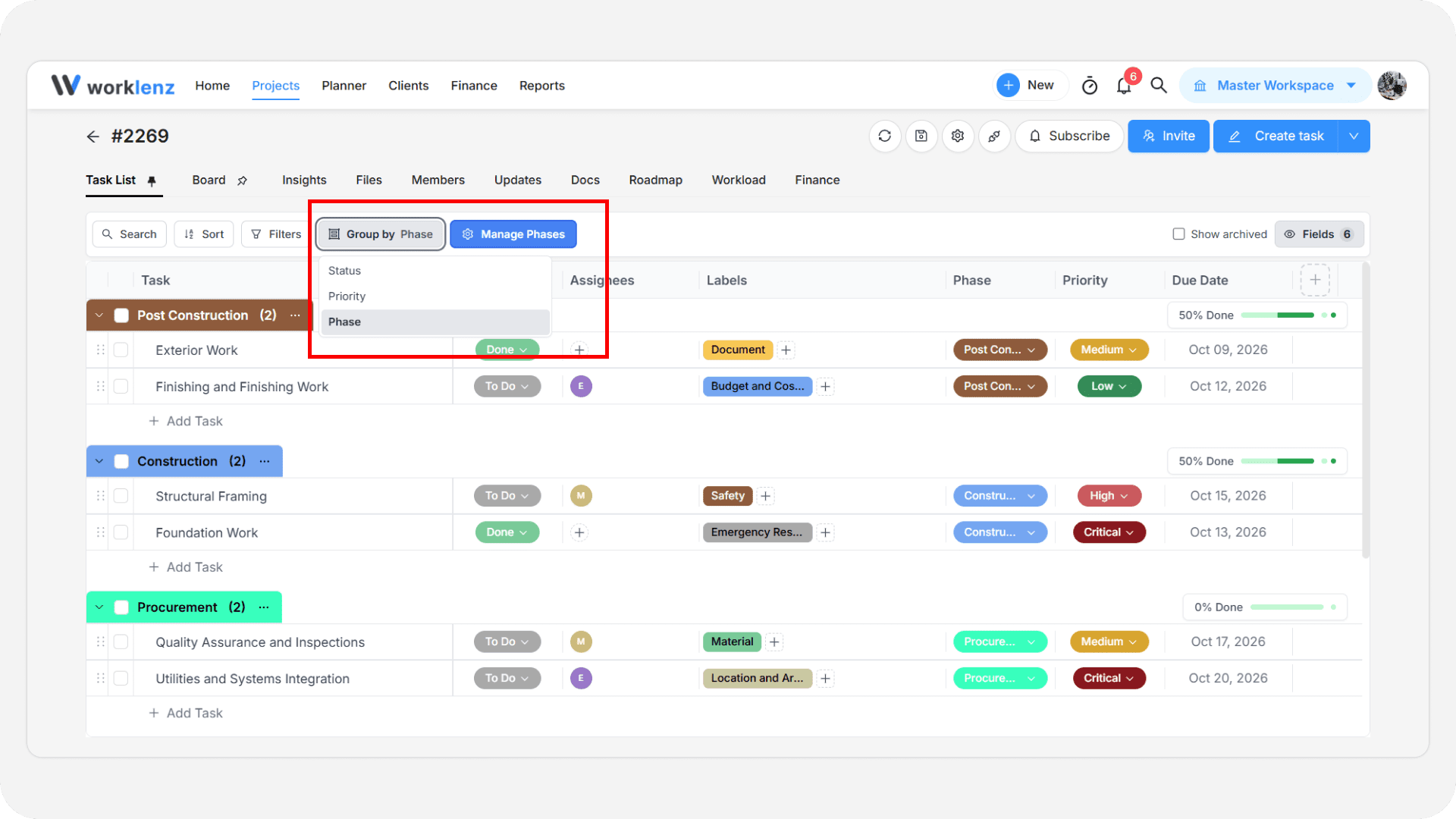
How do you group tasks by phase?
- Open the project’s task list or board view.
- In the Group by dropdown, choose phases.
- Tasks gather under their phase. Set a task’s phase when you create the task or later in the task.
What project settings affect phases?
Open the project settings dialog and go to Phases under Configuration. See statuses and phases settings for the full list.
- Phase Label renames the word “Phase” in this project, for example to “Stage”.
- Auto-assign parent phase to subtasks makes new subtasks inherit their parent’s phase and keeps them in step when the parent’s phase changes. It stays disabled until the project has at least one phase, and it is saved with Update.
- Enable Phase Assignees is in advanced project settings. Once on, each phase gets a default assignee. Only that assignee, or an Owner or Admin, can move a task in that phase to a Done status. Marking it done moves the task to the next phase and assigns that phase’s default assignee.
Best practices
- Reorder phases before tasks are in flight, because reordering warns about tasks already moving through them.
- Turn on subtask auto-assign when subtasks should always match their parent, because it keeps them synced.