

Timeline
Timeline lays every project out as a row on one Gantt chart, so you can see start and due dates, progress, and overlaps across your whole portfolio at a glance. It’s part of Planner, alongside Schedule and Workload.
How to Access
- Click Planner in the top navigation bar.
- In the left-hand rail, select Timeline.
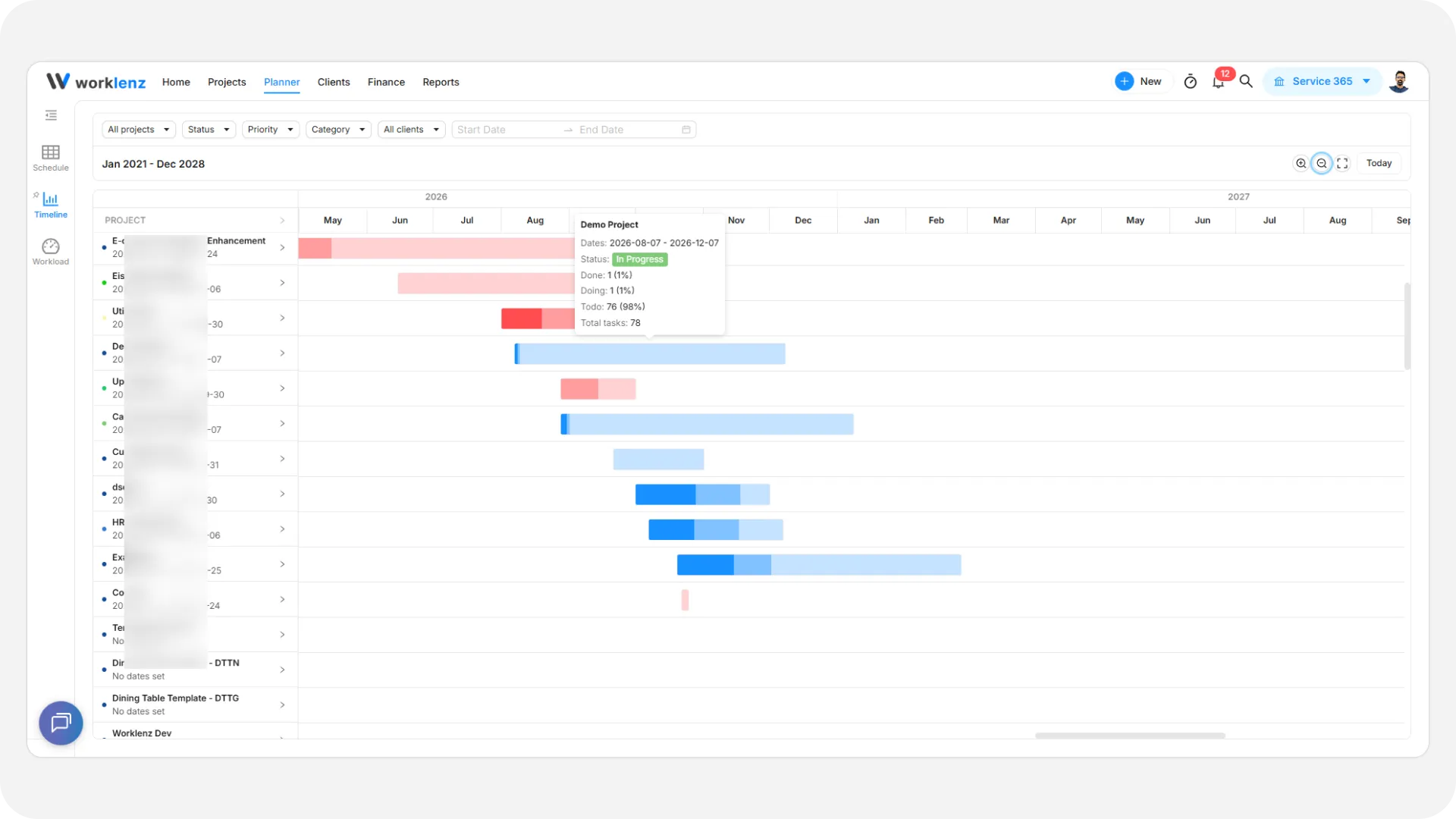
Filters
- Projects: Show only specific projects.
- Status / Priority / Category: Narrow the list to projects at a given status, priority, or category.
- Client: Show only projects for a specific client.
- Date range: Narrow the list to projects whose dates overlap a range you pick; once applied, this also becomes the visible grid range.
Zoom and navigation
- Zoom: Switch between Days, Weeks, Months, Quarters, and Years - zooming out groups more time into each column.
- Pan: Click and hold anywhere on the empty grid background and drag left or right to scroll the timeline horizontally.
Reading a project’s bar
Each project with both a start and due date shows as a bar, split into three segments that reflect its tasks’ status breakdown:
- A solid segment for done tasks, a medium segment for doing, and a faint segment for todo.
- The bar turns red if the project’s due date has passed and it isn’t yet 100% done.
- Hovering a bar shows the project’s dates, status, and its done/doing/todo task counts and percentages.
Projects with no start or due date show a “No dates set” row instead of a bar. Move your mouse across that row to preview a default two-month placement, and click to commit it as the project’s start and due dates.
Moving and resizing a project’s dates
- Move: Drag the middle of a project’s bar left or right to shift both its start and due date together, keeping the same duration.
- Resize: Drag the handle at either end of the bar to change just that date.
Expanding a project’s tasks
Click the arrow on a project’s row to expand it and show its tasks indented underneath, each on its own bar (if it has dates) with the same drag-to-move and drag-to-resize behavior as a project’s bar. Click a task to open it in the Task Drawer. Click a project’s name to open that project’s Roadmap tab directly.