

Client Portal Quotes and Invoices - Create and Track
Quotes and invoices let you bill clients from the same place you manage their projects. Quotes are staff-side documents you prepare and send yourself. Invoices can also be shown to clients in the portal, if you switch that on. Worklenz records payments you confirm. It does not collect money online.
At a glance
| What it is | Staff tools to prepare quotes and invoices, with an optional invoice view for clients |
| Where to find it | Clients in the top navbar > Quotes or Invoices, or a client’s Billing tab |
| Who can use it | Owners and Admins |
| Plan | Pro or Business for invoices. Portal branding on documents needs Business |
Do clients see quotes?
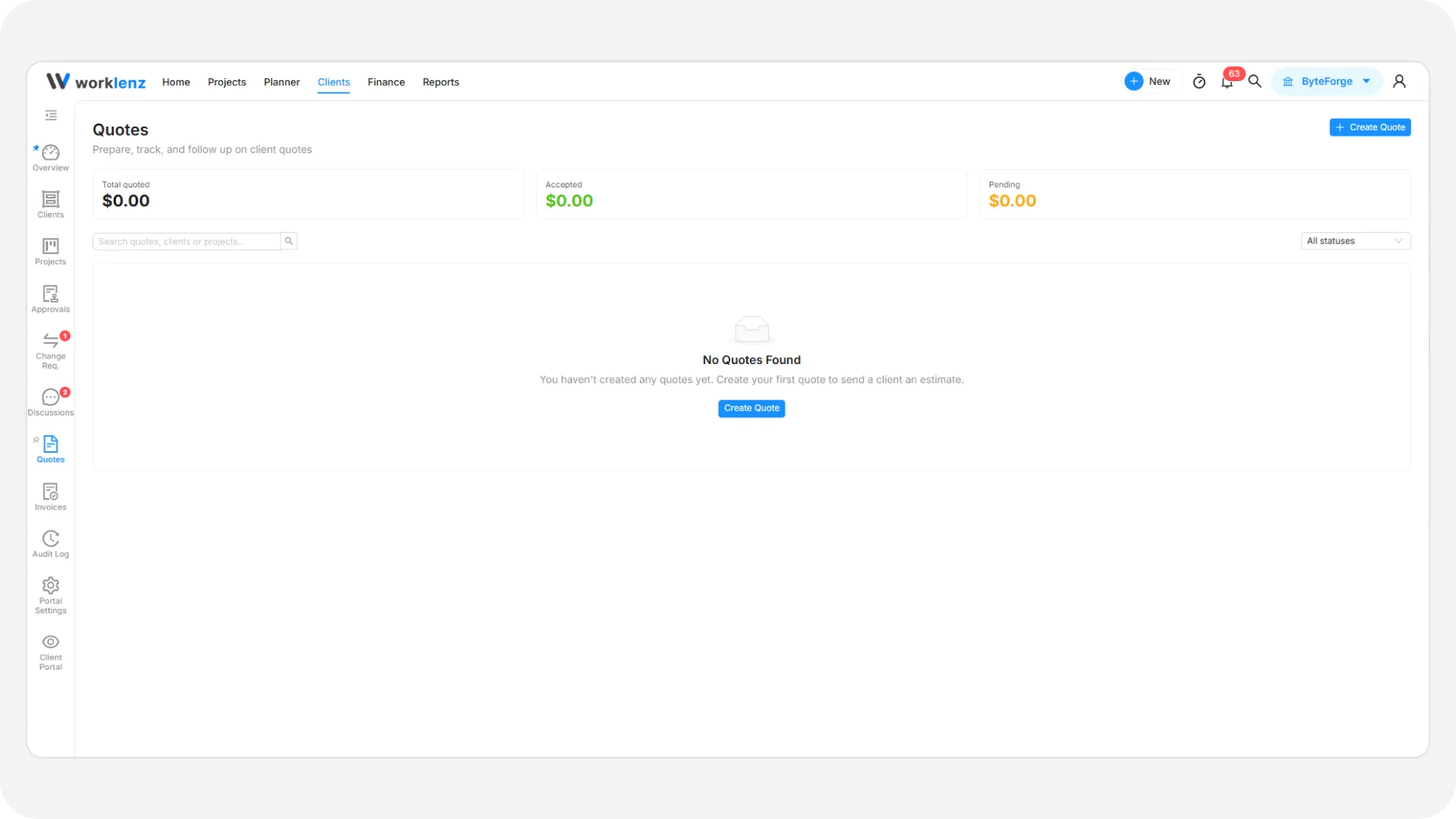
No. Clients have no quotes page. A quote is a document you create, download as a PDF and send through your own channel.
How do I create a quote?
- Open Quotes and select Create Quote.
- Pick the Client. Opening it from a change request fixes the client.
- Enter a Project / Description (up to 255 characters).
- Add Quote Items with Description, Qty and Rate. Select Add Item for more rows.
- Add Notes, a Currency, an optional Valid Until date, and any discount or tax.
- Select Save Draft, Preview, or Create & Download. The last one saves the quote as Sent and opens the PDF.
Quote statuses are Draft, Sent, Accepted, Declined and Expired. You change them by hand in the list. Nothing updates automatically, not even Expired. Duplicate Quote always creates a Draft.
How do I create an invoice?
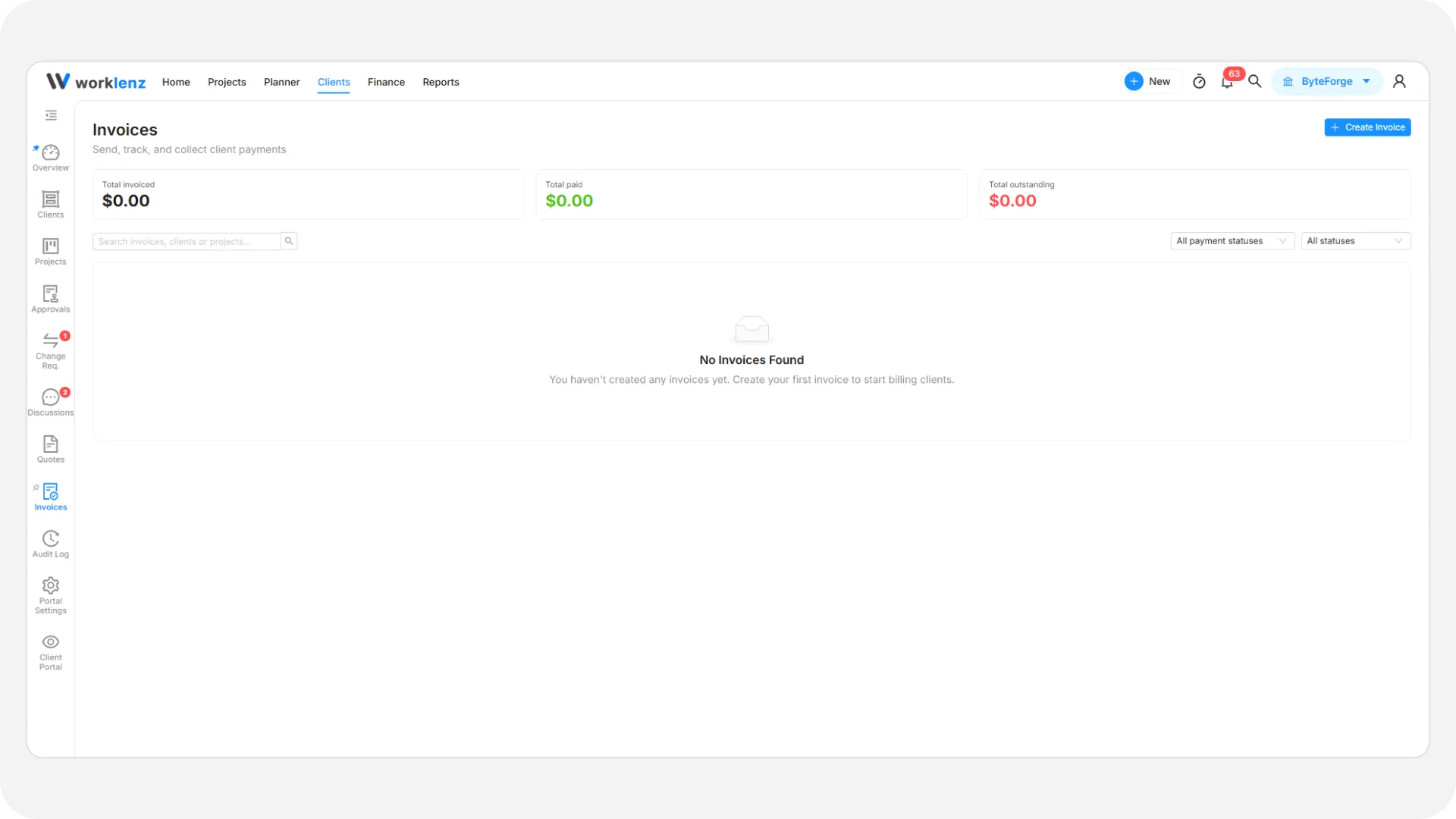
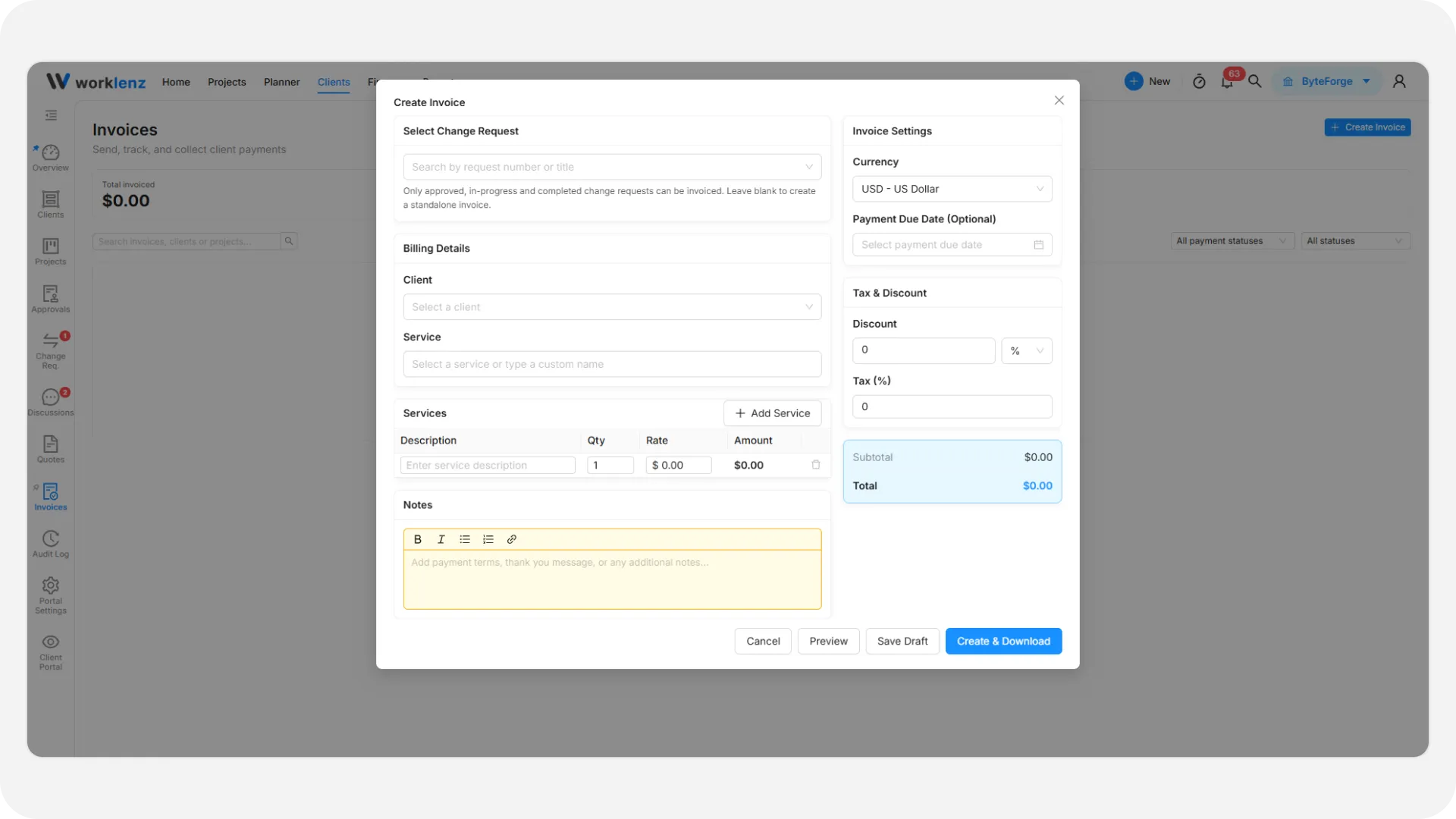
- Open Invoices and select Create Invoice. From a client’s workspace, use Billing > Create invoice.
- Choose the Client and enter the Service (up to 255 characters).
- Add line items, notes, Currency and a Payment Due Date (optional).
- Set any discount and tax. The discount applies before tax.
- Select Save Draft, Preview, or Create & Download, which saves it as Sent and opens the PDF.
Both documents need 1 to 100 line items and a total above zero. Descriptions can be up to 1000 characters and notes up to 5000. To bill a change request, link it when creating. It must be Approved, In Progress or Completed, and one request can have several invoices. See change requests.
Company name, address and contact details on the PDF come from the Company Details section of portal settings.
What are the two invoice statuses?
An invoice carries two independent statuses.
| Type | Values |
|---|---|
| Status (the document) | Draft, Sent, Pending, Overdue, Cancelled |
| Payment Status | Unpaid, Partially Paid, Paid |
Overdue is worked out for you: the due date has passed, the invoice is not paid, and it is not a Draft or Cancelled. To send a draft, open it and select Send Invoice.
How do I record a payment?
When a client pays you by bank transfer or another route, record it yourself.
- Open the invoice and select Record Payment (or change Payment Status in the list).
- Choose Paid or Partially Paid and enter the Paid Amount.
- Optionally attach a Payment Proof file (image or PDF, up to 10 MB).
- Confirm. You see “[number] payment recorded.”
A payment that covers the full amount becomes Paid, and the client is notified. Paid invoices cannot be edited. You can delete an invoice only while its payment status is Unpaid. Duplicate Invoice makes a Draft with no due date.
How do clients see invoices?
Clients see an Invoices page only if you turn on Show Invoices in the client portal under Sharing & Visibility in portal settings. It is off by default. Without it the page and its link do not exist for clients.
When it is on, any client role can list, open and download invoices as a PDF. The list shows Invoice #, Service, Amount, Status and Due Date.
On an invoice marked Sent, a Client Admin sees Submit Payment Proof. This is not online payment. The client uploads proof (images or PDF, up to 10 MB) and optional notes, and your team is notified. The invoice does not become paid. You confirm the payment with Record Payment. Members and Viewers should not use this button.
Create, edit, delete and send stay staff-only. If no user at a client has signed in yet, the Billing tab warns you that they cannot see invoices. You can still create them.
Best practices
- Put payment instructions in the invoice notes, because Worklenz does not take card payments.
- Record payments yourself with Record Payment, because a client’s Submit Payment Proof does not mark the invoice as paid.
- Keep invoices as drafts until the figures are final, because Paid invoices cannot be edited and you can delete an invoice only while it is Unpaid.
- Send the quote yourself as a PDF, because clients have no quotes page.
- Complete Company Details in portal settings first, because they appear on the PDF.
- Update quote statuses by hand, because nothing updates automatically, not even Expired.