

Client Sign-In and Security in the Client Portal
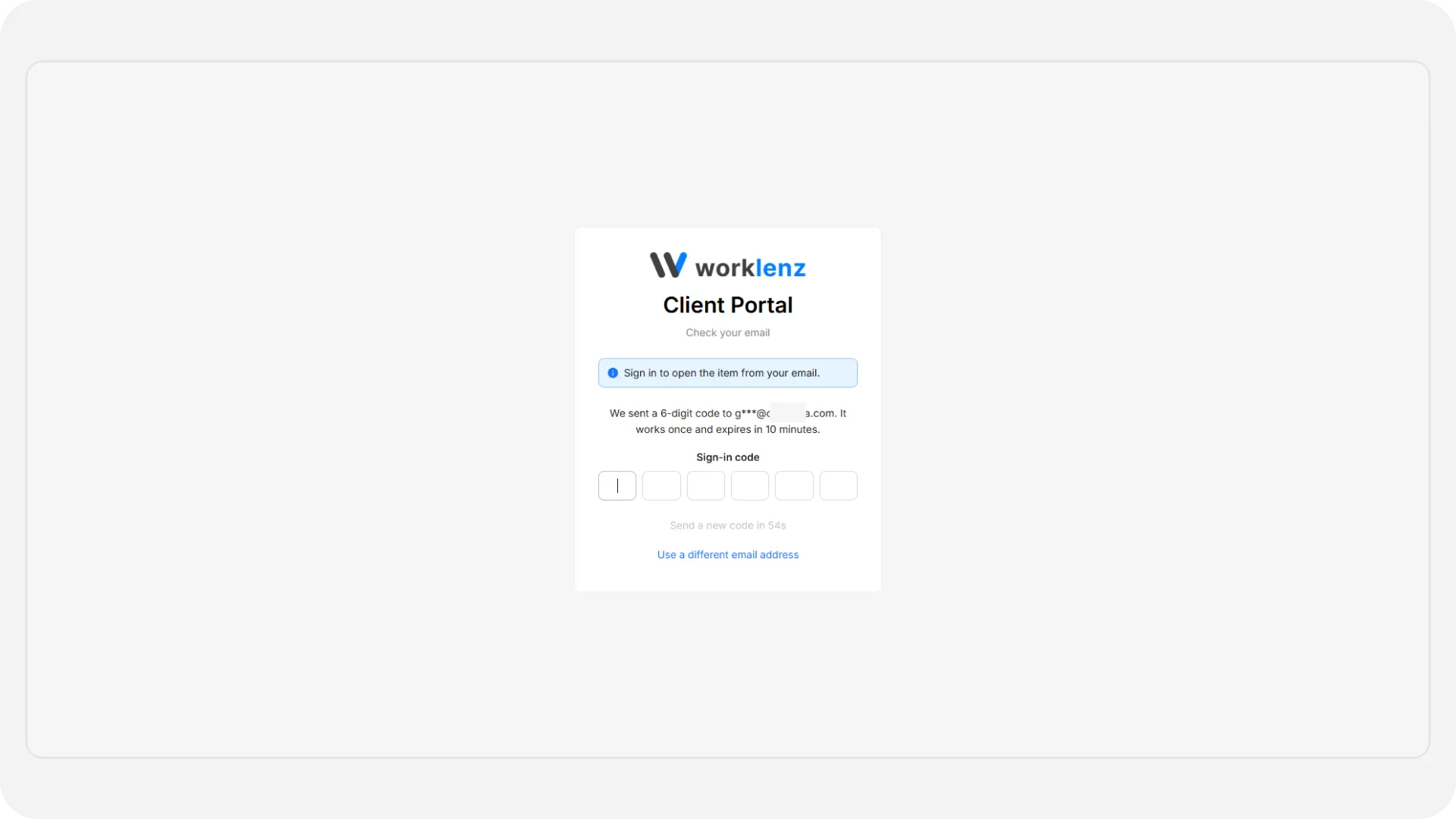
Clients do not have passwords. They enter their email address, receive a 6-digit code and type it in. This page explains how that works, which safeguards protect your clients’ data, and what you can do as an Owner or Admin when someone is locked out.
At a glance
| What it is | Passwordless sign-in for client users, using a one-time code by email |
| Where to manage | Clients in the top navbar, then Client Users (or a client’s Users & Access tab) |
| Who can manage | Workspace Owners and Admins |
| Plan | Client Portal needs Pro or Business. See plans and permissions |
The How clients sign in card in portal settings is read-only. There is nothing to configure because every client signs in the same way.
How does a client sign in?
- The client opens the invitation link or the portal sign-in page.
- They enter their email address and select Send me a code.
- A 6-digit code arrives by email. They enter it and are signed in.
Only addresses your team added, or that an allowed Client Admin invited, can receive a code. Anyone else gets the same confirmation message, so the portal never reveals whether an address belongs to a client.
What keeps it safe?
| Safeguard | How it works |
|---|---|
| No passwords | Nothing to reuse, guess or leak |
| Code lifetime | Each code works once and expires after 10 minutes |
| Wrong guesses | After 5 wrong tries the code is cancelled and the client must request a new one |
| Resend delay | A new code can be requested after about 60 seconds. Too many requests means waiting a few minutes |
| Invitation links | Valid for 7 days. Sending a new link replaces earlier ones |
| Sessions | A signed-in session lasts roughly a day |
| Access checks | Access is re-checked on every action, not just at sign-in |
Because access is checked every time, removing a client has an immediate effect. If you deactivate a user, remove them, change their role, or take a project away, their next click fails. They see Your access has been removed with a Back to sign in button. Nothing waits for them to sign out first.
Switching a project’s portal off works the same way. Clients lose sight of the project at once, and nothing is deleted. You can turn it back on later.
Can one person belong to several portals?
Yes. A consultant who works with two agencies, both using Worklenz, has one email address and two portals. They use the portal switcher in the top bar to move between them. Each portal shows only its own team’s projects, and a role in one portal does not carry over to the other.
What happens when a client deletes their account?
Clients can delete their own account from Settings > Delete Account. The account is deactivated right away. Their data is permanently deleted within 30 days, and during that window they can ask support to restore it. Past comments and approvals stay in the history under their name.
The portal blocks deletion in two cases:
- The person is the only Client Admin of an organization. Make someone else a Client Admin first.
- The person is the only named approver on an approval. Reassign the approval first.
What can I do when a client cannot sign in?
Start with the client’s status in Client Users. It tells you most of what you need.
| Status | What it means | What to do |
|---|---|---|
| Invited | They have not signed in yet | Use Resend invitation. Look for flags like “Invite expired” or “Asked for a new link” |
| Active | They can sign in | Check that the email they use matches the one on file |
| Deactivated | You or a colleague turned their access off | Use Reactivate user. Their previous status returns |
Other tools in the row menu:
- Resend invitation emails a fresh link valid for 7 days. If the email cannot be sent, a Share the sign-in link window offers Copy link so you can send it another way.
- Create sign-in link makes a link for any user who is not deactivated. Opening it emails them a code.
- Edit user & role lets you correct the email address, but only until the person has signed in once. After that the address is locked.
For step-by-step help with specific problems, see troubleshooting and FAQ. To review who changed what, use the audit log. Client sign-ins themselves are not logged there.
Best practices
- Keep at least two Client Admins per client, because the last one cannot be demoted, deactivated or removed without confirming a warning, and no approval can be sent without one.
- Check the client’s status in Client Users first when someone cannot sign in, because it tells you whether to resend, reactivate or check the email.
- Use Create sign-in link when an invitation email does not arrive, because you can share it through another channel.
- Fix a wrong email address before the person first signs in, because the address locks after that.
- Deactivate rather than remove when a person might return, because reactivating brings back their previous status.