

Client Portal Discussions - Threads, Mentions, Files
Discussions are conversations between your team and your clients, attached to the project, task, file or approval they are about. Each context gets one thread, so the history stays next to the work. Internal comments sit beside client messages but are never sent to the portal.
At a glance
| What it is | Threaded conversations tied to a project, task, file, approval or change request |
| Where to find it | Staff: Clients in the top navbar > Discussions, or a project’s Discussions tab. Client: Discussions in the left rail |
| Who can use it | Staff: Owners and Admins. Clients: Admin and Member can post, Viewers can only read |
| Plan | Pro or Business |
How do I start a discussion?
- Open Discussions and select the + button labelled New discussion.
- Choose the Project. Only projects with the portal on are listed.
- Under About, pick The project in general, a Task, a File or an Approval. Only Client Visible tasks and files, and approvals the client can see, can host a client-visible discussion.
- Optionally use Notify to pick who is notified. Everyone on the project can still read the thread. Only the people you choose are notified.
- Write the First message and select Start discussion.
You can also start from a client’s row with Message. A client with no projects yet shows a prompt to assign one first.
How do I reply, and what stays private?
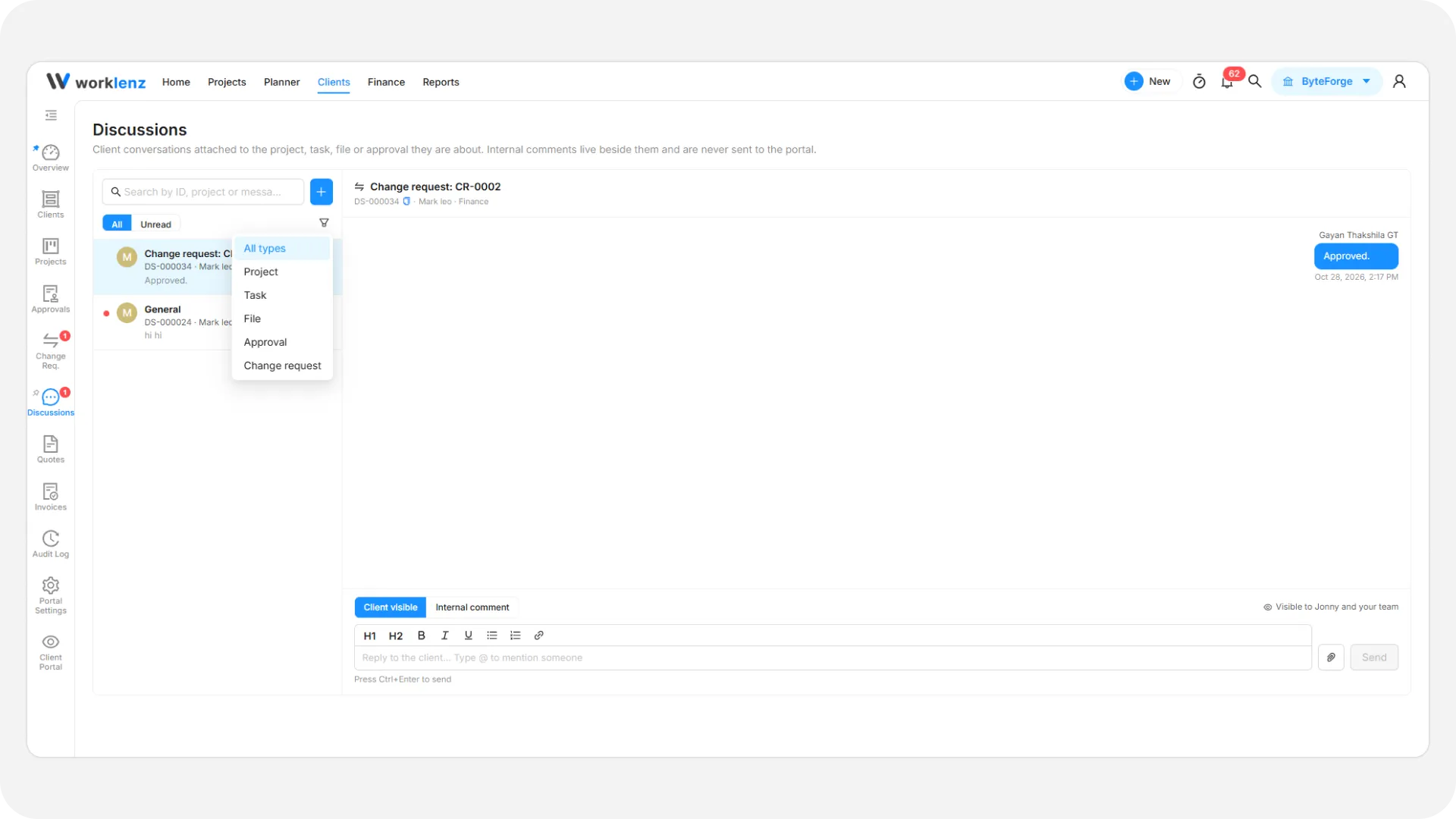
In a thread the composer has a toggle: Client visible or Internal comment. A line under the box tells you who will see the message, for example “Only your team can see this”. Press Ctrl+Enter to send. Messages support bold, italic, underline, headings, lists and links.
- Client-visible messages go to the client users on the project.
- Internal comments are saved with “The client cannot see it.” and never leave your team.
If the linked task or file is Internal Only, the thread shows a Hidden tag, and posting a client-visible message is refused. Post an internal comment or share the item first. Making the item Client Visible again restores the thread for the client.
How do mentions work?
Type @ in the editor. In a client-visible reply it suggests active client users on the project. In an internal comment it suggests team members. The two lists are never mixed, so an internal comment cannot mention a client and a client-visible message cannot mention a team member. Mentioning narrows who is notified. It does not hide the thread from others on the project.
What are the attachment limits?
You can attach up to 5 files per message, each up to 100 MB. A message can be files only. Messages are capped at 4000 characters in the editor.
Attached files go into the project’s Files tab. When you send a client-visible message, the attached version is shared with the client and logged as made Client Visible. Files on an internal comment stay Internal Only.
Can clients post messages my team cannot see?
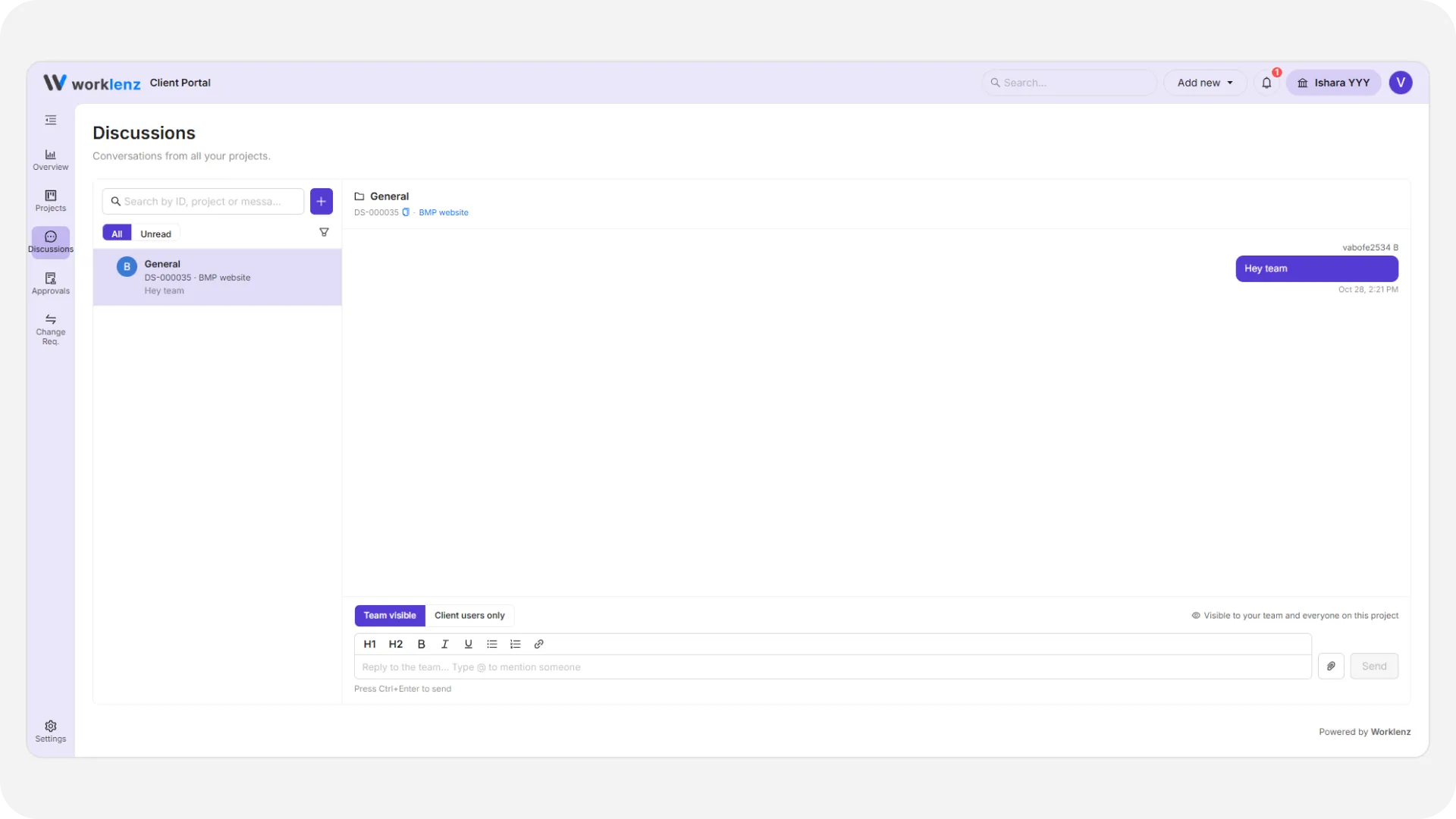
Yes. Client Admins and Members can send a reply marked Client users only, visible only to client Members and Admins on that project. Your team cannot see it and unread counts ignore it. Preview as client shows it tagged “Client users only”. Clients cannot attach files to these messages.
What can I edit or delete?
Staff cannot edit or delete a message after posting it. Clients can edit and delete their own messages, except in change request threads. A deleted message leaves a note, “This message was deleted”. Opening a thread marks it read for you only.
What does the client see?
Clients see threads for items shared with them. Unread threads show a badge in the left rail and a dot on the project’s Discussions tab. They can filter by All or Unread and by type: Project, Task, File, Approval or Change request. The client portal tour shows the client’s view, and preview as client lets you check it yourself.
Best practices
- Check the toggle before you send, because Client visible goes to client users and Internal comment never leaves your team.
- Share the task or file first if you want the client in the thread, because posting a client-visible message on an Internal Only item is refused.
- Use Notify to pick who is alerted, because everyone on the project can read the thread but only the people you choose are notified.
- Proofread before posting, because staff cannot edit or delete a message after it is posted.
- Remember that attaching a file to a client-visible message shares it, because the attached version is logged as made Client Visible.