

Client Portal Approvals - Request and Record Sign-Off
An approval is a formal request for a client to sign off on something: a design file, a milestone, a task, or a free-form item you describe. Worklenz records exactly which version was sent and every decision made, so you keep a clear trail of who agreed to what and when.
At a glance
| What it is | A tracked sign-off request sent to named client approvers |
| Where to find it | Staff: Clients in the top navbar > Approvals. Client: Approvals in the left rail |
| Who can use it | Staff: Owners and Admins. Client: only a named approver who is a Client Admin can decide |
| Plan | Pro or Business. See plans and permissions |
How do I create an approval?
- Open Approvals and select Request Approval. You can also use Request approval from a client’s workspace.
- Choose the Project. Only projects that have a client and have the portal switched on appear. If the list is empty, turn the portal on in Portal Projects first. See share projects with clients.
- Enter What is being approved. This is the title, up to 200 characters, such as “Approve homepage wireframe v3”.
- Pick the Linked item. Choose Existing item (a file, milestone or task) or Free-form item.
- Pick one or more Approvers from the client’s active users.
- Add Instructions (what the client should check) and, if you like, a Due date (optional).
- Select Save draft or Send for approval.
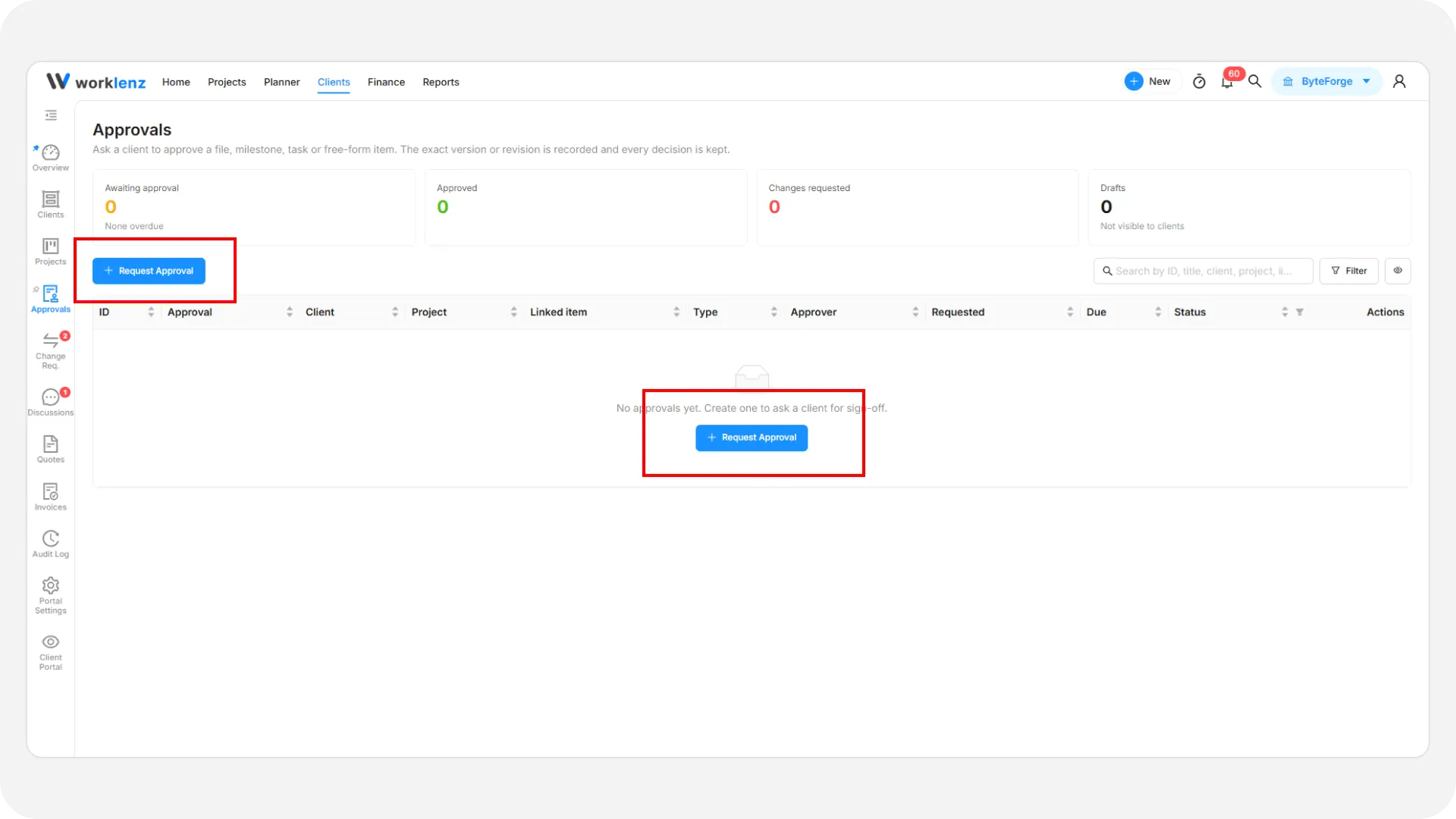
Send for approval stays disabled until the project, title, linked item and at least one approver are set.
Linked items must be Client Visible. Internal Only items do not appear in the picker, so share them first. For a file, the exact current version is recorded. A free-form item has no record behind it: the name (up to 200 characters) and description (up to 2000) are exactly what the client sees and approves.
What do the statuses mean?
| Status | Meaning |
|---|---|
| Draft | Saved but invisible to the client. Can be edited or deleted |
| Awaiting Approval | Sent. Named approvers are notified. It turns overdue after the due date |
| Approved | A named Client Admin approved this revision |
| Changes Requested | An approver asked for changes, usually with a comment |
| Cancelled | Withdrawn by your team. History is kept |
The first decision settles the request, even if several approvers were named.
How do I send, edit, cancel or delete?
- Send to client - open a draft and select it. Approvers are notified in the portal, and by email only if that notification is on in portal settings.
- Edit - available for Draft and Awaiting requests. You can change the title, instructions, due date and approvers. You cannot change the project or linked item. To approve something else, cancel and create a new request.
- Delete - Draft or Awaiting only, and permanent. Once the client has reacted, cancel instead.
- Cancel request - withdraws the request and removes it from the client’s pending list. History is kept. Drafts cannot be cancelled; delete them. The simplest time to cancel is while a request is Awaiting Approval.
How do I resubmit after changes?
Open the approval and select Resubmit as new revision (after Changes Requested) or Request re-approval (new revision) (after Approved). This creates the next revision, sets the status back to Awaiting Approval and notifies the approvers. The earlier decision stays on its own revision in the history. A file link refreshes to its current version. For a free-form item you are asked for a new Description for the client.
If a file moved on after sending, the detail view says so, and the approval still points at the version that was sent. Request a new revision to cover the newer one.
What does the client do?
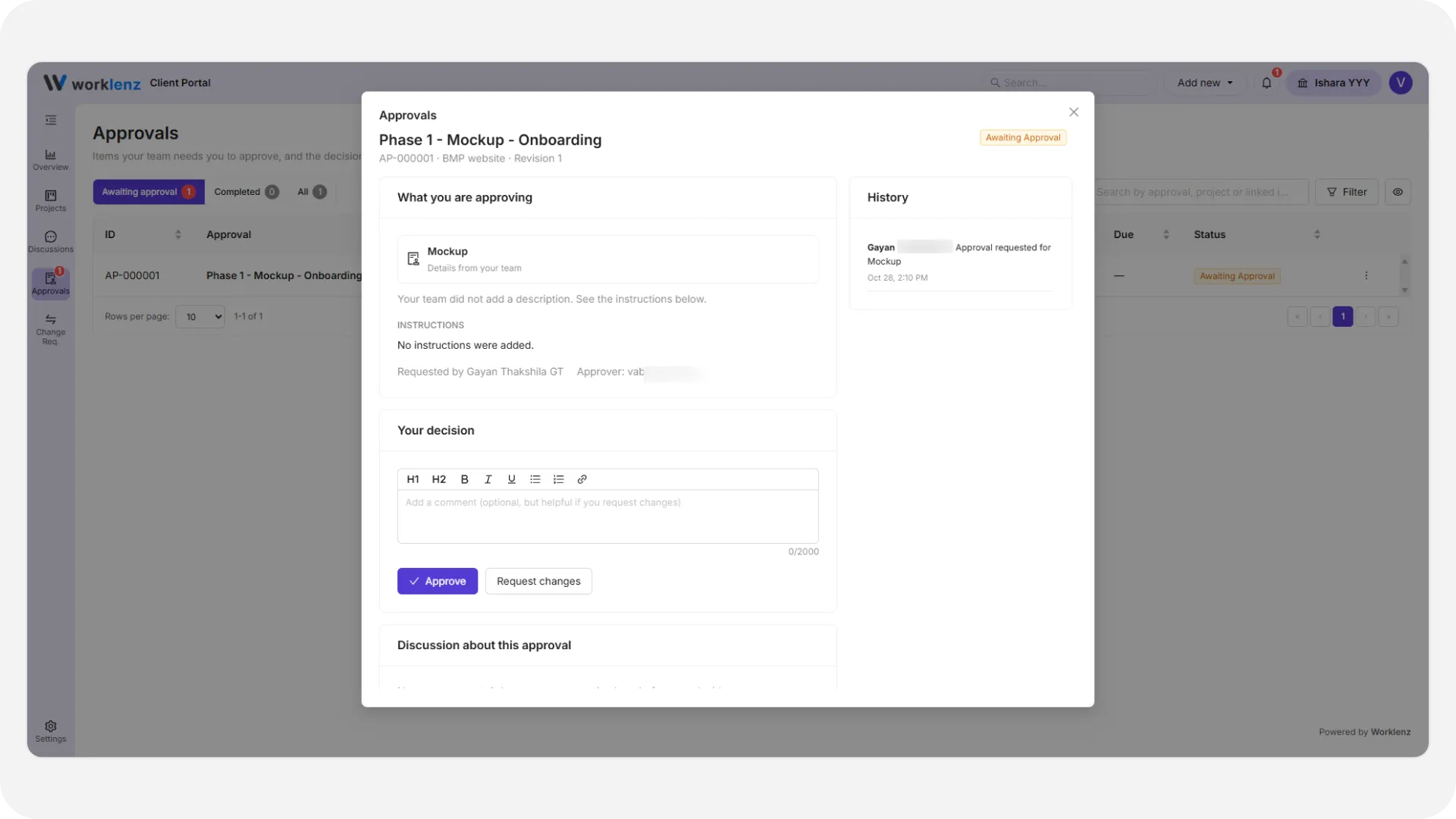
Clients see only non-draft approvals, under Awaiting approval, Completed or All. In a request they read what is being approved, open the file or item, and read your instructions.
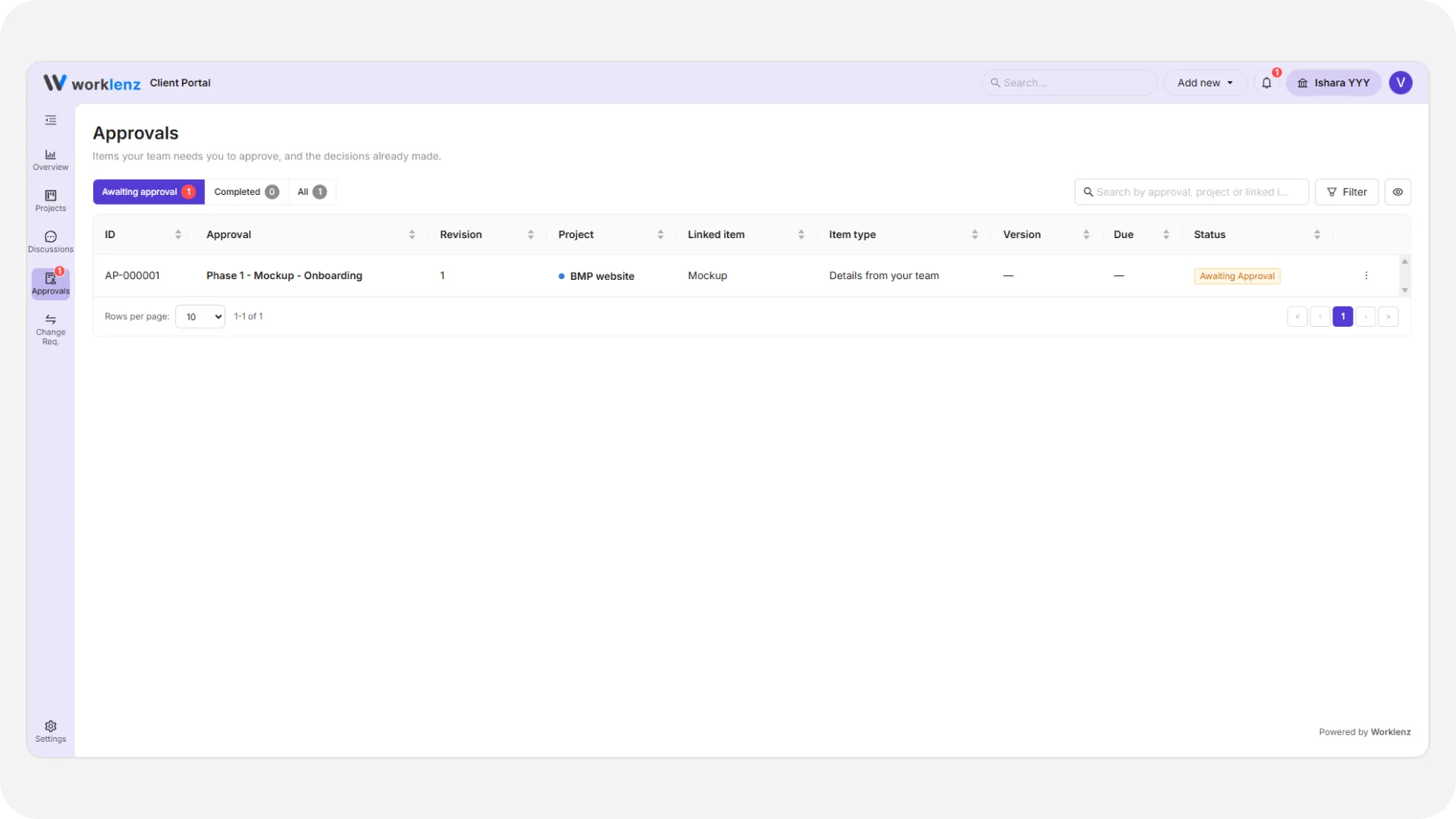
A Client Admin who is a named approver chooses:
- Approve, or
- Request changes, with an optional Decision comment of up to 2000 characters. If they leave it empty the portal nudges them once, then the button becomes Request changes without a comment.
A decision is final. Changing it needs a new revision from you. Members and Viewers can read approvals but not decide, and an Admin who was not named sees “Only [name] was asked to decide this approval.” When a decision arrives, your team is notified and an audit entry is written.
Things to know
- If the only named approver is removed or deactivated, Worklenz warns you and adds a history line asking you to name a new approver.
- Sending to someone who is not a Client Admin works, but they cannot decide. Name a Client Admin.
Best practices
- Name a Client Admin as approver, because Members and Viewers can read an approval but cannot decide it.
- Save a draft and review it before you send, because a draft is invisible to the client and can still be edited or deleted.
- Cancel a request while it is Awaiting Approval if it was sent in error, because once the client has reacted you can no longer delete it.
- Write clear instructions and a due date, because the first decision settles the request and a decision is final.
- Request a new revision when a file changes after sending, because the approval still points at the version that was sent.